

- Account owner: Has access to everything and is the only one who can access Memberful billing, manage the Stripe connection, or close the account. Their permissions can’t be changed.
- Staff member: Has their own login and can use only the sections of the Memberful dashboard you choose. Can update their name, avatar, email address, password, and email notifications, and see their access.
- Unrestricted admin: A staff member with access to everything except Memberful billing, the Stripe connection, and closing the account. Only the account owner and unrestricted admins can invite staff, resend or delete invitations, change permissions, remove staff, and send password reset emails.
Invite a staff member
1
Open staff settings
Go to Settings → Staff, then click Invite staff member.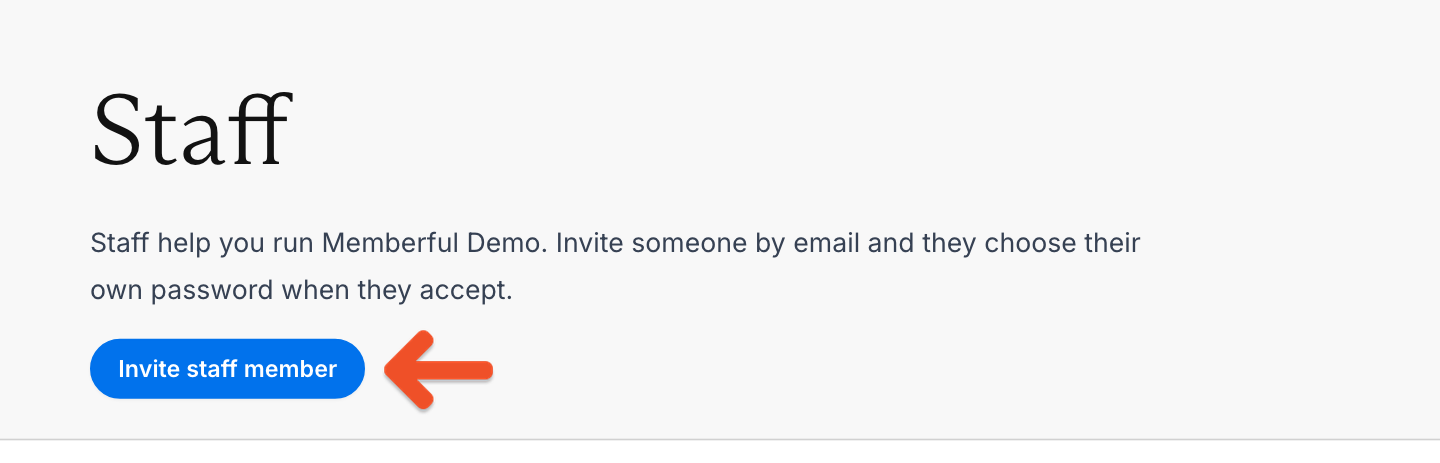
2
Enter the staff member's details
Enter the staff member’s email address. Their name is optional, and they can change it when they accept the invitation.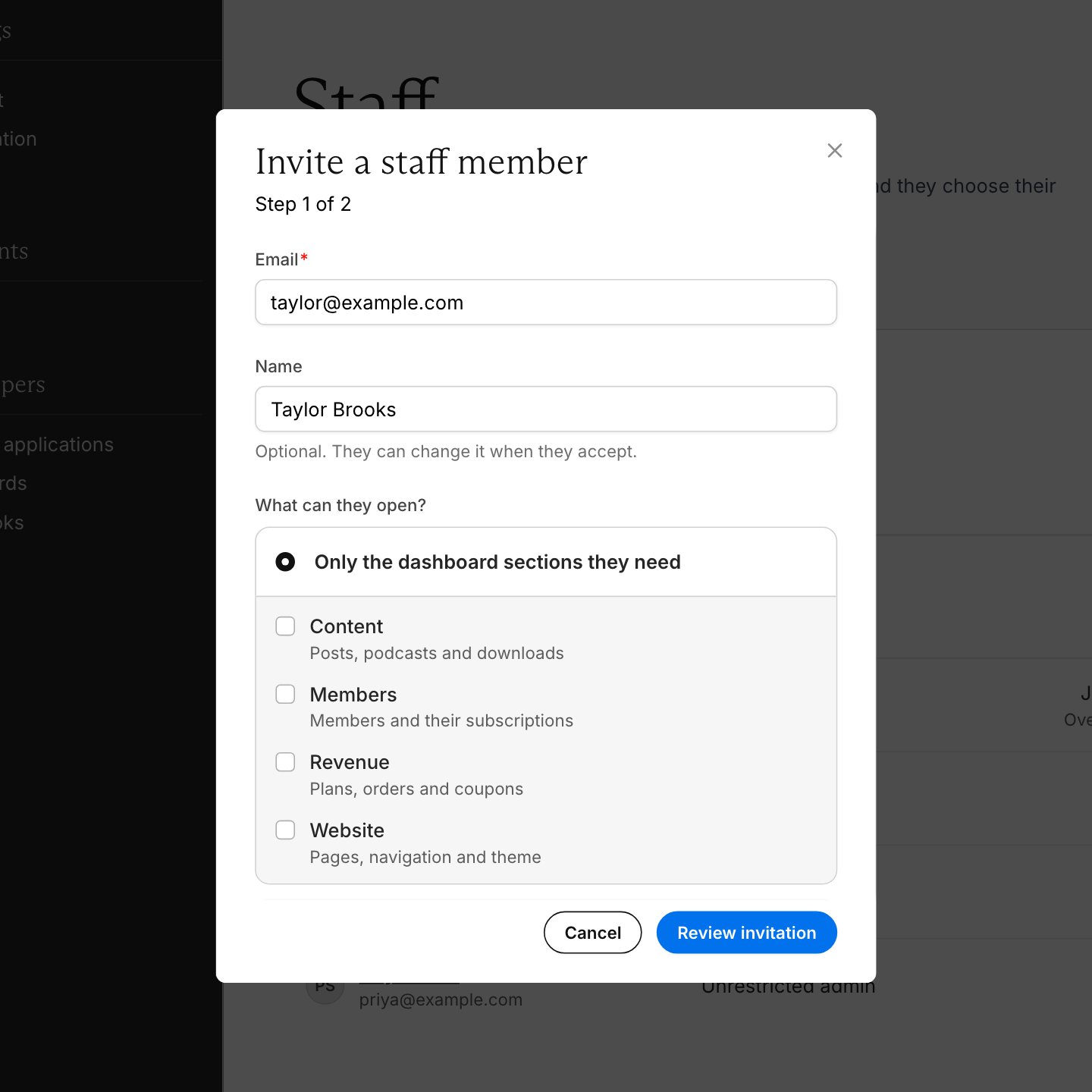
A staff account can’t use the same email address as an existing Memberful member. Invite the staff member with a different email address, or edit the member’s profile and change the member’s email address first. If the staff member uses Gmail, they can add a ”+” to their address to create a separate one, such as jamie+staff@gmail.com.
3
Choose staff permissions
Under What can they open?, choose one of these options:
- Only the dashboard sections they need: Choose which areas they can use:
- Content: Posts, podcasts, and downloads.
- Members: Members and their subscriptions.
- Revenue: Plans, orders, and coupons.
- Website: Pages, navigation, and theme.
- Unrestricted admin: Give them access to everything except Memberful billing, the Stripe connection, and closing the account, including settings, staff, integrations, and taxes.
4
Review the invitation
Click Review invitation and check the details. To make changes, click Back. Your entries are kept.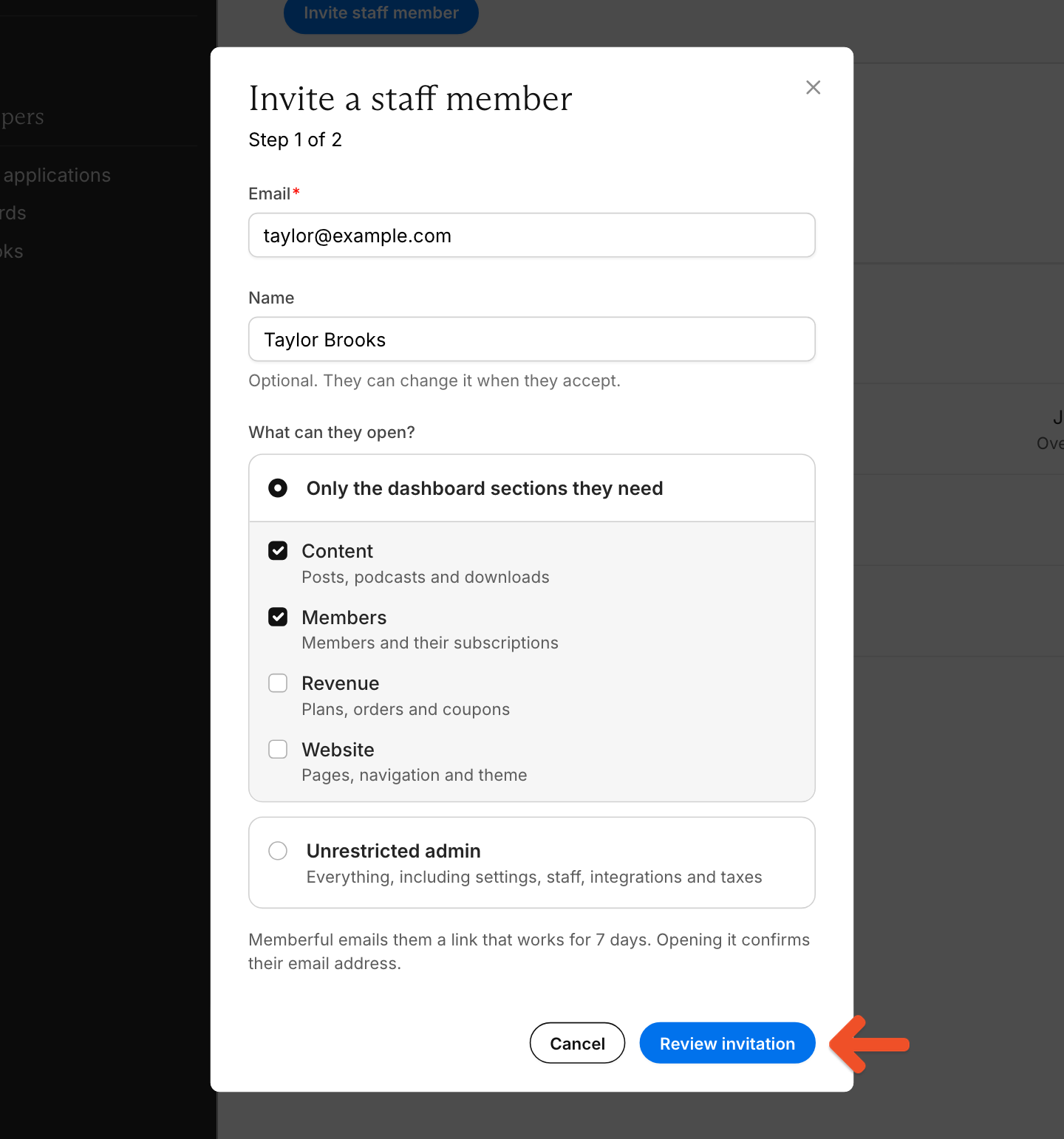
5
Send the invitation
Click Send invitation.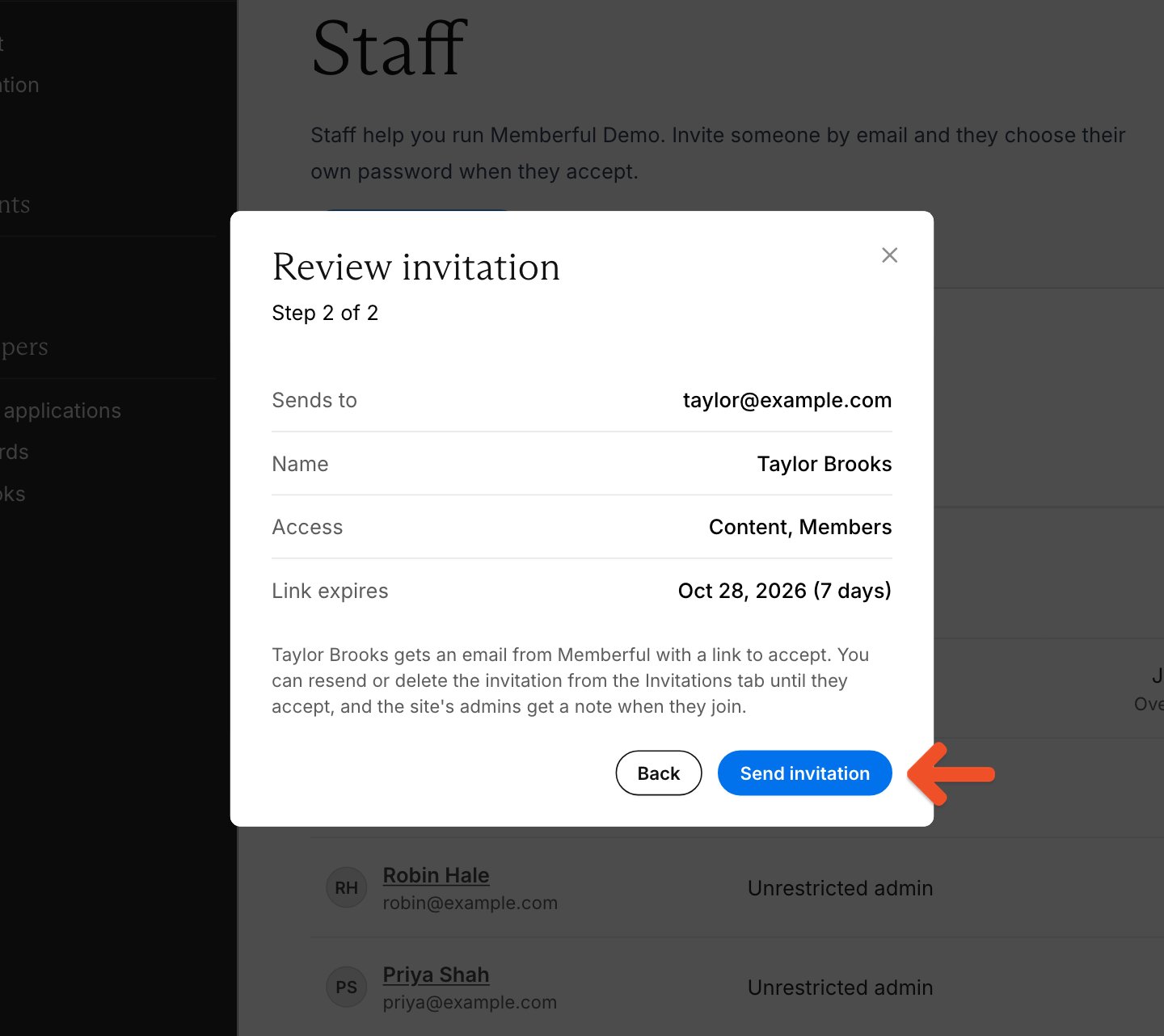
Manage staff invitations
Go to Settings → Staff and click Invitations to view pending invitations. Only the account owner and unrestricted admins can see them. To resend or delete an invitation, click the ⋯ menu on its row, then select Resend invitation or Delete invitation.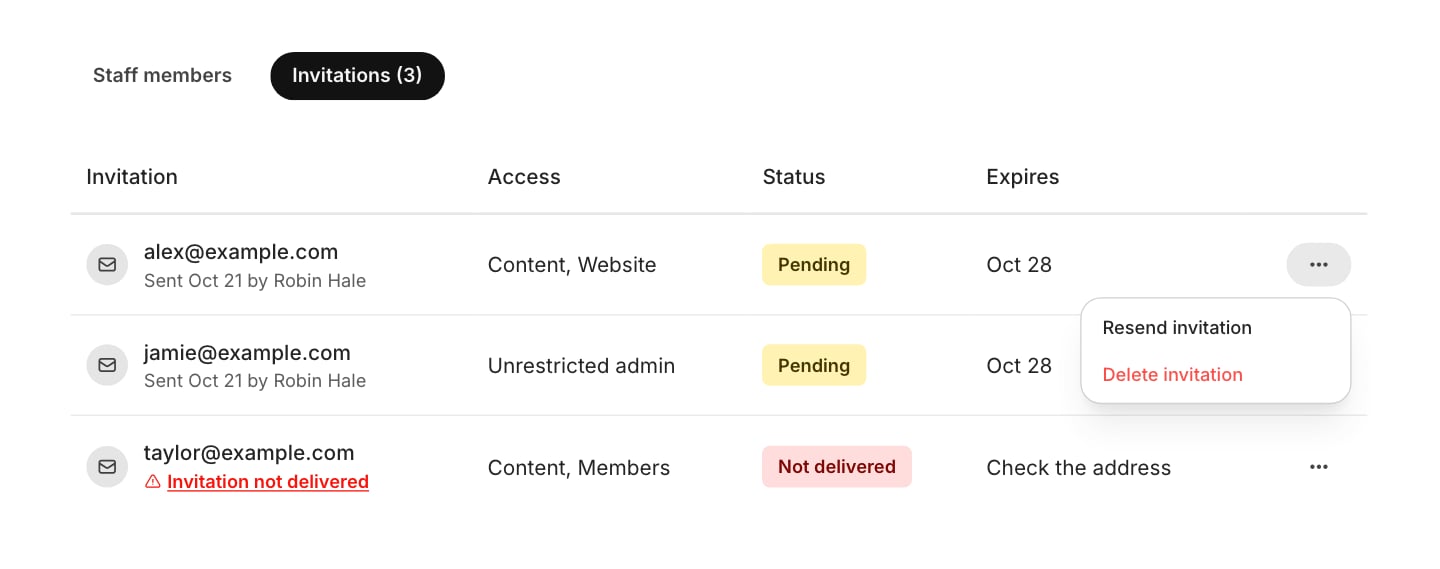
Manage staff members
Change a staff member’s permissions
Only the account owner and unrestricted admins can update staff permissions. You can’t change your own permissions or the account owner’s. If your permissions need updating, ask the account owner or another unrestricted admin.1
Open the staff member's page
Go to Settings → Staff, then click the staff member’s name. Clicking your own name opens your account settings.
2
Set their permissions
Under What [name] can open, select Only the dashboard sections they need and choose their sections, or select Unrestricted admin.
3
Save your changes
Click Save changes.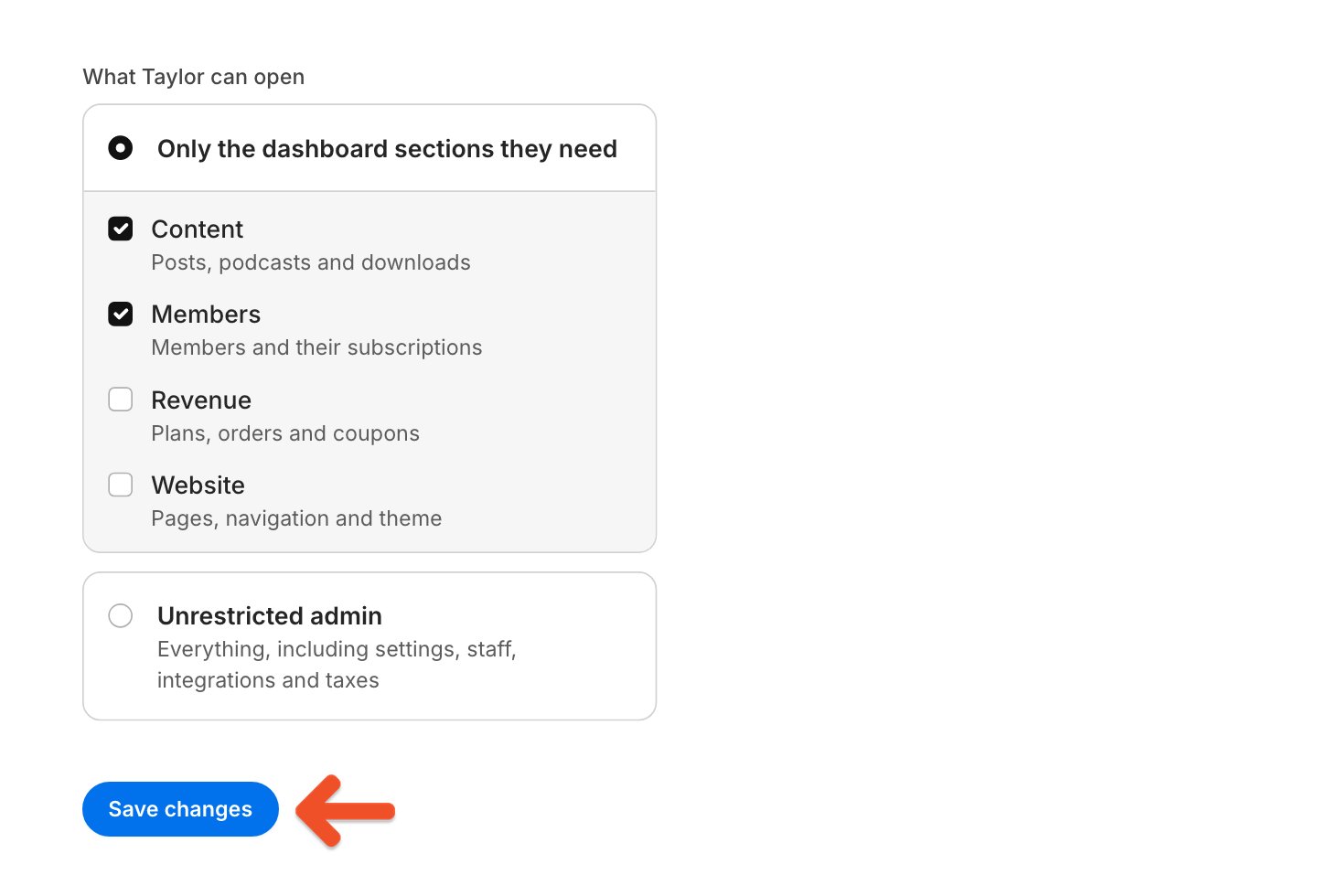
Change a staff member’s email address
The account owner and unrestricted admins can change another staff member’s email address when:- your organization uses single sign-on
- the address hasn’t been verified
- email to the address isn’t delivering
Remove a staff member
1
Open the staff member's page
Go to Settings → Staff, then click the staff member’s name.
2
Remove them from staff
Under Remove from staff, click Remove [name].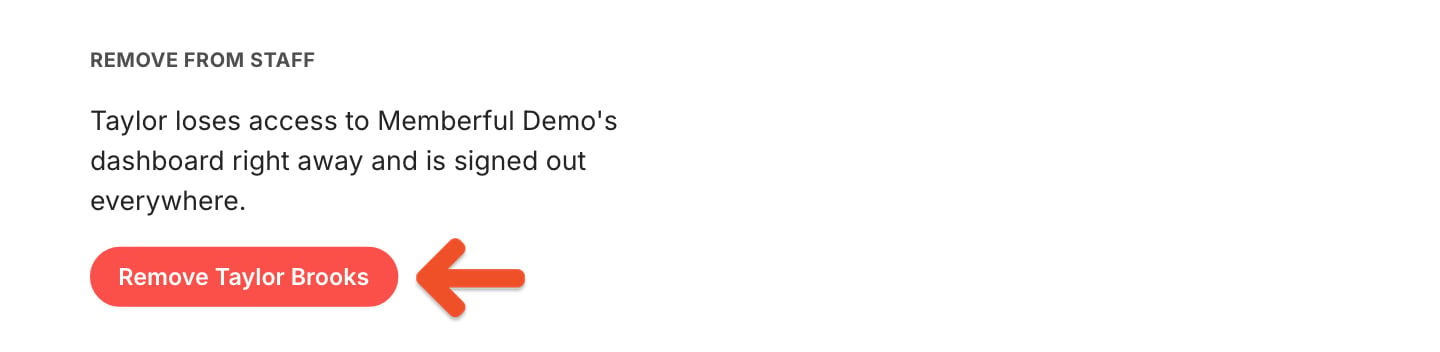
3
Confirm the removal
Click OK.
Reset a staff member’s password
If a staff member is locked out, you can send them an email to reset their password. They then choose a new password themselves.1
Open the staff member's page
Go to Settings → Staff, then click the staff member’s name.
2
Send the reset email
Click Send password reset email.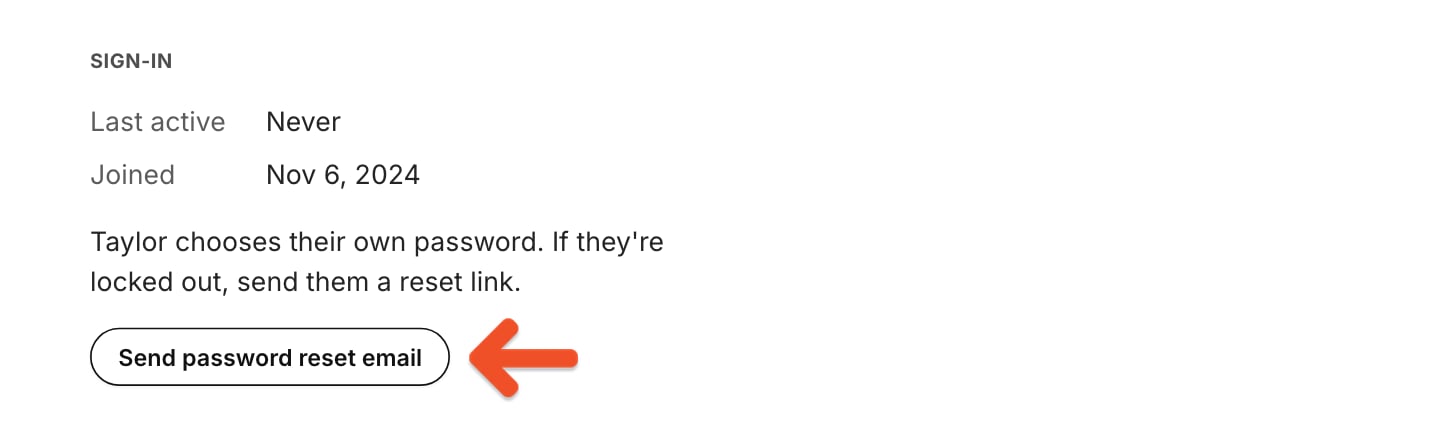
Troubleshoot staff invitations
If an invitation expired
Invitations expire after 7 days. The recipient can click Ask [name] for a new invitation on the expired invitation page. Memberful then emails the person who sent the invitation, or the account owner if there’s no sender. The account owner or an unrestricted admin can send the new invitation.1
Open staff invitations
Go to Settings → Staff and click Invitations.
2
Show expired invitations
Click Show next to Expired invitations.
3
Open the invitation menu
Click the ⋯ menu on the invitation’s row.
4
Send a new invitation
Click Send new invitation. The new invitation is valid for 7 days, and you become its sender.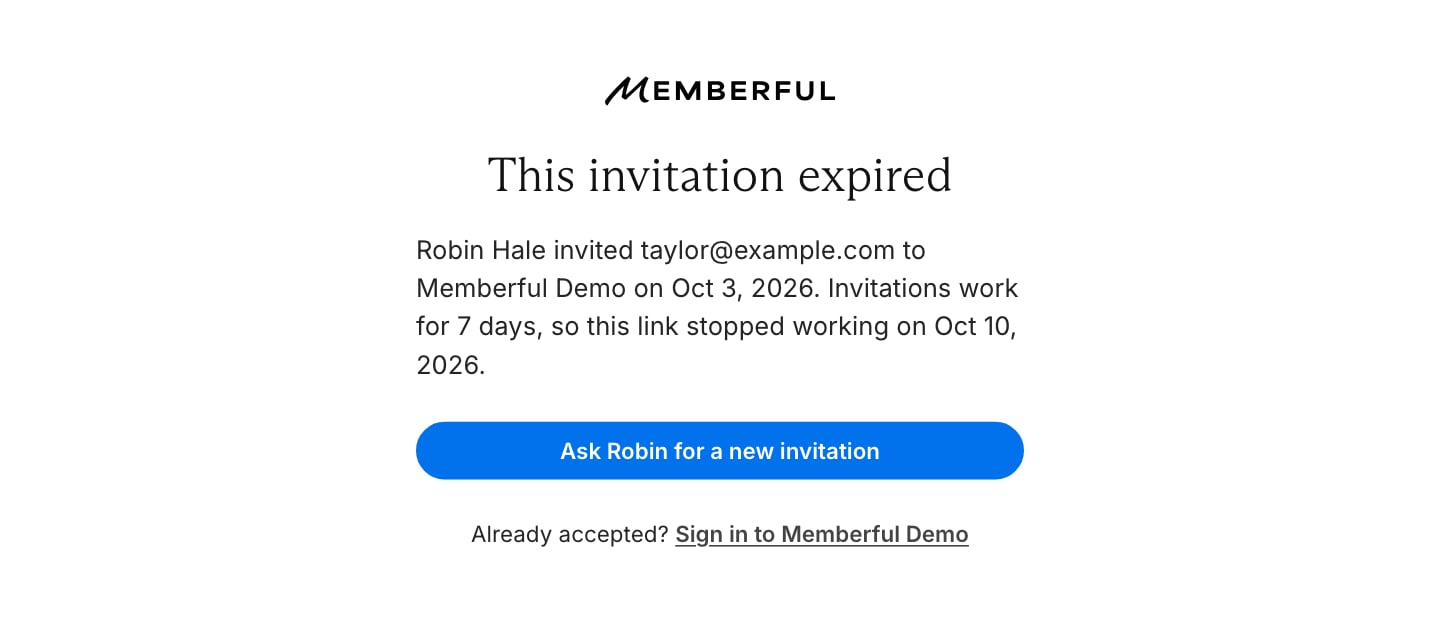
If an invitation wasn’t delivered
If an invitation hasn’t arrived, ask the recipient to check their spam folder, then resend the invitation. If Memberful can’t deliver an invitation, its status shows Not delivered. Click Invitation not delivered on the invitation and check the address. If another staff member already uses the new address, Memberful shows That address already belongs to a staff member. To change an email address, see Update your personal information. If an invitation expires before it’s accepted, the recipient can click Ask [name] for a new invitation on the expired invitation page. Memberful then emails the person who sent the invitation, or the account owner if there’s no sender. The account owner or an unrestricted admin can send the new invitation.- If the address is correct, click Yes, it’s correct, then .
- If the address is wrong, click No, it’s wrong, then click Delete invitation and invite the correct address.