Create an API key for Zapier
1
Open Custom applications
Go to Settings → Custom applications in your Memberful dashboard.
2
Create a custom application
Click Create Custom Application.
3
Name it and create the key
Enter a name and click Create Custom Application. Zapier uses this key to connect to your Memberful account.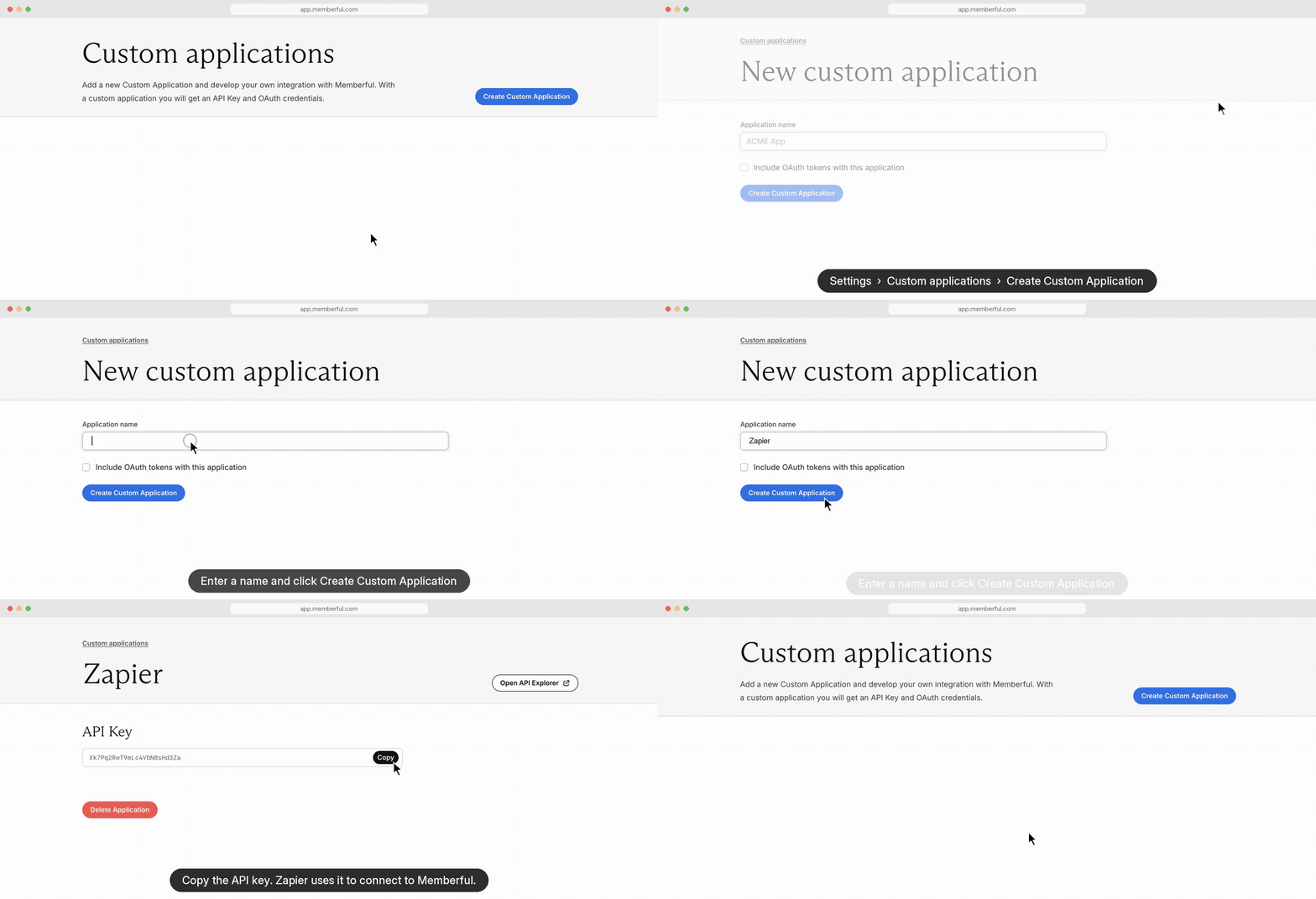
Create a Zap
1
Create a Zap
Go to Zapier and click create Zap.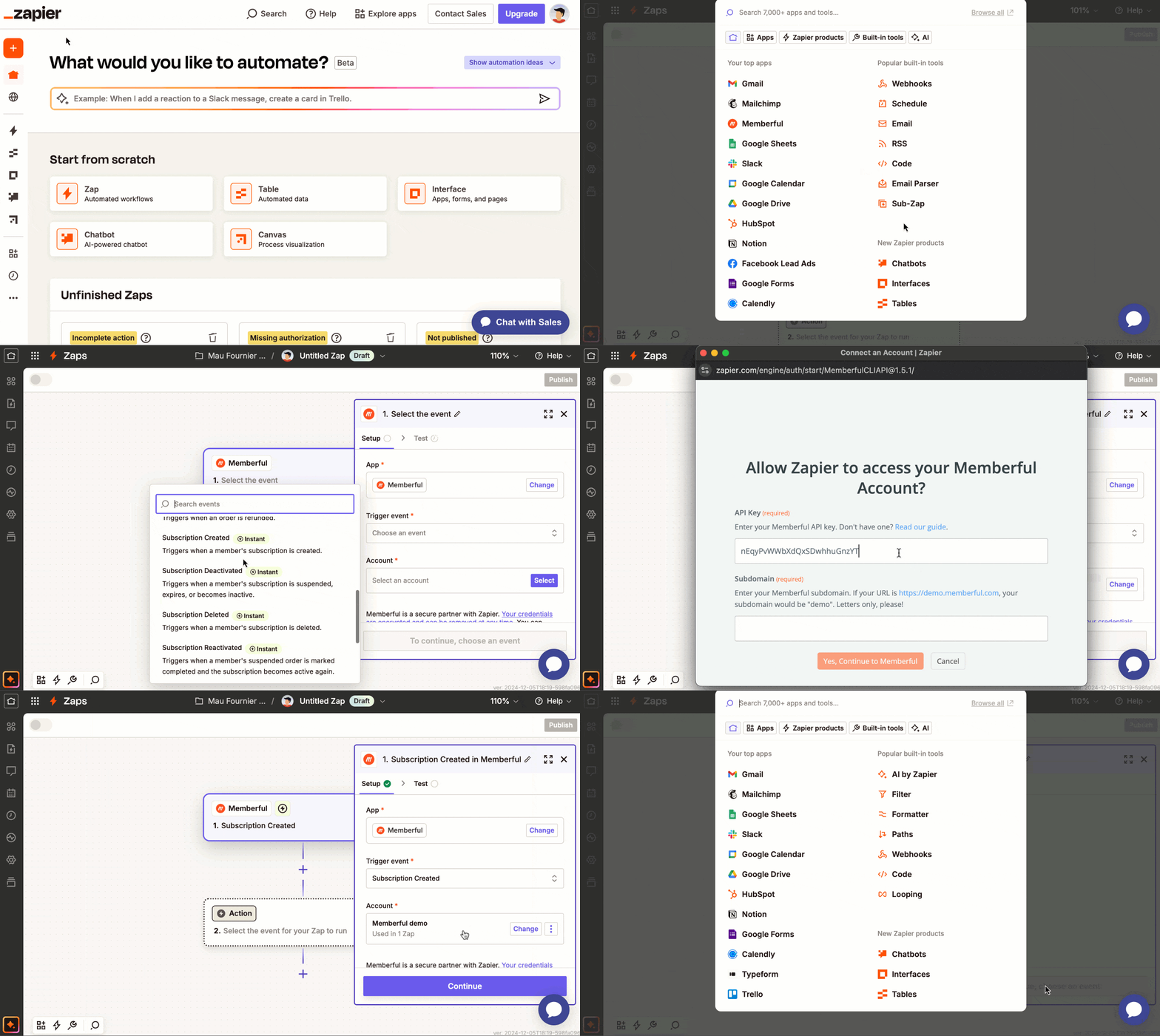
2
Add Memberful as the trigger
Enter Memberful in the main search box to add it as a trigger.
3
Select a trigger event
Select the event you’d like to trigger and click continue.
Connect to Memberful
If you don’t already have Zapier connected to Memberful, now is the time to do that.1
Connect a new account
Click connect a new account.
2
Enter your API key
Copy the API key you created earlier from your Memberful dashboard and paste it into the field.
3
Enter your account URL subdomain
Your Memberful account URL subdomain is the part of your Memberful account URL between 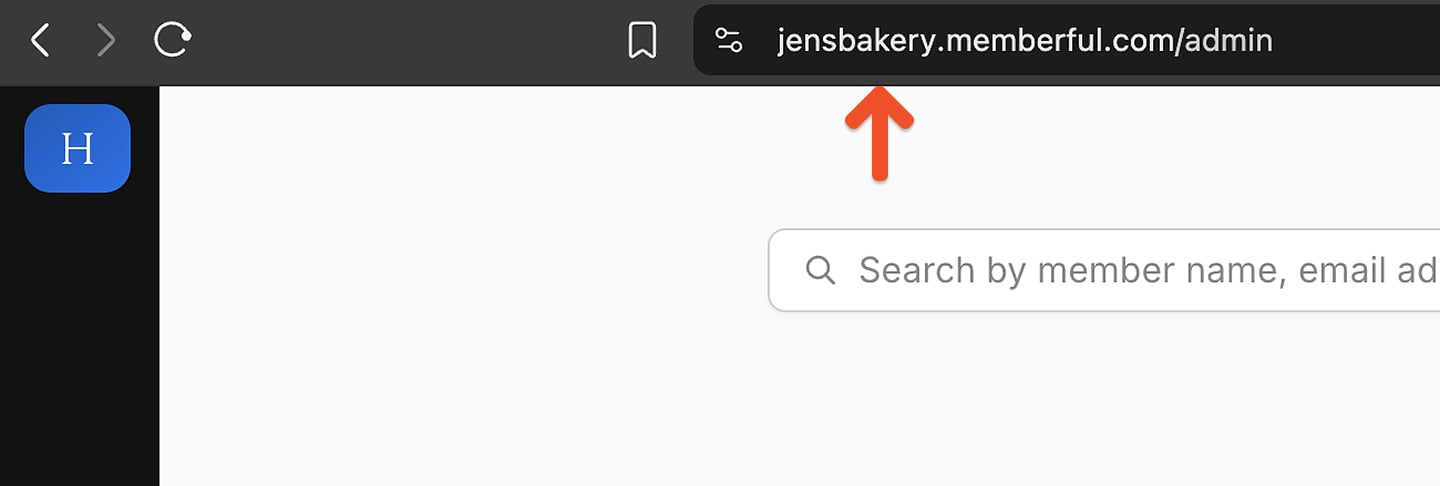
https:// and .memberful.com. For example, if your Memberful URL is https://jensbakery.memberful.com, enter only jensbakery. Don’t enter your full URL. If you include https:// or .memberful.com, Zapier can’t connect and may show an error such as getaddrinfo ENOTFOUND.4
Test your trigger
Click test and Zapier will do the rest.
Zapier’s test step uses sample data from Memberful, not your real members. Use the sample data to map your fields. Once your Zap is on, it runs with real data each time the event happens.
Learn about the available triggers
These are the Memberful events that can trigger a Zap:Triggers when a new member account is created. Use this trigger to add new members to your app or to a third-party service.
Triggers when a member’s profile information is updated. This will not be triggered when a member updates their answers to custom fields; there is a separate trigger for custom field updates. Use this trigger to update a member’s profile information in your app.
Triggers when a member is deleted from your Memberful account. Use this trigger to remove a member from your app if they were deleted from Memberful. It’s not common for a member account to be deleted — in most cases, you’ll want to react to Subscription Deactivated instead.
Triggers when a new subscription is added to a member’s account. This includes when a member purchases a subscription or activates a gifted subscription, when a member is added to a group subscription, and when a staff account manually creates a subscription. Use this trigger to let your app know when a member has subscribed.
Triggers when a member’s subscription renews. Use this trigger to renew the member’s access to your app. To run automations when a lapsed member comes back, use the Subscription Reactivated trigger.
Triggers when a member’s subscription is updated. To detect price changes (upgrades, downgrades, or crossgrades), look for changes to
plan_id in the changed section of the data. The first value is the old price and the second is the new one. The same applies to other changed fields, like autorenew. Note that plan_id refers to the price, not the plan—you can check the pass object in the payload to see which plan the subscription belongs to.Triggers when a lapsed member comes back and reactivates their subscription. Use this trigger to run automations just for returning members, such as restoring access in another service or notifying your team. A subscription has lapsed when it’s inactive, for example because it expired, was refunded, or was suspended.Reactivations used to trigger Subscription Renewed. If your Subscription Renewed Zap was set up before July 21, 2026, it still runs when a member reactivates. Newer Subscription Renewed Zaps only run for renewals.
Triggers when a staff account restores a suspended order by clicking Complete order, and the subscription becomes active again. This only happens for the subscription’s most recent order, since completing an older order doesn’t reactivate the subscription. For example, you might suspend an order while a payment dispute is open, then complete it once the dispute is resolved. This trigger doesn’t run when a lapsed member comes back on their own. Use Subscription Reactivated for that.
Triggers when a member’s subscription fails to renew, expires, or becomes inactive. Also triggered when a staff account suspends an order, making the subscription inactive. Use this trigger to remove the member’s access to your app or to update their status if they stop paying.
Triggered when a staff account deletes a member’s subscription from the Memberful dashboard. Use this trigger to remove the member’s access to your app or to update their status.
Triggers when a member places an order or when a staff account manually adds an order to a member’s account. This is not triggered for renewal payments. A member purchasing a gift subscription for someone else will trigger this event, but no subscription will be created until the recipient activates their gift. Use this trigger to notify your app when a member makes a purchase.
Triggers when a staff account refunds an order. Use this trigger to update your app when a refund has been processed.
Triggers when a member answers or updates their custom fields. Use this trigger to update your app when a member updates their answers to custom fields, either during checkout or by visiting their member profile.
Triggers when a member adds, changes, or removes their tax ID. Use this trigger to update your app when a member updates their tax ID.
Choose the right trigger
Several triggers have similar names. Use this table to find the one that matches what you want your Zap to do.
Memberful doesn’t have a trigger for only upgrades or only gifts. To run a Zap only when a member changes price, use Subscription Updated and add a Filter step that continues only when
plan_id appears in the changed data. Filter steps are available on paid Zapier plans. To learn more, see Zapier’s guide to Filter steps. Moving members to a new plan in bulk also triggers Subscription Updated for each subscription.
Distinguishing group manager sign-ups from member sign-ups
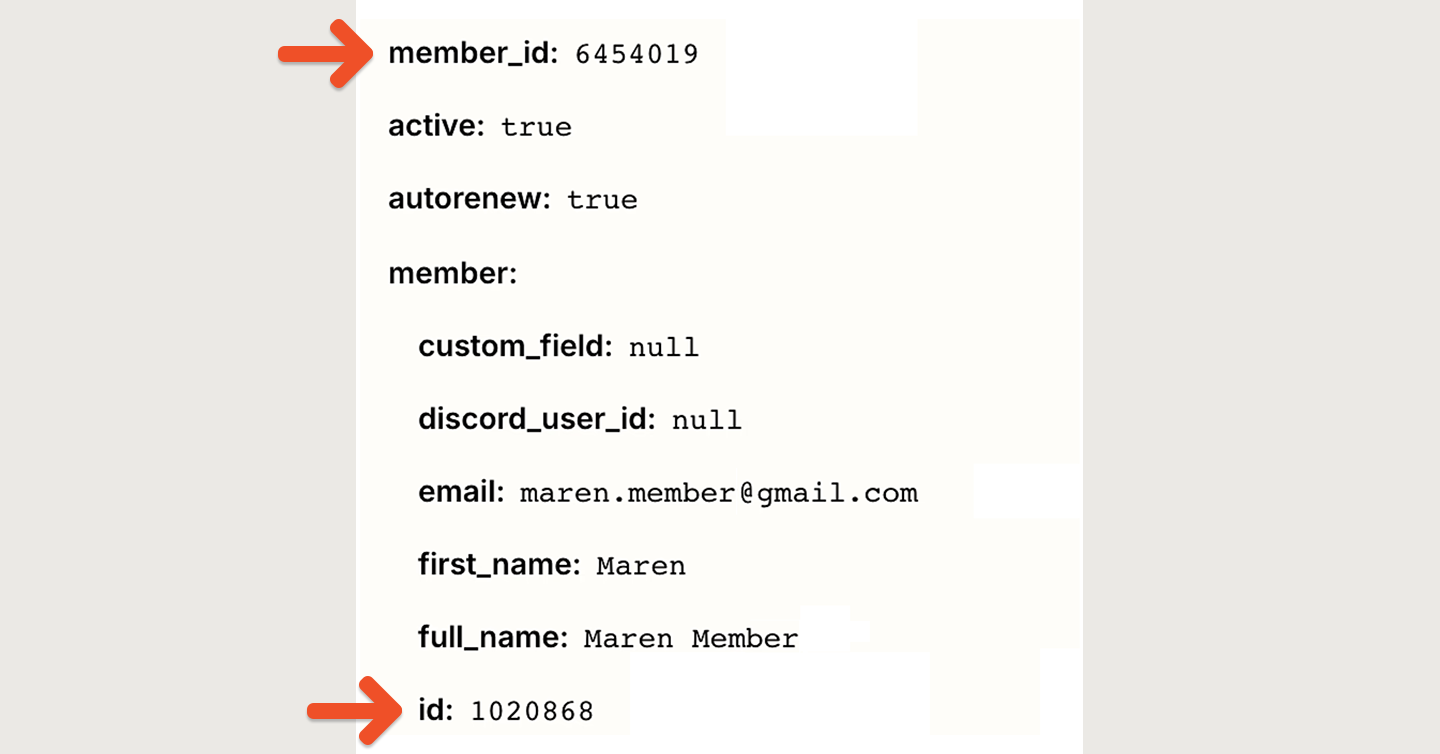
Sign-ups from group managers and members both trigger the Subscription Created event. To differentiate between the two, you can check the two member IDs in the data that was returned. If both IDs are the same, the sign-up is from a group manager (or it’s for a plan that doesn’t support groups). If the IDs are different, the sign-up is from a member who is joining a group. The group manager’s ID is the one at the top, while the group member’s ID appears further down, nested within themember object.
How to navigate custom fields
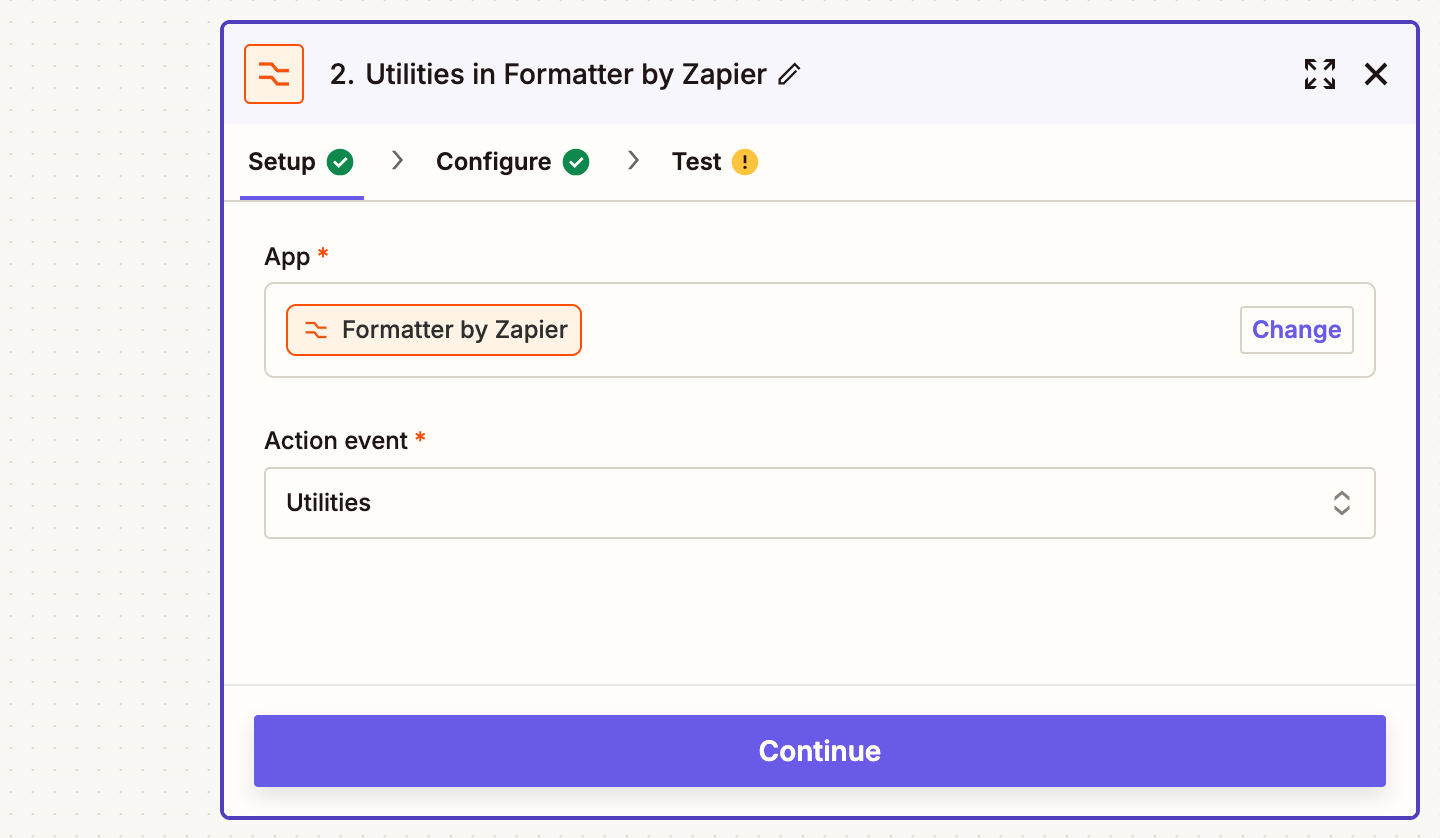
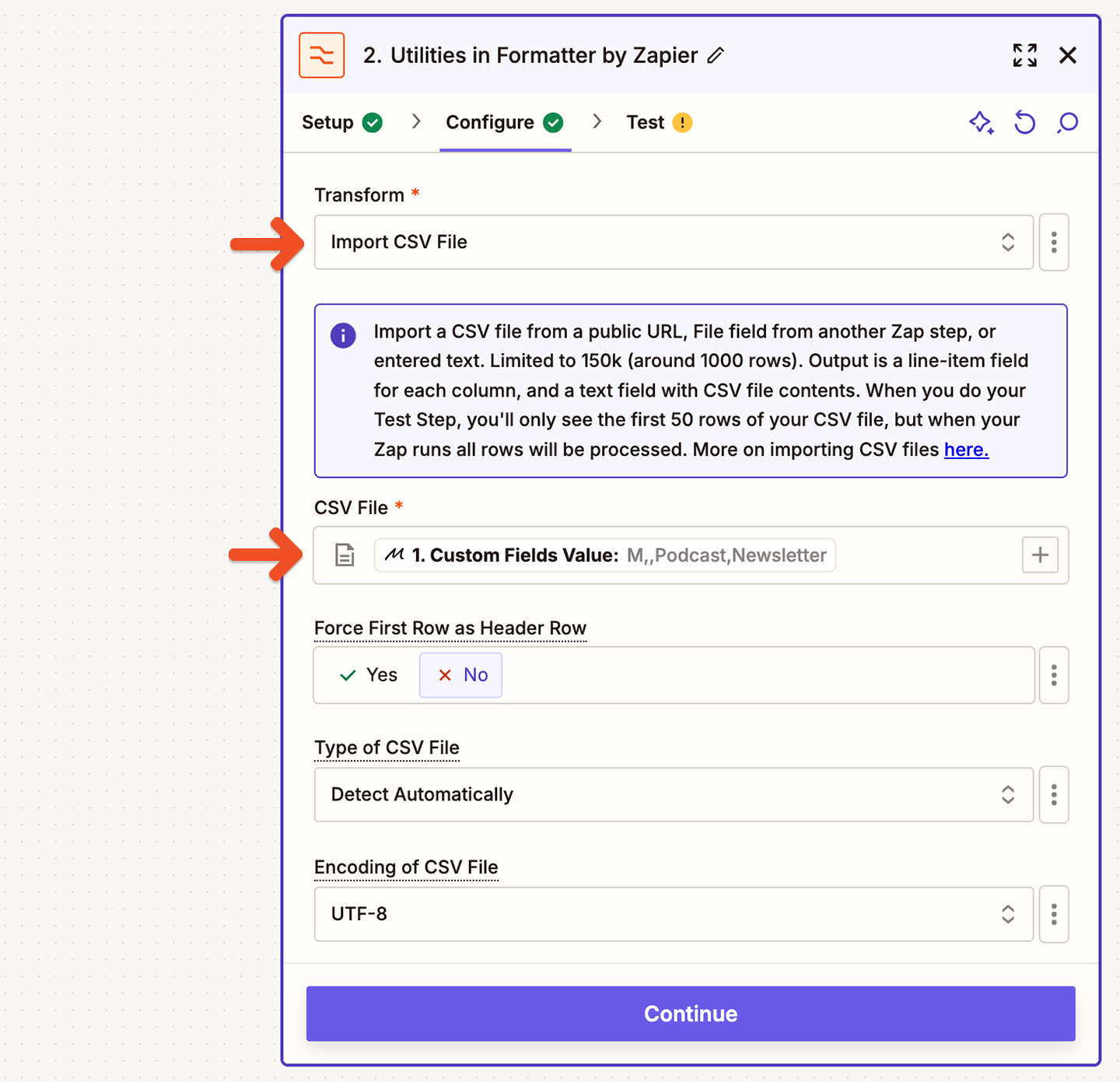
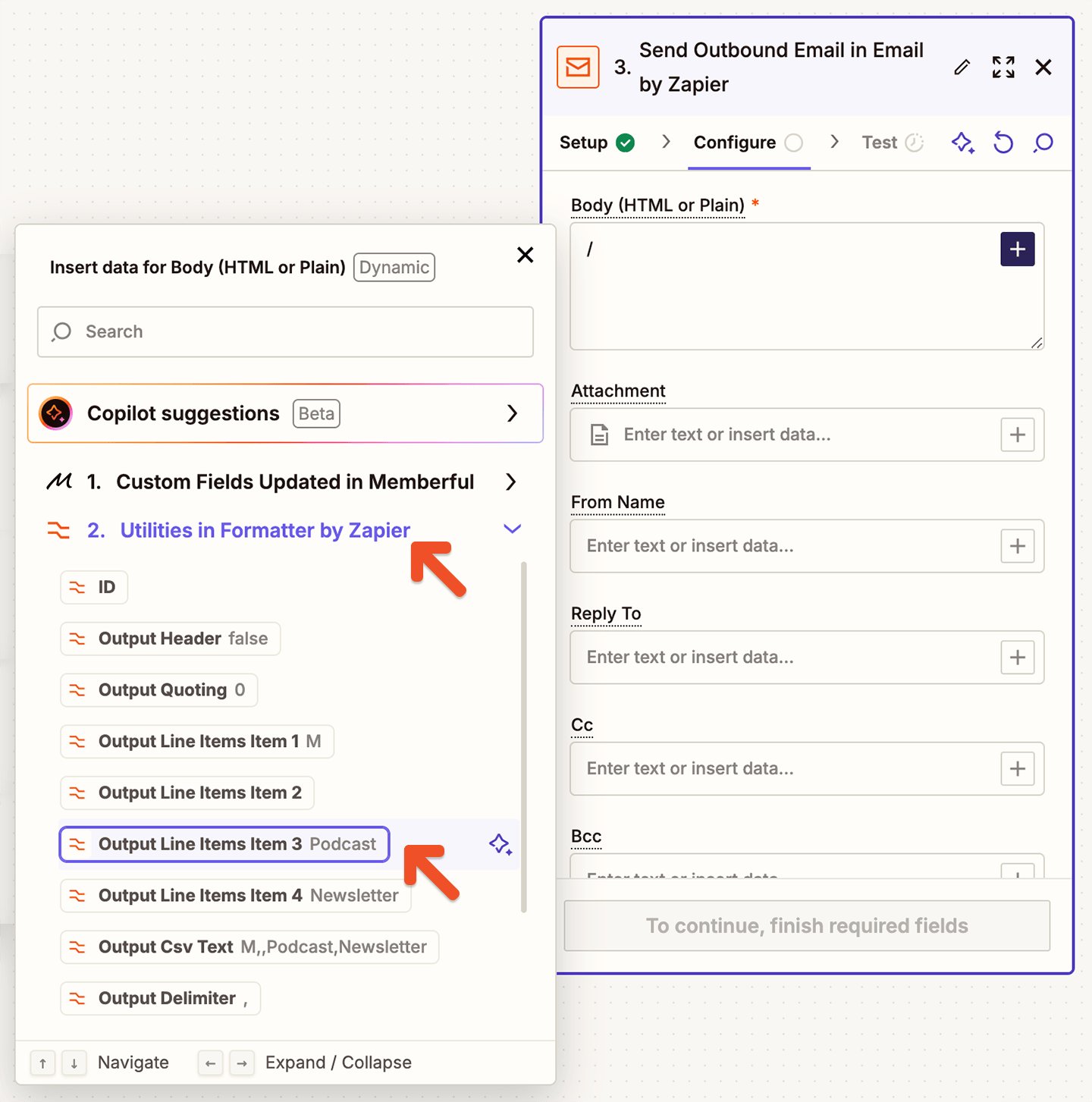
Custom fields are collected after checkout, which means the value is not yet set when Zaps using the New Member, Subscription Created, or Order Purchased events are triggered. To access custom field values, Zaps must use the Custom Fields Updated trigger instead. Custom field values currently show up in Zapier as a single field called “custom fields values,” with each of the values separated by a comma. If you’d like to access the values individually, you can use Zapier’s built-in formatter to split the values into separate fields. First, add a Formatter step and choose the Utilities event.