

Open your account settings
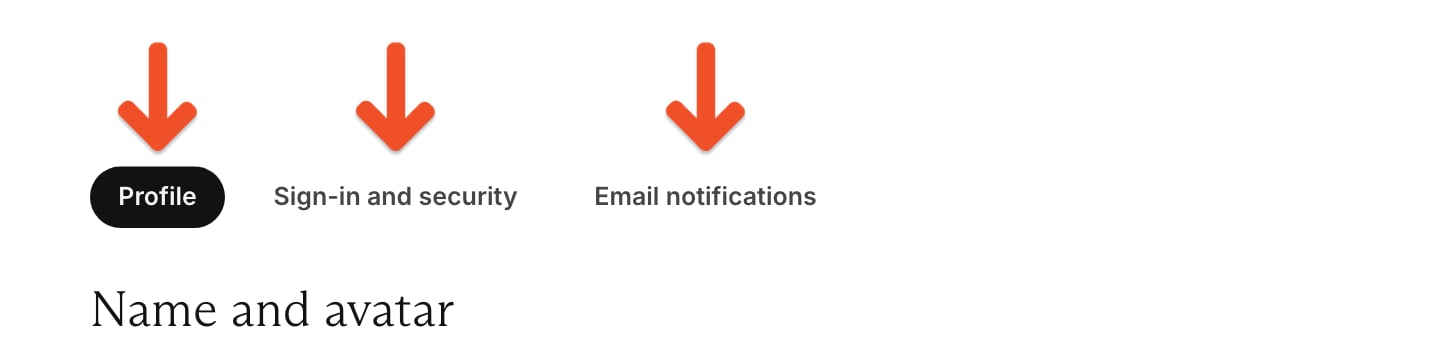
Go to Settings → Account. If you’re the account owner or an unrestricted admin, you can also click your own name in Settings → Staff. Your account settings have three tabs:- Profile: Your name, avatar, and access.
- Sign-in and security: Your email address and password.
- Email notifications: The account activity Memberful emails you about. To learn more, see Manage your email notifications.
Update your name
On Profile, update your name, then click Save changes.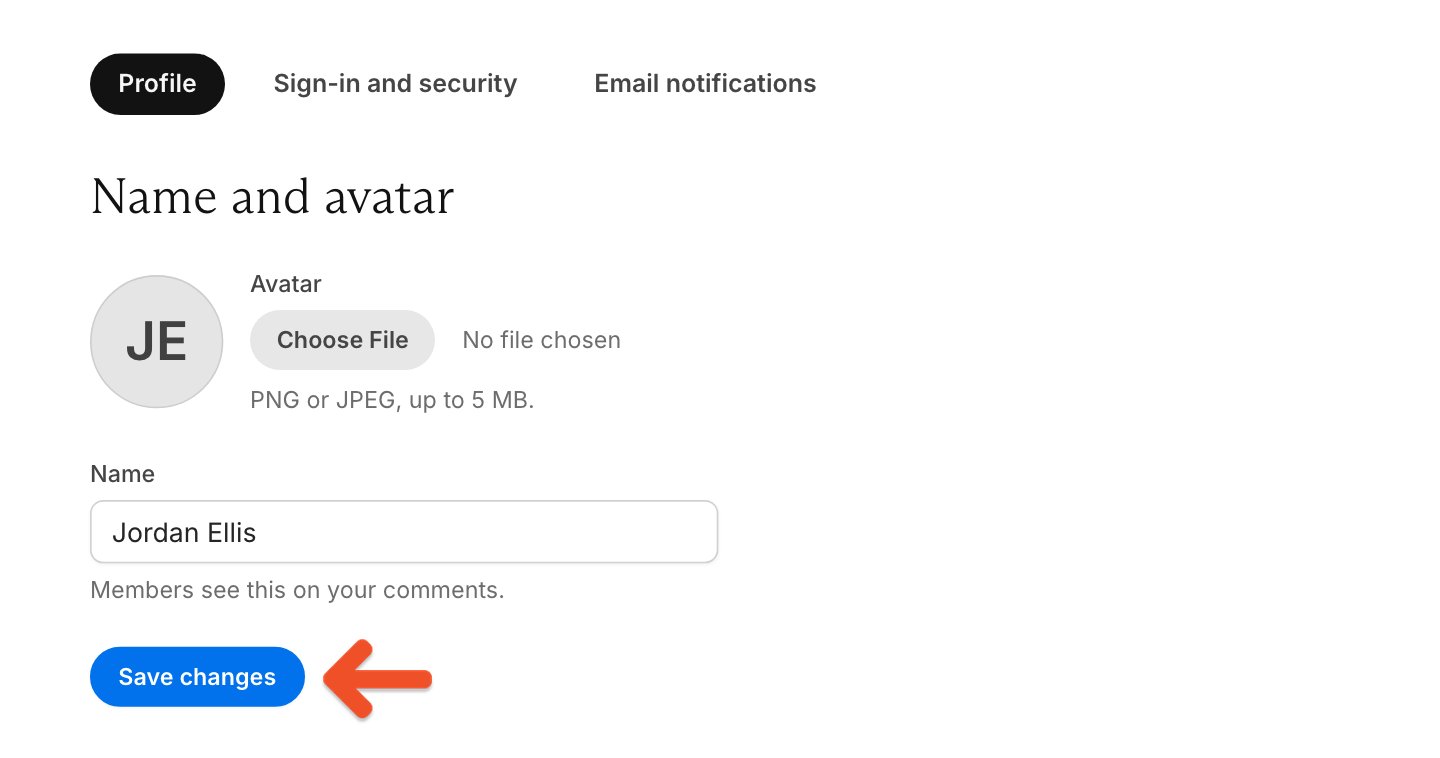
Add an avatar
To add an avatar, click Choose File and select a PNG or JPEG image up to 5 MB, then click Save changes. Memberful crops the image to a circle. If you don’t upload an image, your avatar displays your initials.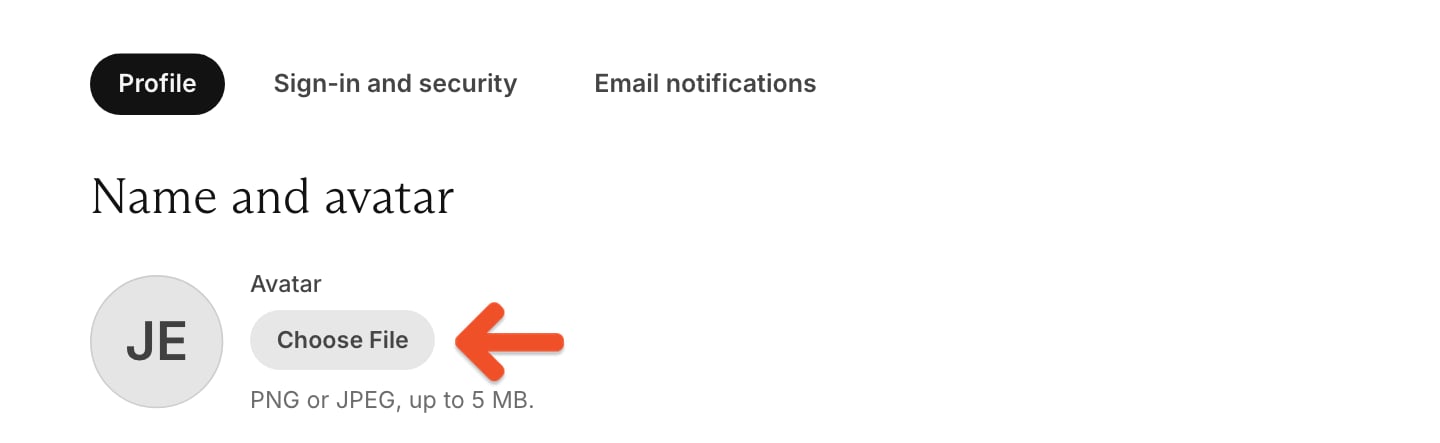
Review your access
Your access on Profile shows which parts of the Memberful dashboard you can open: everything as the account owner, everything except billing and the Stripe connection as an unrestricted admin, or the sections chosen for you. You can’t change your own access. To change it, ask the account owner or an unrestricted admin to change your permissions.Change your email address
1
Open sign-in and security
Go to Settings → Account, then click Sign-in and security.
2
Open the email dialog
Click Change email.
3
Send a confirmation link
Enter your new email address and current password, then click Send confirmation link.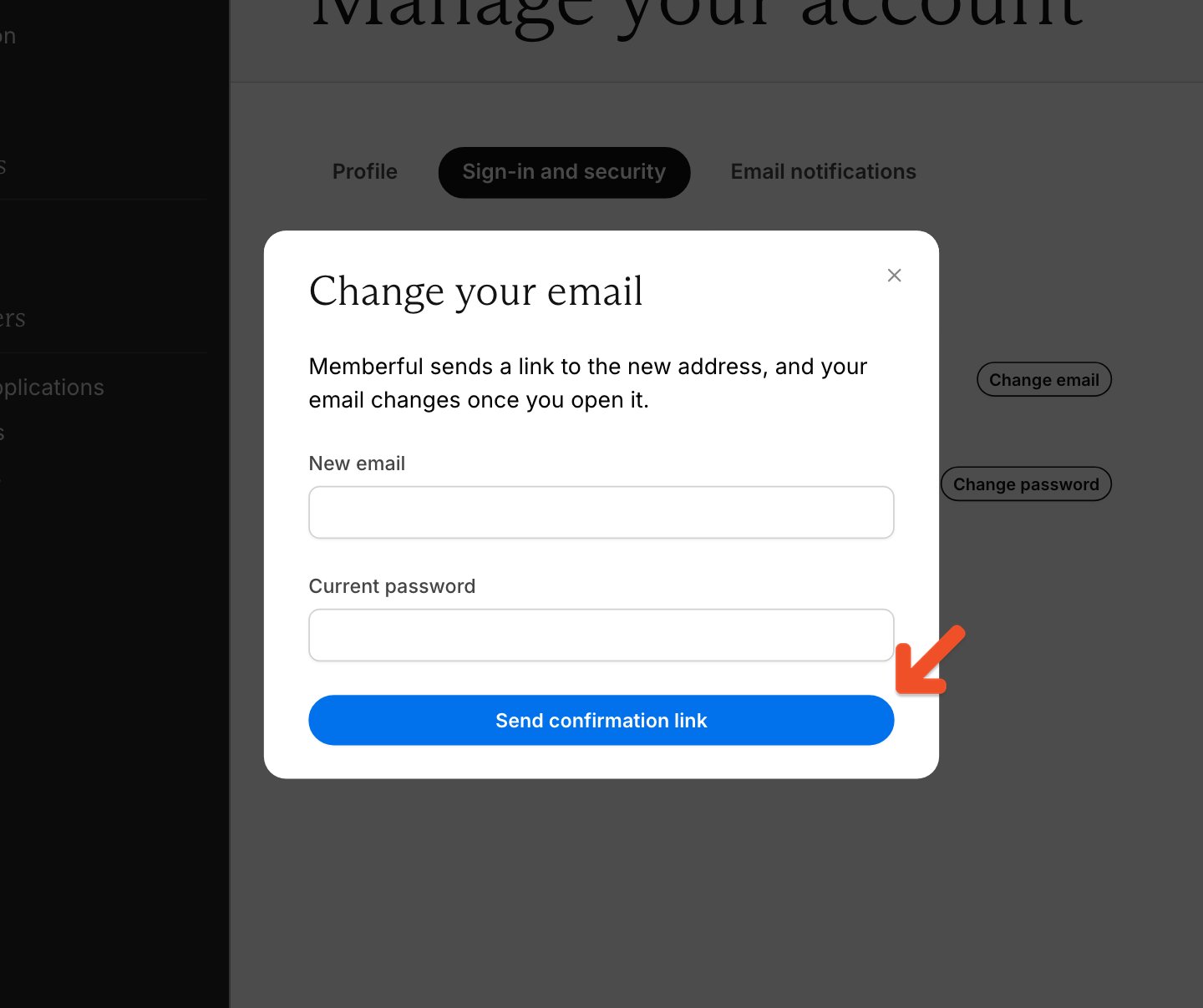
4
Confirm the new address
Open the link sent to your new inbox. Your email address changes only after you confirm it.
Change your password
These instructions only apply to staff who sign in with a Memberful password. If your organization uses single sign-on, you sign in through your provider and don’t have a Memberful password to change.1
Open sign-in and security
Go to Settings → Account, then click Sign-in and security.
2
Open the password dialog
Click Change password.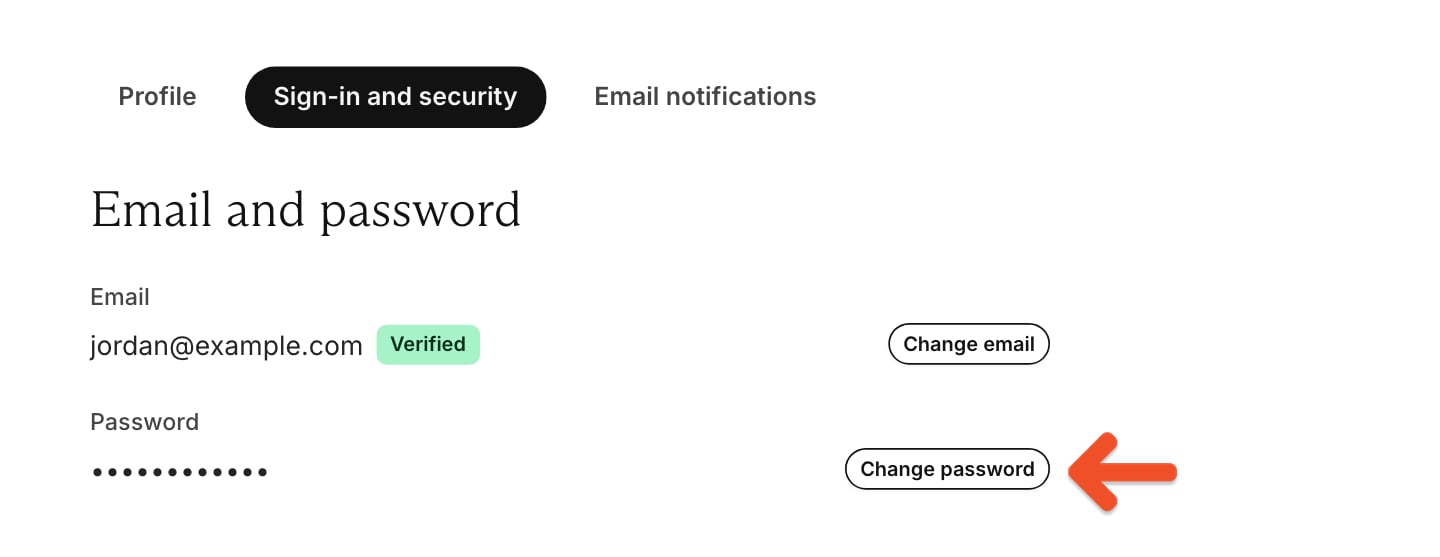
3
Enter your password
Enter your current password, then enter and confirm your new password. If you don’t know your current password, click Forgot your password?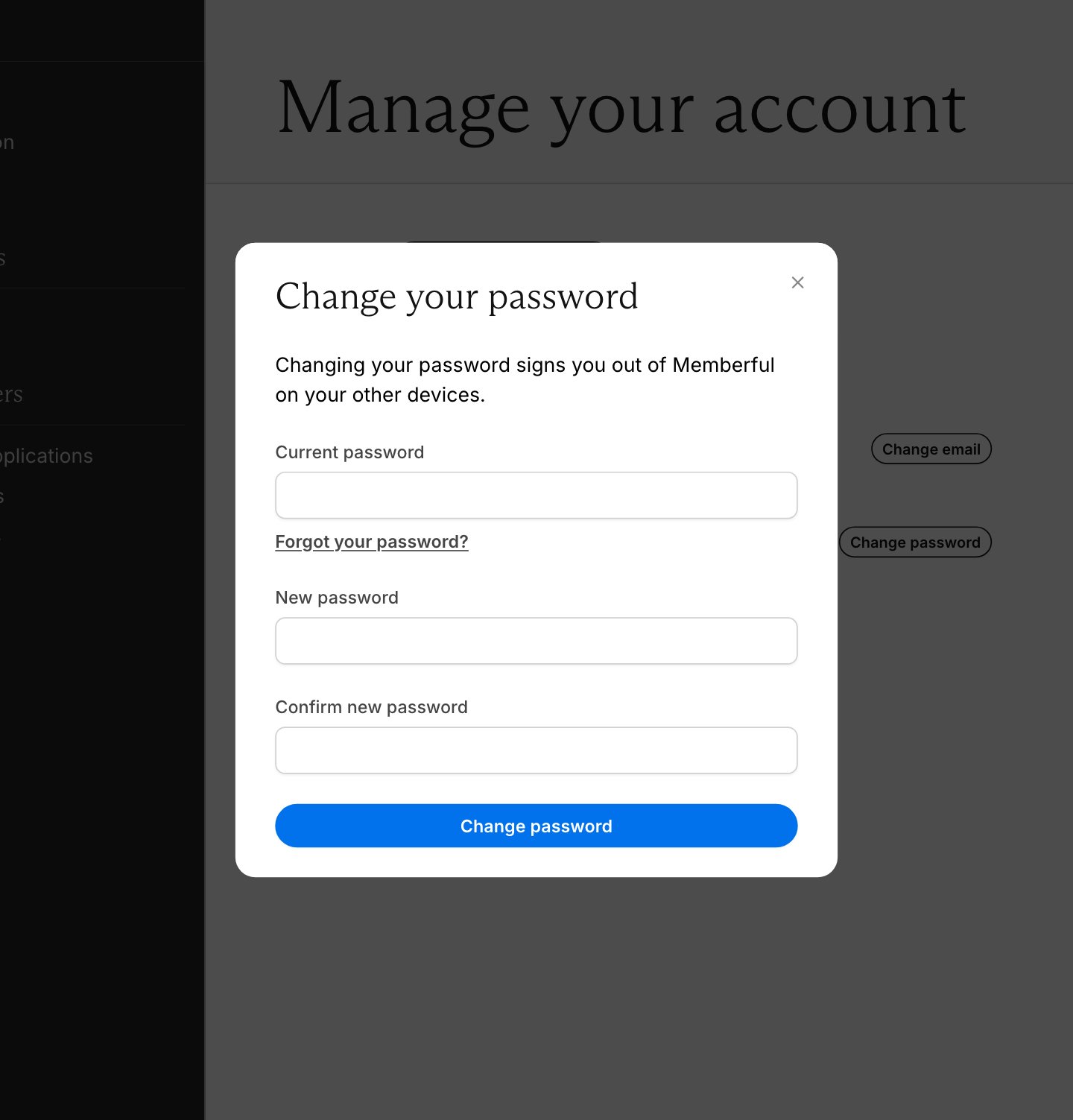
4
Save your new password
Click Change password.
Manage where you are signed in
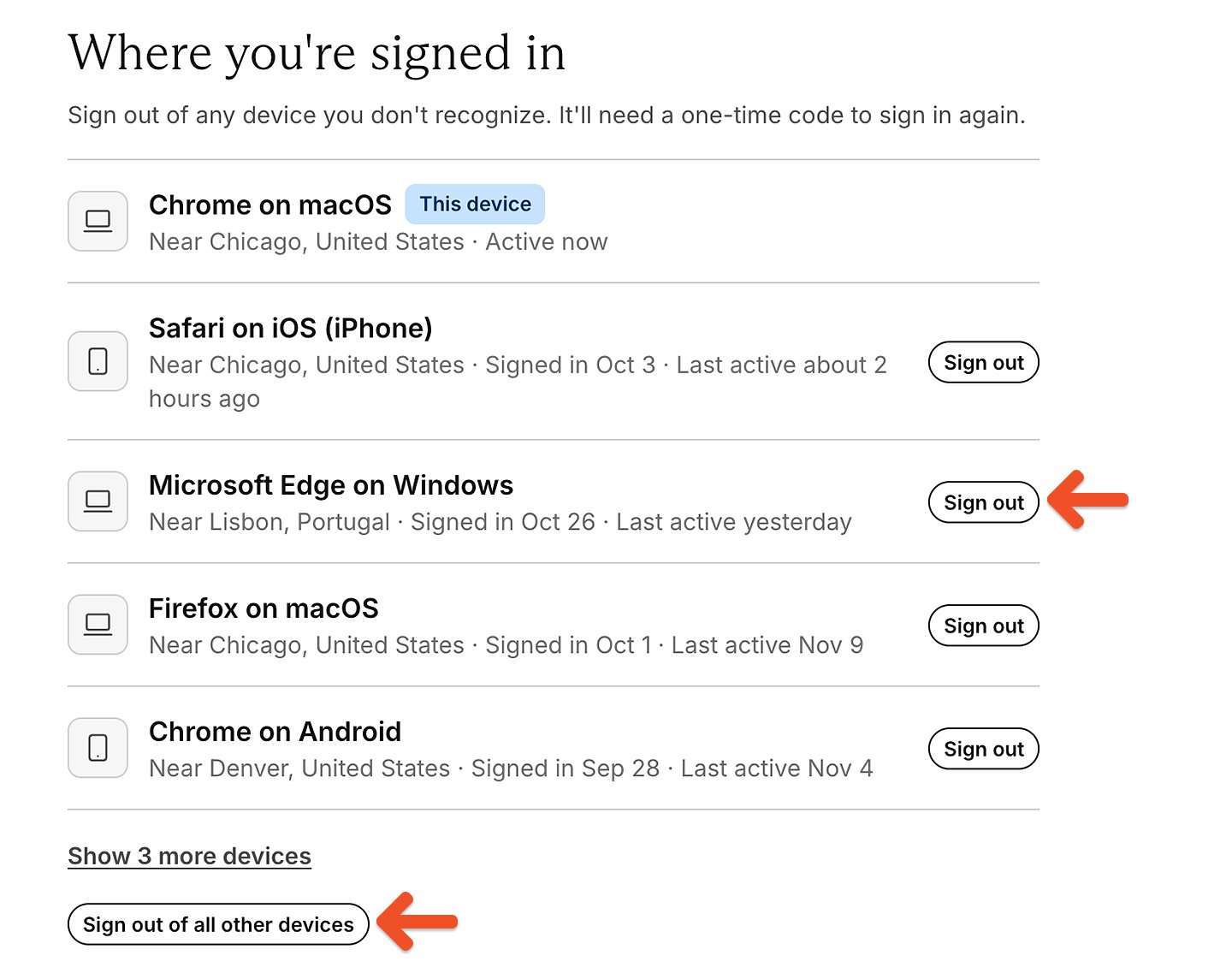
Go to Settings → Account, then click Sign-in and security. Where you’re signed in lists each device and browser you’re signed in on, with its approximate location, when it signed in, and when it was last active. To see the full list, click Show more devices. To sign out a device:- Click Sign out next to any device you don’t recognize.
- Click Sign out of all other devices to sign out everywhere except the device you’re using.
How long you stay signed in
For security, Memberful signs a device out after 30 days without use, or 90 days after it signed in, whichever comes first. The sign-in page tells you which limit applied.If your password changes unexpectedly
Memberful emails you whenever your password changes, whether it was changed in your account settings or with a password reset link. Setting a password when you sign up or accept a staff invitation doesn’t send this email.If you didn’t make the change, click Reset your password in the email and follow the steps to set a new password. This signs out whoever changed your password. Then check where you’re signed in and sign out any device you don’t recognize.