

Restricting by category/tag is different from the Bulk Restrict Access tool. Bulk restrict applies restrictions once to all current posts in a category, while category/tag restriction applies automatically to both current and future posts.
Restrict content by category or tag
-
In your WordPress dashboard, go to Posts → Categories or Tags (custom taxonomies are also supported).
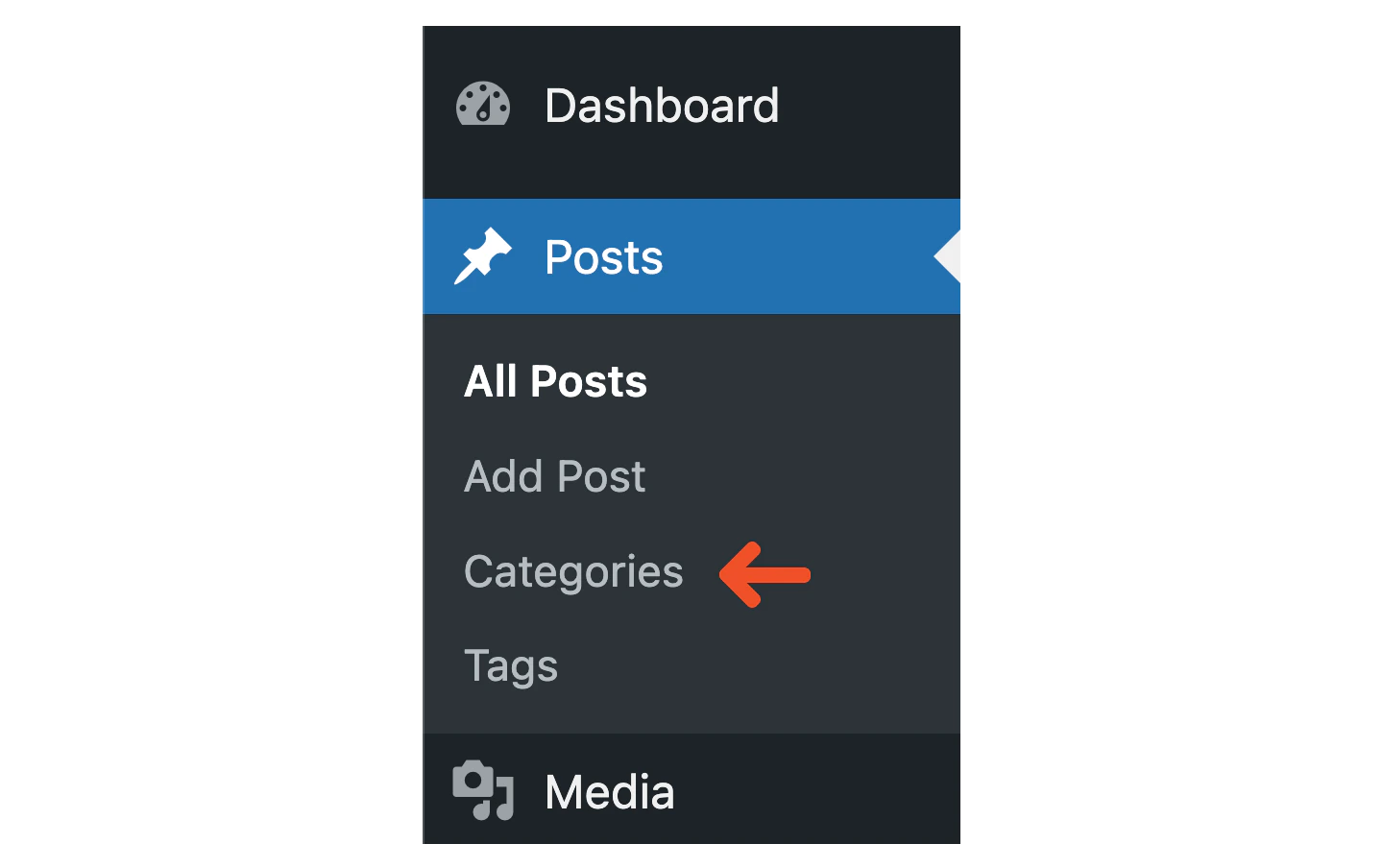
-
Select the category or tag you want to restrict. Do not restrict multiple categories or tags in one post.
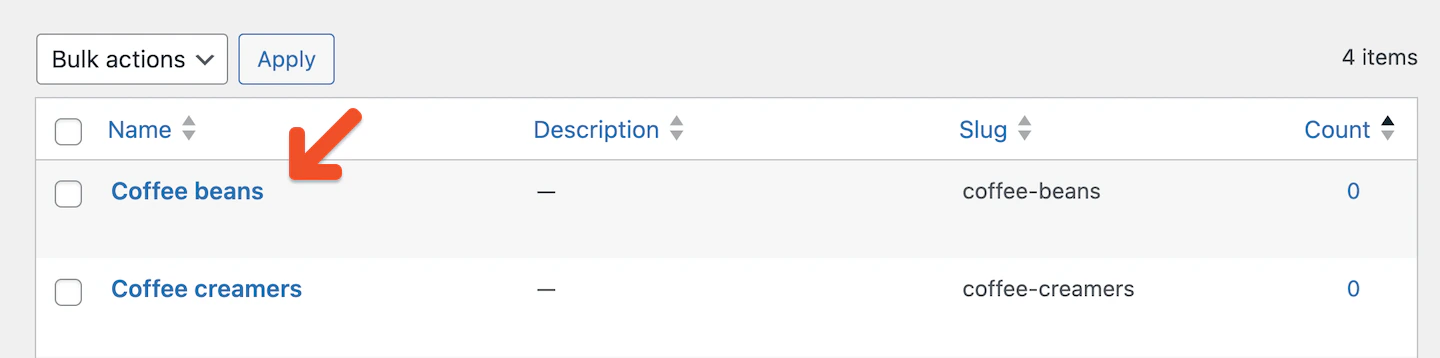
-
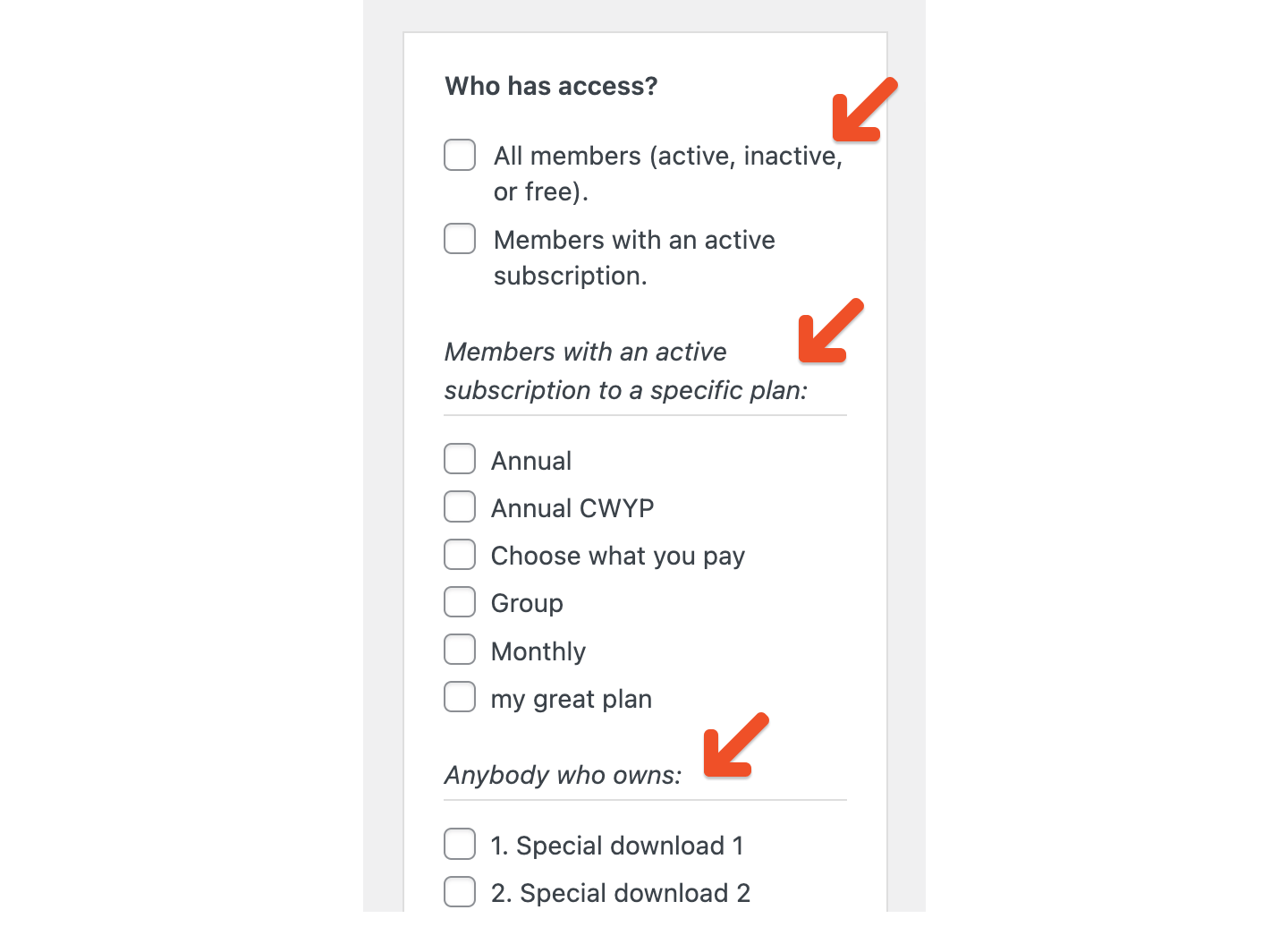
Scroll down to the Memberful: Restrict Access box.

- Choose who can access posts in this category/tag by checking the appropriate option:
- All members—active, inactive, or free (useful for a “freemium” tier)
- Members with an active subscription to any plan
- Members with an active subscription to a specific plan
- Anybody who owns a specific download
Review your options for adding marketing content
When content is restricted, you can display marketing content or teaser text to non-members (or logged-out members). This helps convert visitors by previewing content and linking to sign-up or sign-in pages. Examples for inspiration: You can add marketing content in several ways:Option A: Add to a category or tag
- Edit the category or tag.
- Enter your marketing content in the Memberful: Restrict Access box.
- Save changes. This content will display across all posts in that category/tag, including future posts.
Option B: Add to a single page or post
- Open the post or page.
- Enter your marketing content in the Memberful: Restrict Access box.
- Update the post.
Option C: Create global marketing content
To create default marketing content, go to Settings → Memberful, then click Global Paywall. You can also choose how many opening paragraphs to display before the paywall. If a post contains a Memberful Paywall Divider block, all content above the divider appears instead of the excerpt. NEW IMAGE NEEDED To learn more, see Create a paywall with a clear call to action.Categorize or tag a new post
Moving forward, whenever you categorize or tag a post, the associated Memberful restrict access and marketing settings will be applied automatically.- If a member has the correct access → they’ll see the protected content.
- If not → they’ll see the marketing content.

How this feature interacts with other settings
Here’s how category/tag restrictions interact with other Memberful features:- Category/tag marketing content → applies to all relevant posts (current + future).
- Individual post-level content → overrides category/tag marketing content.
- Bulk Restrict Access tool → overrides existing restrictions + content for posts.
- Global marketing content (override option) → replaces all other marketing content.
- The post-level restrictions and marketing content take priority over category/tag settings.
- The marketing content shown to non-eligible members will be randomly chosen from one of the categories/tags.
- Members gain access if they meet the requirements of any restricted category/tag.
- For consistency, we advise against using multiple restricted categories/tags on a single post.