Refund an order
1
Open the order
Open the member’s profile, select the Activity tab, and click the relevant Order #.
2
Start the refund
Click Refund order.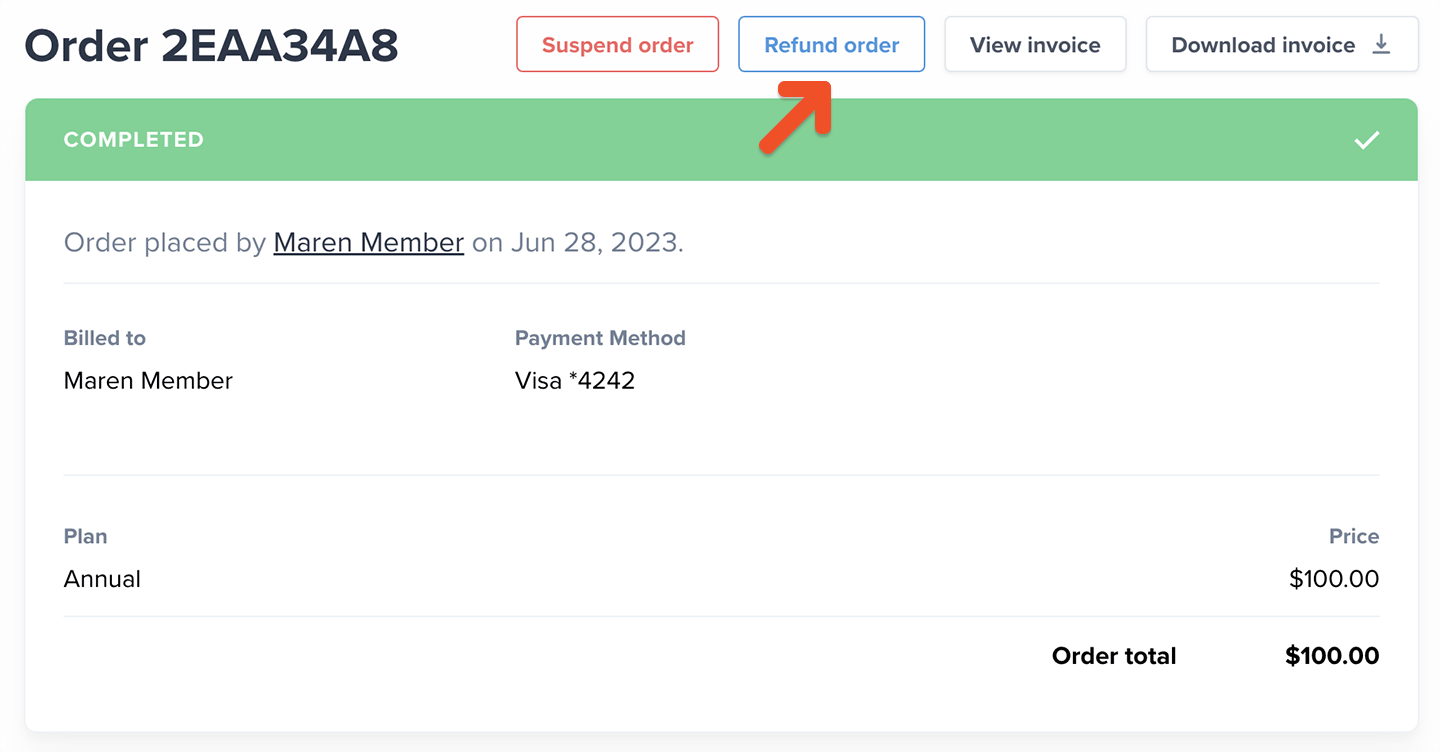
3
Configure the refund
Choose a full or partial refund and whether to cancel the associated subscription. You can also select an optional refund reason, which will be logged in your Stripe dashboard.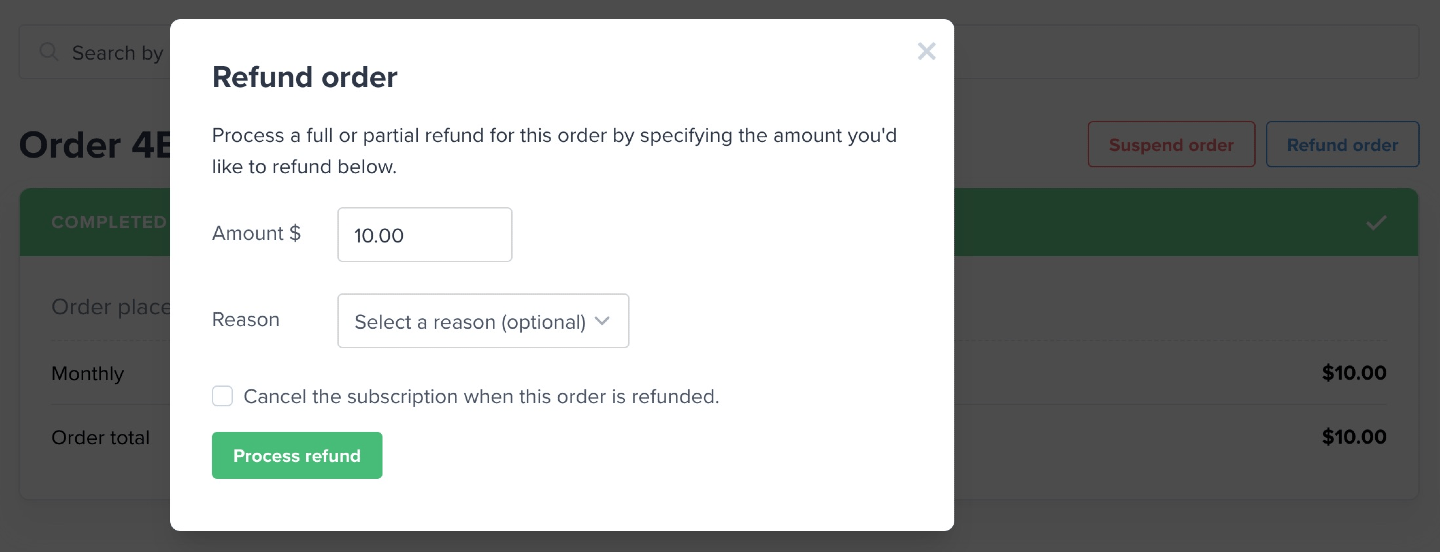
Memberful does not refund your transaction fee when you process a refund.
Troubleshoot refund errors
When you try to refund an order, you may see the Can’t connect with the payment processor error. This usually means the refund cannot be processed through Memberful. This can happen for several reasons:- The refund was already processed directly in Stripe.
- The member disputed the payment or initiated a chargeback.
- Your Stripe account does not have enough available balance to cover the refund.
- Already refunded or disputed: No further refund action is needed in Memberful.
- Insufficient Stripe balance: Add funds to your Stripe account or wait until your available balance is high enough, then try the refund again.
Suspend an order
Suspending an order temporarily prevents the member from accessing the benefits associated with their membership. You might suspend an order when a member disputes a payment or is acting in bad faith.Suspending the most recent order automatically marks the subscription as inactive and removes the member’s access.
1
Open the member's profile
In your Memberful dashboard, locate and open the member’s profile.
2
Select the order
Select the Activity tab, then click the relevant Order #.
3
Suspend the order
Click Suspend order.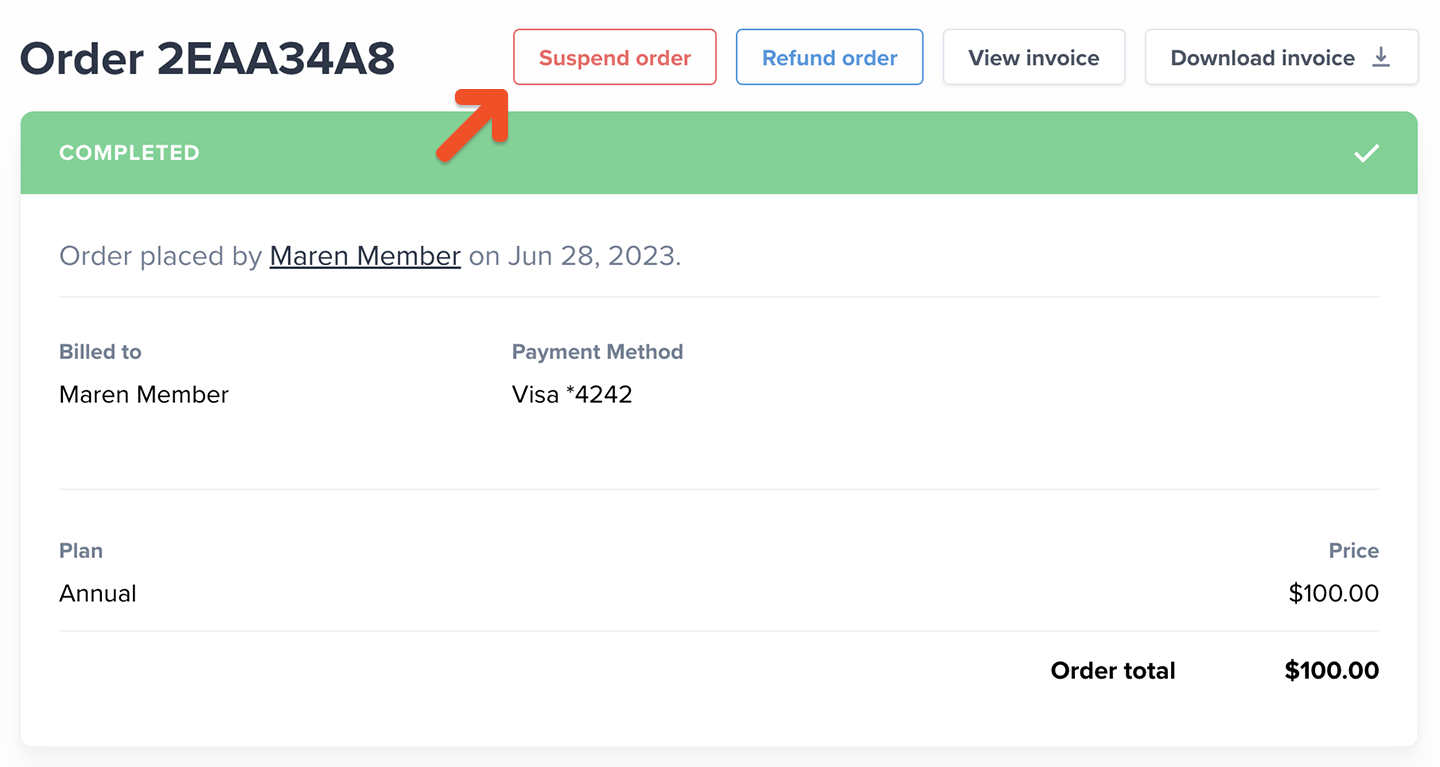
Restore access by completing the order
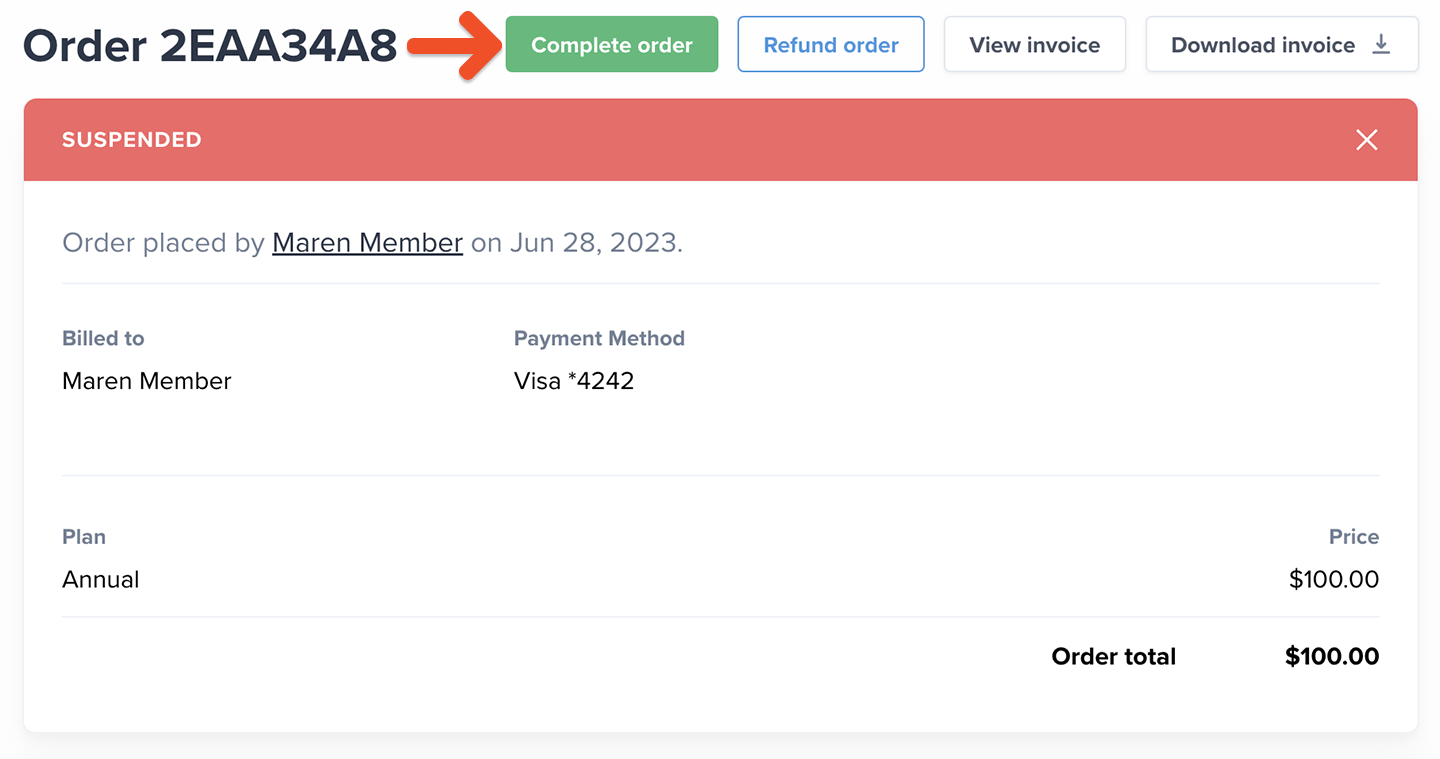
To reactivate a suspended order, open it and click Complete order.