Add a member
1
Go to Members
Go to Members in the Memberful dashboard.
2
Open the new member form
Click New Member.
3
Enter the member's details
Enter the member’s name and email address.
4
Create the member
Click Create Member.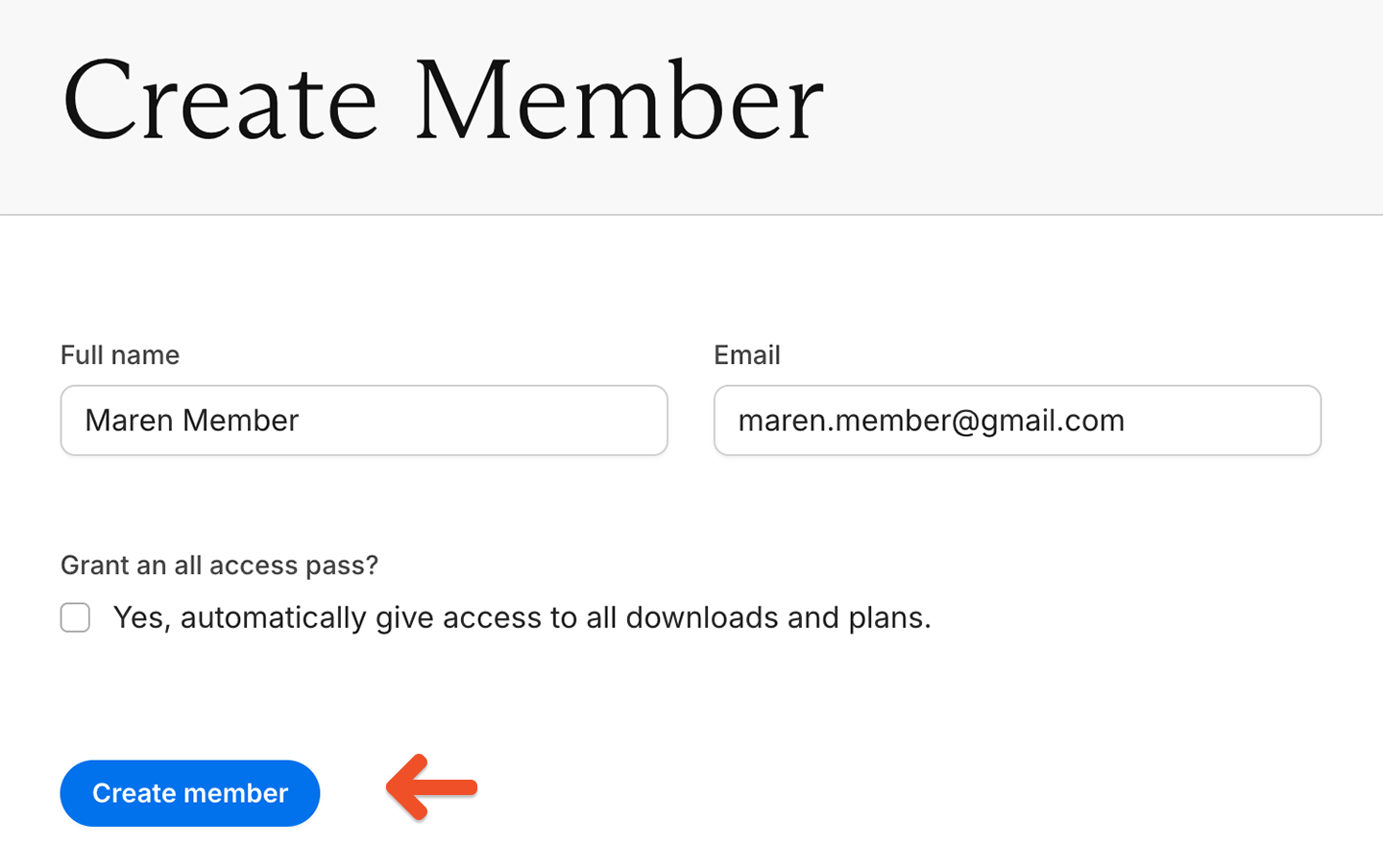
After adding a new member, they will require a subscription to access your paid content. If they do not have a subscription added, they will only have access to free member content.
Add a subscription
1
Find the member's subscriptions
From the member’s profile, scroll down to the subscriptions section.
2
Add a credit card (optional)
Add a credit card on the member’s behalf. If you don’t, the member is prompted to add one a week before their subscription renews, provided the relevant email template is enabled. For more detail, see Email templates.
3
Add a new subscription
Click Add a new subscription.
4
Select a plan
Select the plan you want to add from the dropdown list.
5
Choose whether to charge the member
If there’s a credit card on file, uncheck Charge credit card for this plan… if you don’t want to charge for the subscription or if payment is collected externally. For more detail, see Accept external payments.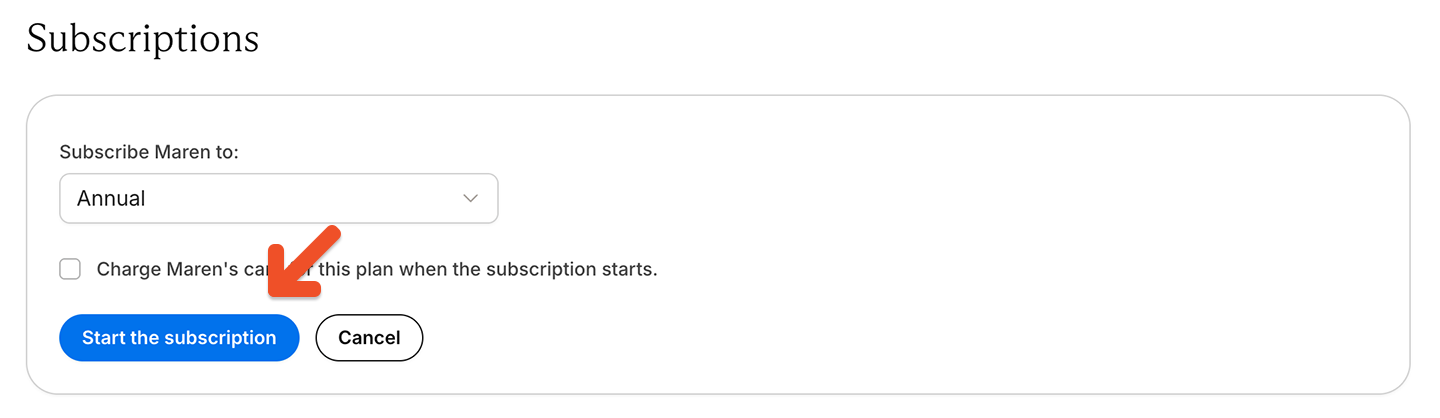
6
Start the subscription
Click Start the subscription.
Delete a member
Deleting a member is permanent and cannot be reversed.
1
Go to the member's profile
Go to the member’s profile in the Memberful dashboard.
2
Edit the member
Click Edit member.
3
Find the delete button
Scroll down to the bottom of the page.
4
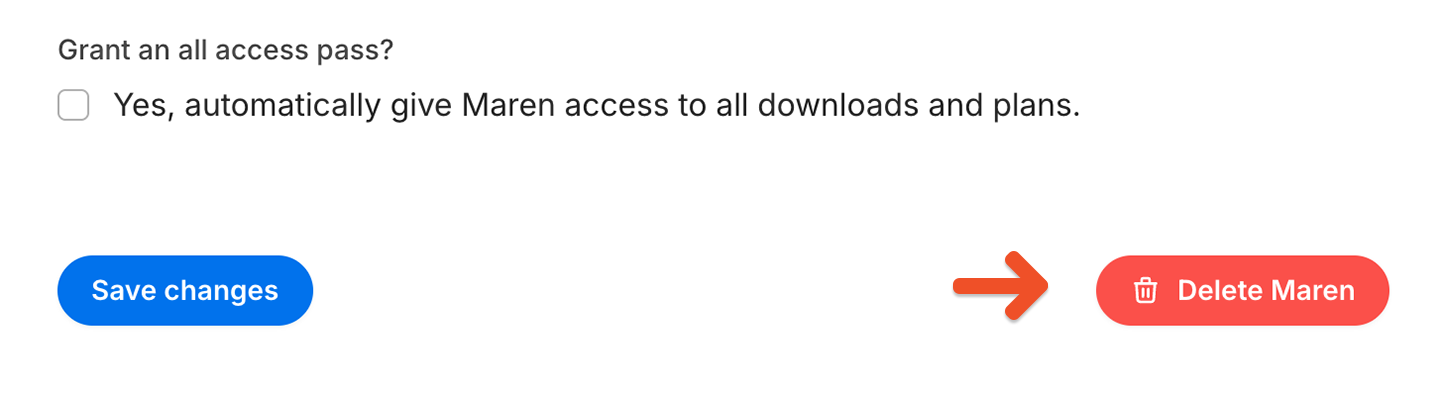
Delete the member
Click Delete (member’s name).