

Review your options for affiliate tracking
Memberful works best with Tapfiliate as your affiliate tracking software. However, you can also use Trackdesk as an alternative. To use Trackdesk with Memberful, you’ll need to manually add tracking code to your website. Tapfiliate has a WordPress plugin that automates this for you, so setting it up is simpler. Trackdesk’s Stripe integration can track renewals and refunds automatically. This requires adding some server-side code to your website, which we cover in Integrate Trackdesk with Stripe.Create your affiliate program
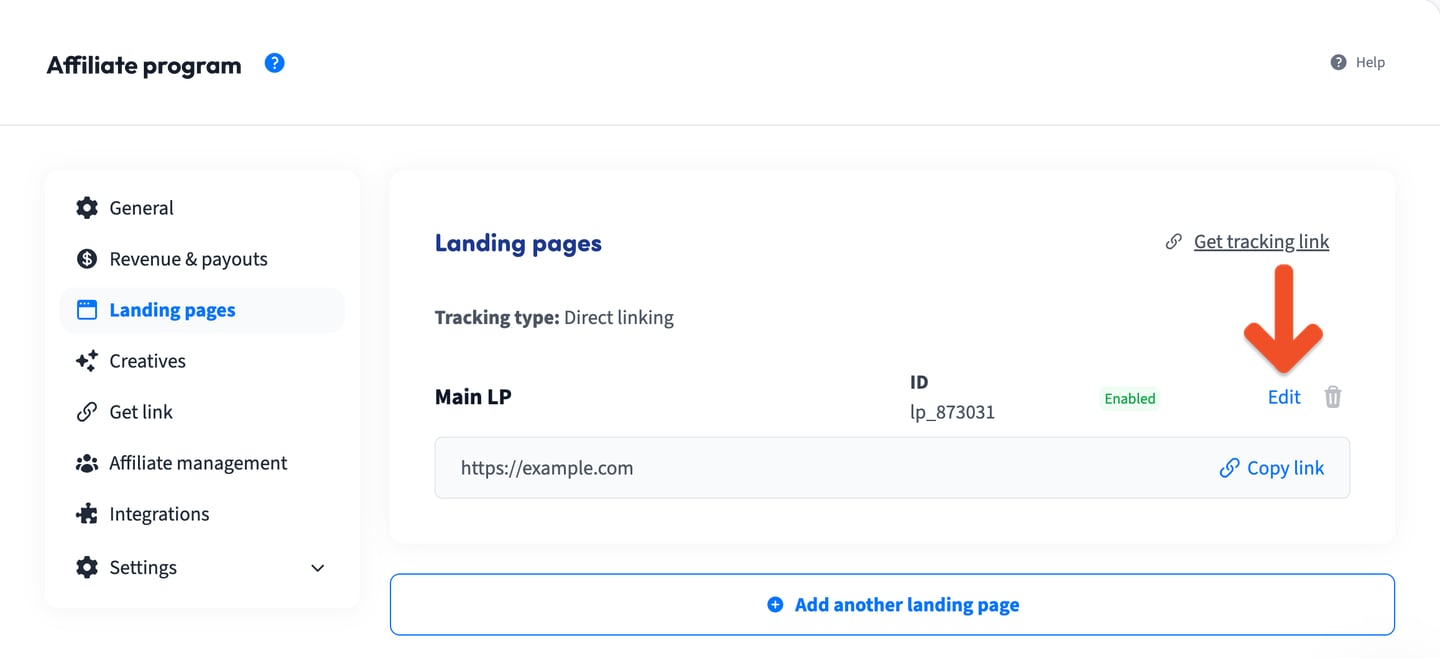
Trackdesk walks you through setting up an offer in its Offer Configuration Guide. Click Continue after each step.1
Create an offer
In your Trackdesk account, go to Offers and click Create new offer. Enter a name for your affiliate campaign.
2
Choose Direct linking
Under What is the landing page of your campaign?, choose Direct linking. Then enter the URL of the page on your website where affiliates will send visitors in Your campaign landing page URL.
3
Choose how to pay affiliates
Choose how you’d like to pay your affiliates, such as Percentage amount from transaction or Fixed commission for transaction.
4
Select a currency
Select the currency your offer will use for transactions.
5
Choose whether to pay recurring commissions
If you plan to integrate Trackdesk with Stripe to pay recurring commissions, choose Yes and set the number of conversions allowed per click, or choose Unlimited. Otherwise, choose No. You can review this later under Revenue & payouts by editing the conversion type’s Recurrence type setting.
6
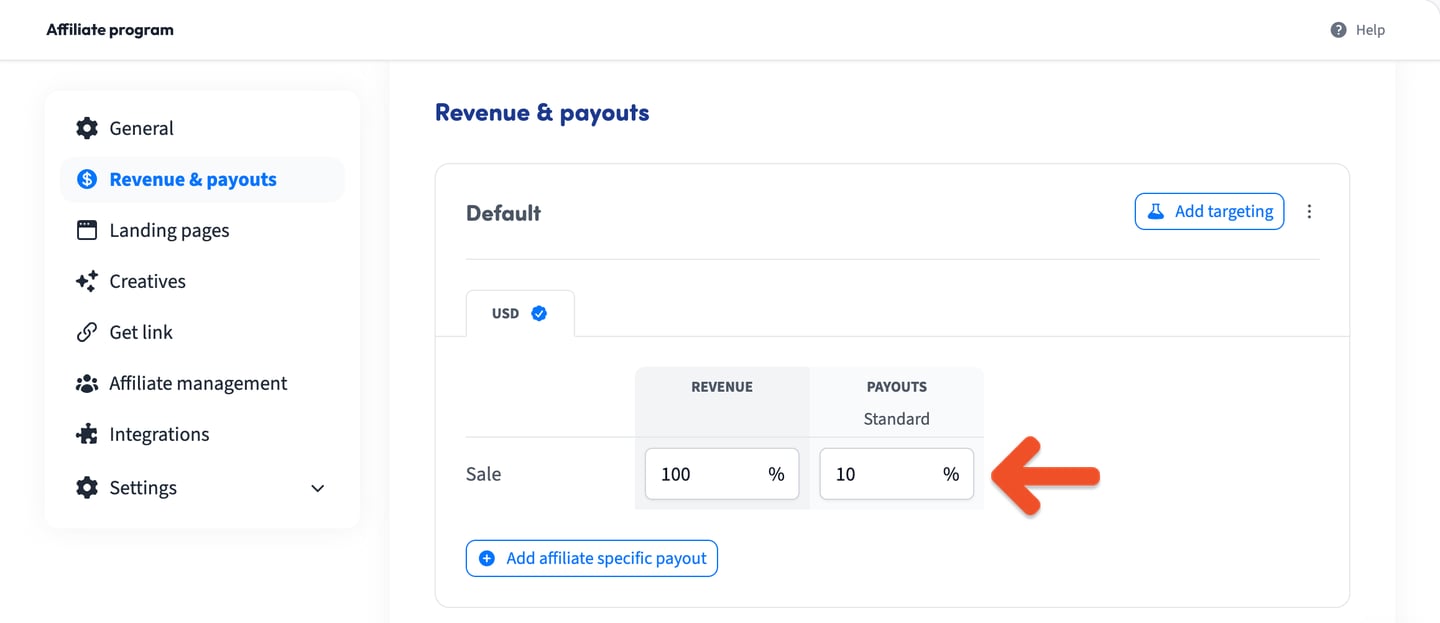
Enter the payout amount
Enter how much you’d like to pay your affiliates for each transaction.
7
Skip non-transactional conversions
When asked whether to track non-transactional conversions, choose No. The tracking code in this help article reports sales.
Invite affiliates
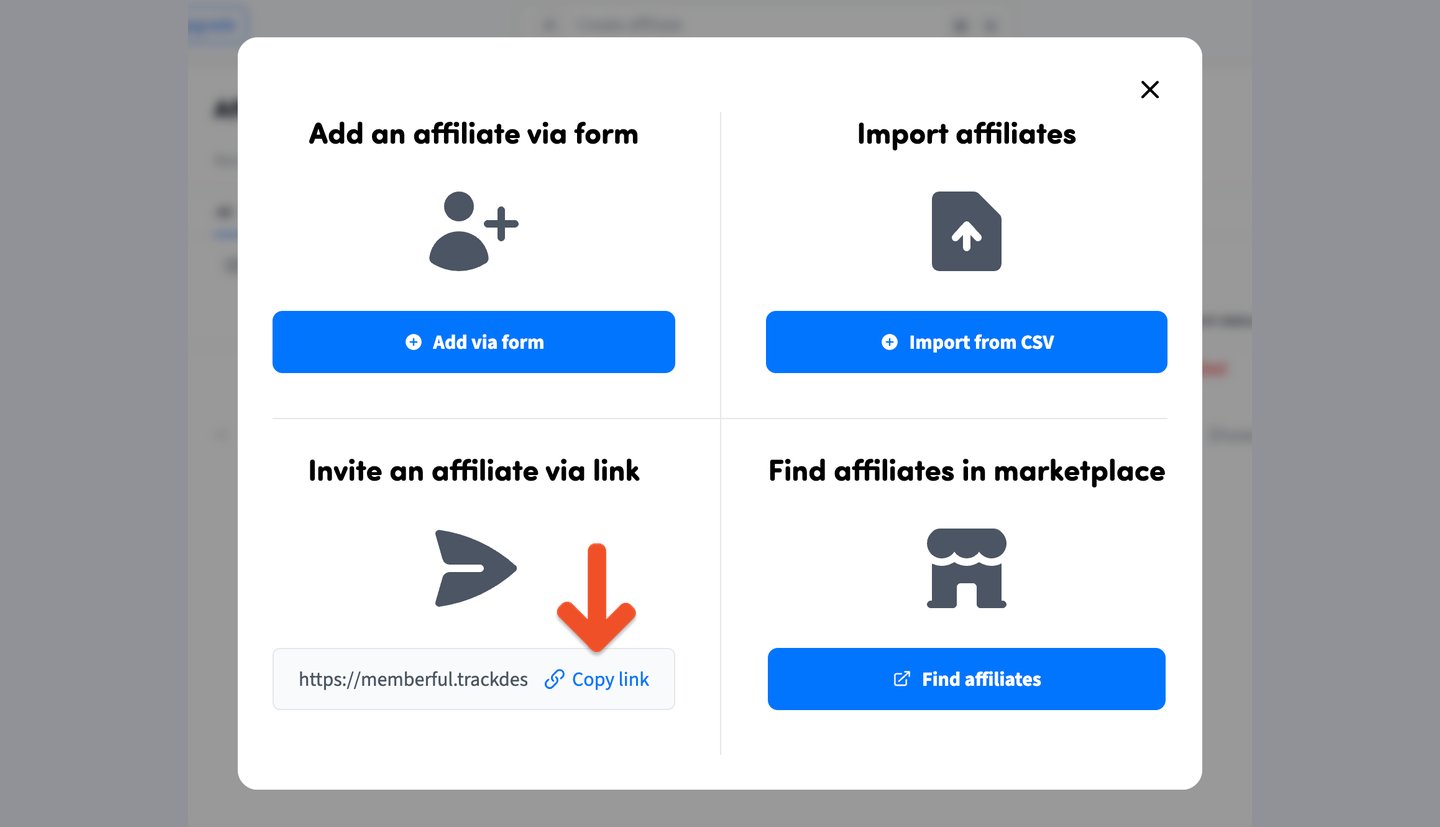
In your Trackdesk account, go to Affiliates → Affiliate list and click Add new affiliate.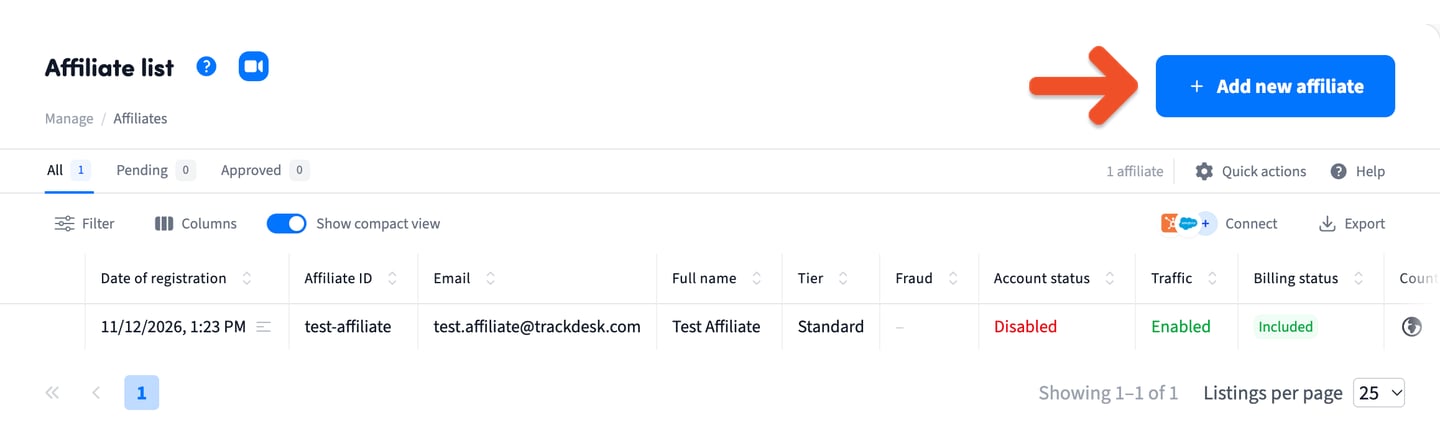
Integrate Trackdesk with Memberful
Trackdesk uses Memberful’s Tapfiliate integration. Although it was designed for Tapfiliate, it’s a generic integration that works with other affiliate tracking software. Go to Revenue → Tapfiliate in your Memberful dashboard, and click Connect to Tapfiliate. Then go to Website → Redirects, and enter a URL in After checkout redirect. You can also set this per plan by setting the plan’s redirect URL. This should be the URL of a page on your website, usually a “Thank you” page. Memberful-hosted pages like the subscribe page or plan purchase URLs won’t work.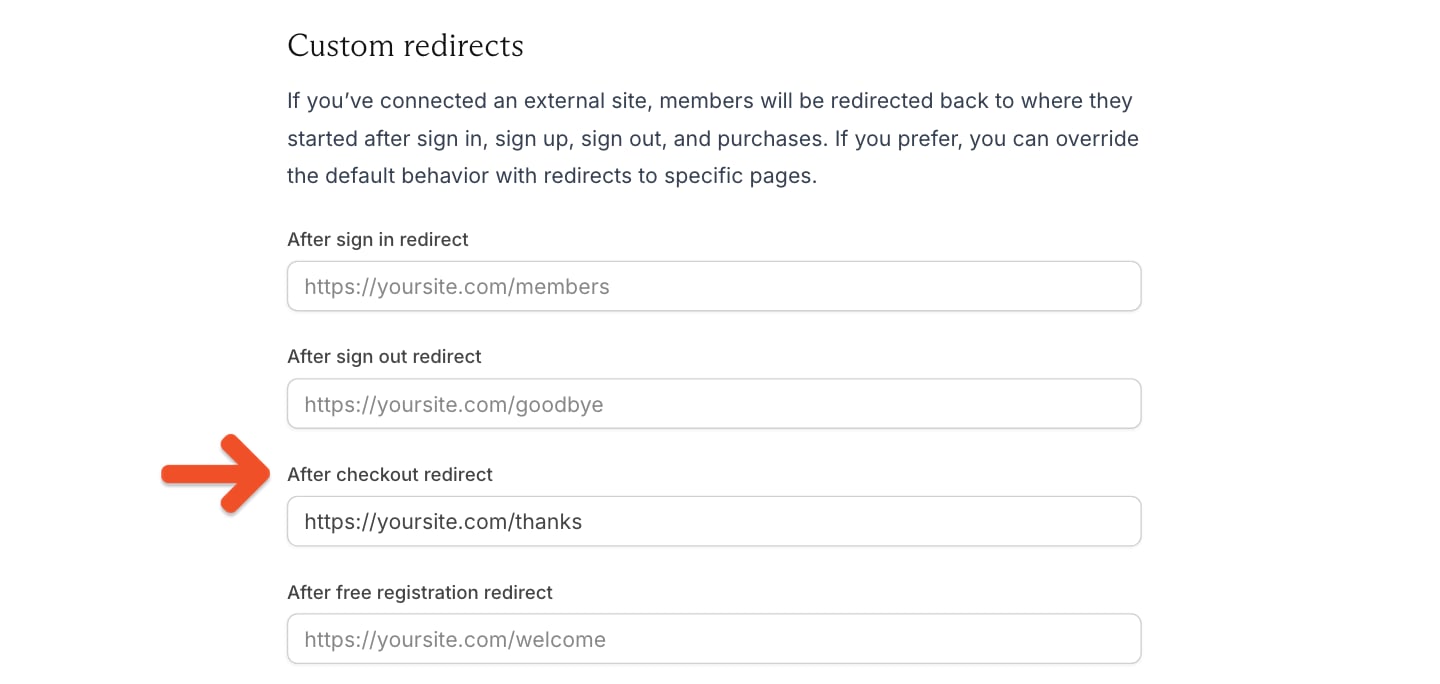
Track conversions on your website
To track visits to your website via affiliate links, add JavaScript code to your pages. Trackdesk calls these “clicks,” but they’re visits to your website. Place this code on every page of your website between the<head> and </head> HTML tags:
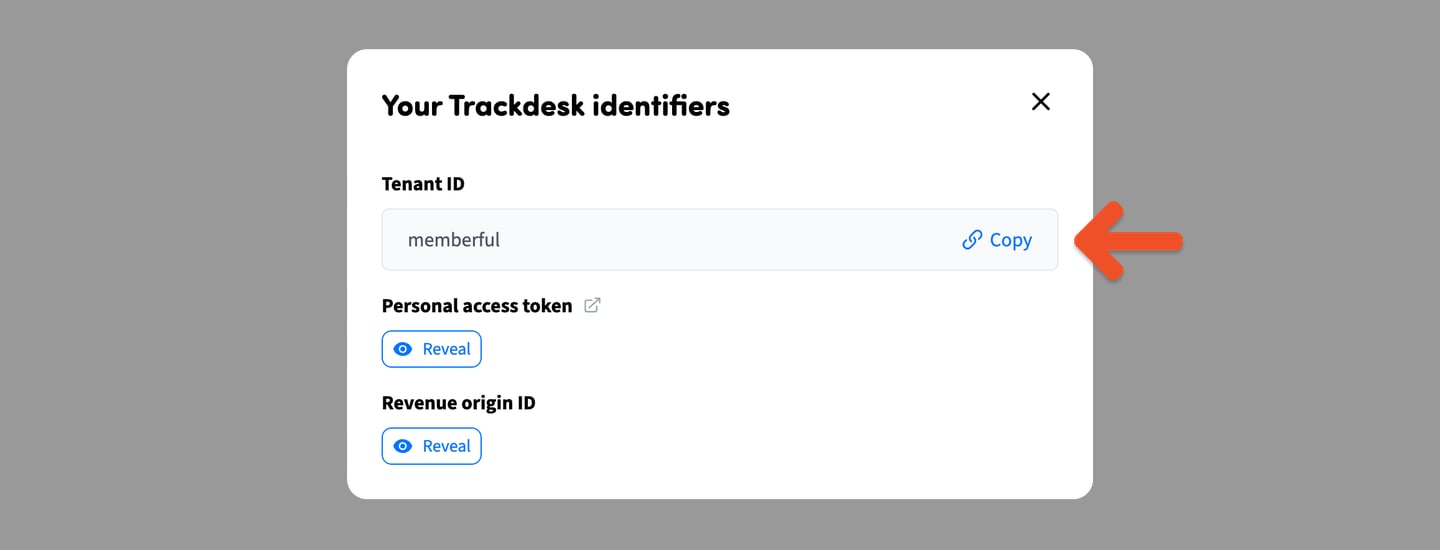
YOUR_TENANT_ID with your Trackdesk tenant ID. In your Trackdesk account, go to Settings → Your Trackdesk identifiers and find Tenant ID.
- One-time commissions: If you want to issue one-time commissions for new orders and you don’t need Trackdesk to automatically detect renewals or refunds, add conversion code to your “Thank you” page. See Report one-time conversions.
- Recurring commissions and refunds: If you want to pay affiliates recurring commissions, subject to your offer’s recurrence limit, or automatically track refunds, integrate Trackdesk with Stripe and add server-side code to your “Thank you” page. This code fetches the member’s email address via Memberful’s API and passes it to Trackdesk to connect the member to the affiliate’s click.
Report one-time conversions
Place this code inside the<head> tag of the “Thank you” page you set in Integrate Trackdesk with Memberful. It reads the order ID, member ID, and amount from the page URL and reports your conversion to Trackdesk:
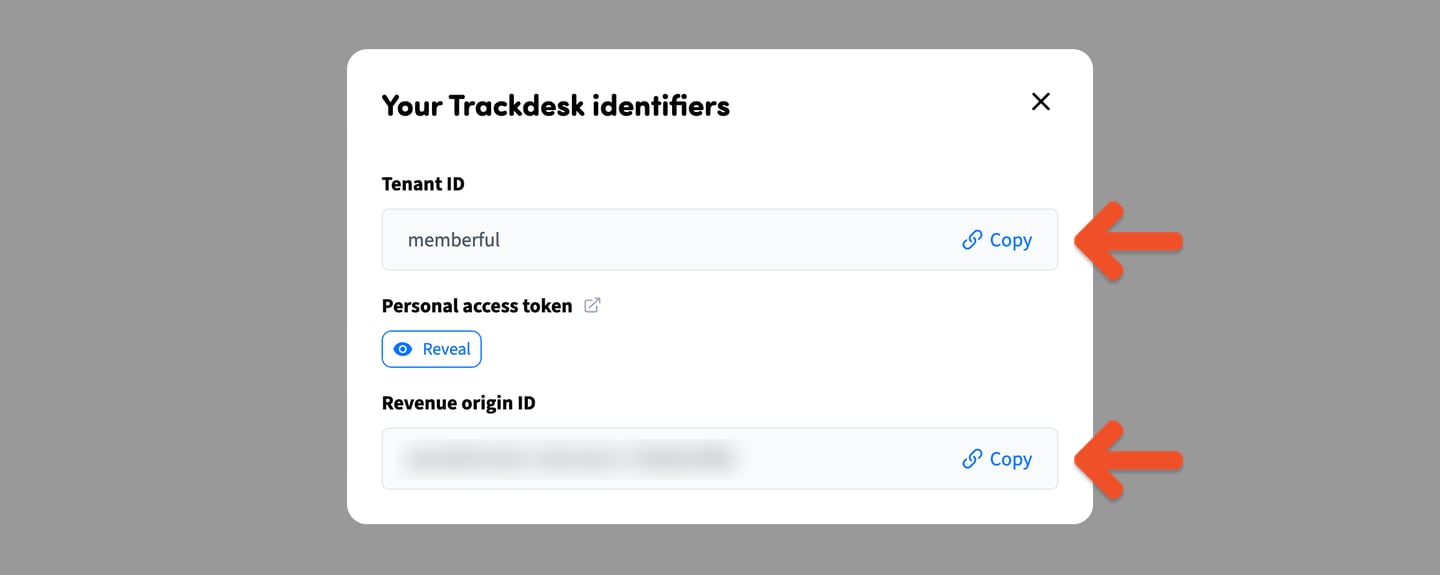
YOUR_TENANT_ID with your Trackdesk tenant ID, and replace YOUR_REVENUE_ORIGIN_ID with your revenue origin ID. In your Trackdesk account, go to Settings → Your Trackdesk identifiers to find both.
Integrate Trackdesk with Stripe
Trackdesk’s Stripe integration tracks payments and refunds automatically. It also supports recurring commissions, subject to your offer’s recurrence limit. In your Trackdesk account, go to Offers, open your offer, and go to Integrations → Stripe via Customer Email. Follow the first two steps on that page to install the Trackdesk Stripe app and connect it to your account. Skip the last two steps, which add JavaScript code to your pages. We’ve adapted that code to work with Memberful below.Add the tracking code to your website
If you haven’t already added it in Track conversions on your website, place this code on every page of your website, as high as possible between the<head> and </head> HTML tags:
YOUR_TENANT_ID in the click tracking code with your Trackdesk tenant ID.
Next, add the PHP code below to the post-purchase page of your website, usually a “Thank you” page. Configure it to output the email connection script immediately before the closing </body> tag.
This code makes an API call to Memberful to fetch the member’s email address and passes it to Trackdesk. Trackdesk uses this email to connect Stripe payments to the affiliate’s click.
Make this API call on the server side, using a server-side language like PHP, so your Memberful API key isn’t exposed to the public.
If you’re using WordPress, you can use a plugin like WPCode to insert PHP code into your pages. Consult with a web developer to make sure the code is secure, won’t break your website, and handles any possible errors gracefully.
Memberful’s Tapfiliate integration supports automatic renewals and disputes, with extra work needed for refunds. If you’re looking for a simpler setup, use Tapfiliate instead.
- Replace both occurrences of
YOUR_TENANT_IDwith your Trackdesk tenant ID, and replaceYOUR_REVENUE_ORIGIN_IDwith your revenue origin ID. You can find both in your Trackdesk account under Settings → Your Trackdesk identifiers. - Replace
YOUR_MEMBERFUL_SUBDOMAINwith your Memberful account URL subdomain, which you can find in Website → General settings under Account URL. - Replace
MEMBERFUL_API_KEYwith your Memberful API key, which you can find under Settings → Custom applications after you’ve created a custom application.
Track and manage affiliate activity
If you’re using one-time conversion tracking, the code on your “Thank you” page sends the order information to Trackdesk. If you’re using the Stripe integration, the code connects the member’s email address to the affiliate’s click, and Trackdesk tracks their payments through Stripe. You can manage your affiliates and their payments in your Trackdesk account.Test your integration
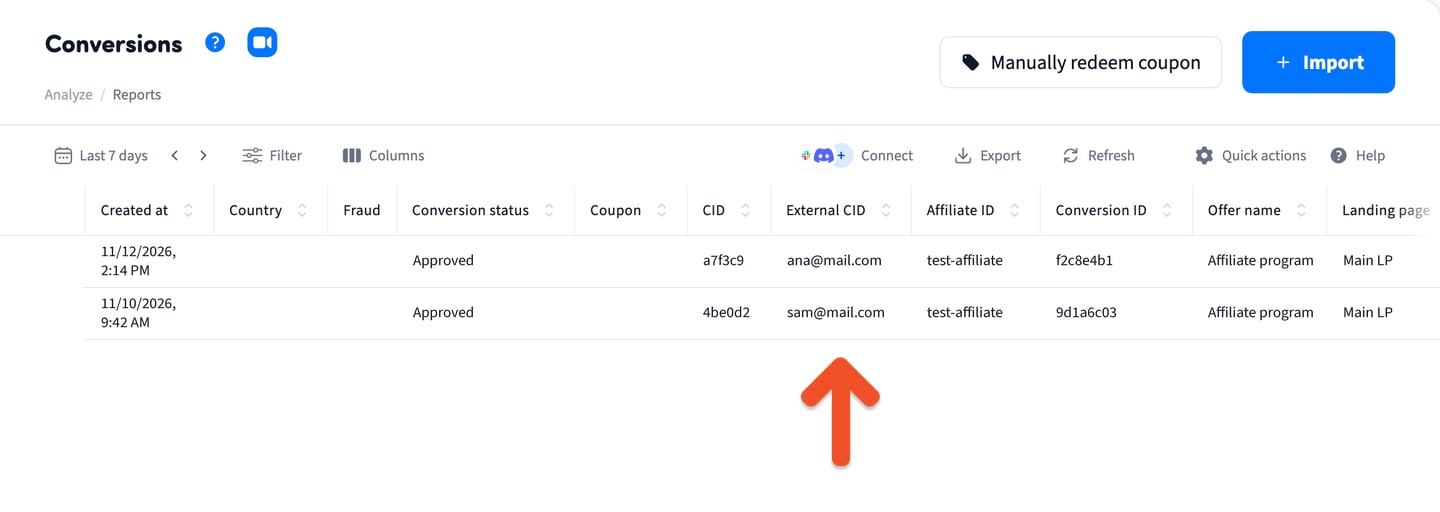
Before launching your affiliate program, open an affiliate’s referral link in a private browser window and complete a test purchase. Check that the click and conversion appear in your Trackdesk reports. If you’re using the Stripe integration, also check that the member’s email address appears in the External CID column of the click report. Trackdesk checks for new Stripe conversions every 15 minutes. To check sooner, use Check Now in the Trackdesk app settings in Stripe. Use a non-zero payment amount when testing Stripe payment conversions. Zero-value payments don’t generate conversions through the Stripe integration.Locate a Trackdesk conversion in Memberful
If you didn’t integrate Trackdesk with Stripe, you can locate a Trackdesk conversion in Memberful by replacing the values in this URL and opening it in your browser:- Replace
YOUR_MEMBERFUL_SUBDOMAINwith your Memberful account URL subdomain, which you can find in Website → General settings under Account URL. - Replace
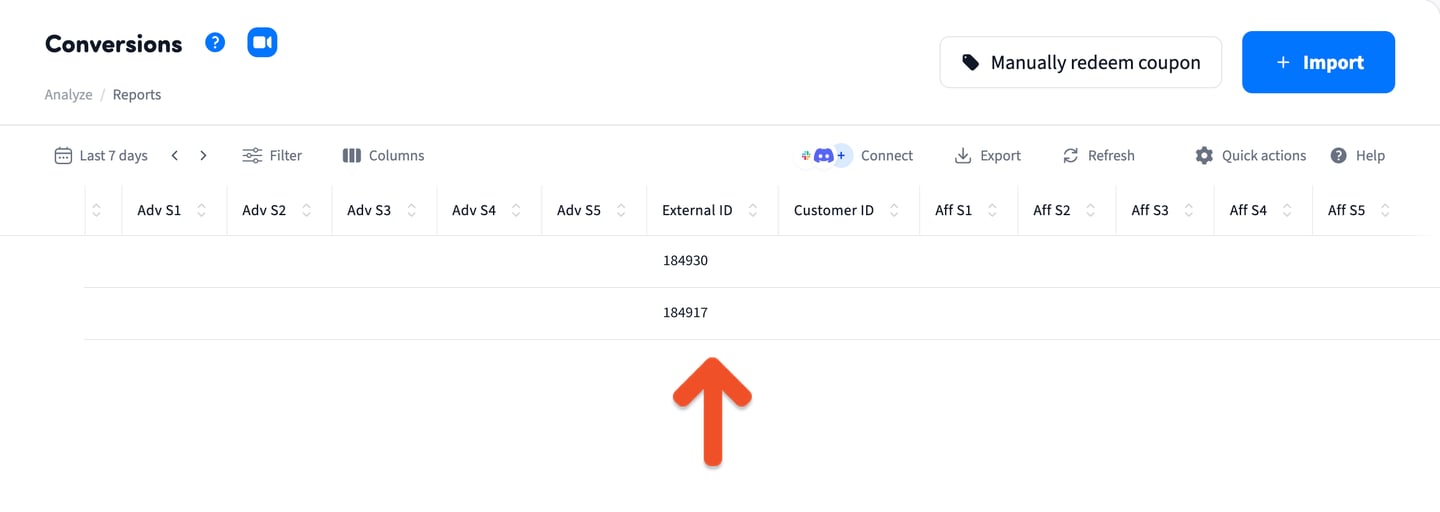
YOUR_ORDER_IDwith the External ID for this conversion in Trackdesk. You may need to scroll all the way to the right to see this column in the table of conversions.
Recurring commissions and refunds
If you’ve integrated your Trackdesk account with Stripe and added the server-side tracking code to your “Thank you” page, Trackdesk uses the member’s email address to connect Stripe payments to the affiliate’s click.- Recurring commissions: Trackdesk tracks recurring payments, subject to your offer’s recurrence limit.
- Refunds: Trackdesk’s Stripe app automatically tracks refunds and updates the matching conversion’s status to Refunded.