View a page or draft
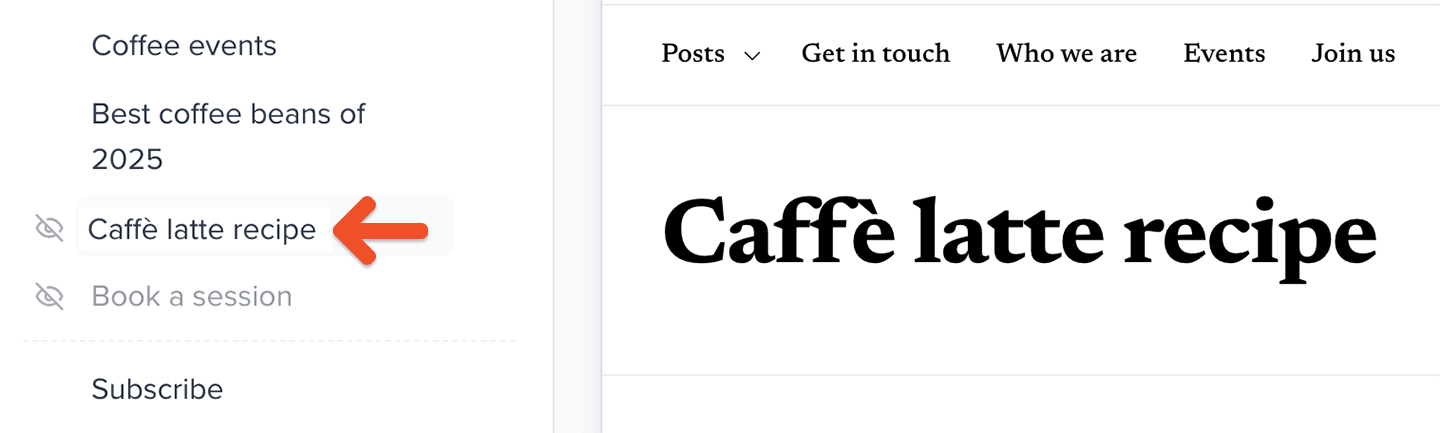
When you create a page but choose not to publish it right away, it will show up in the list of pages with a faded gray font color.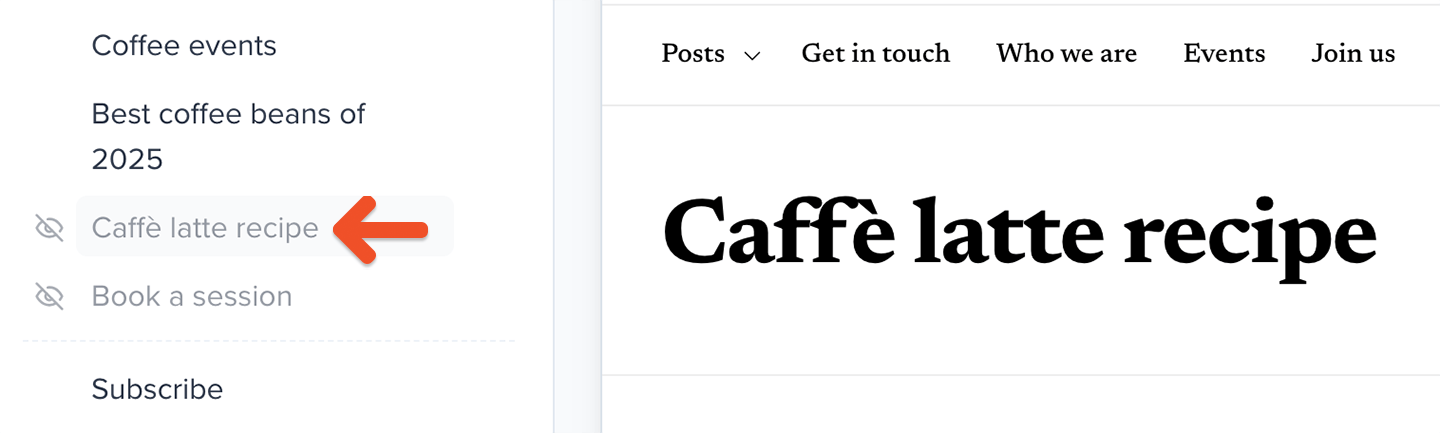
Publish a page without adding it to your navigation
Set a page to Unlisted to keep it live without displaying it in your member website’s navigation menu. Anyone with the page URL can access and share it. Memberful also tells search engines not to index unlisted pages.1
Open the page settings
Open the settings for the page you want to unlist.
2
Change the page visibility
Select Unlisted.
3
Save your changes
Click Save changes.
4
Copy the page link
Click Copy under Share to copy the page URL.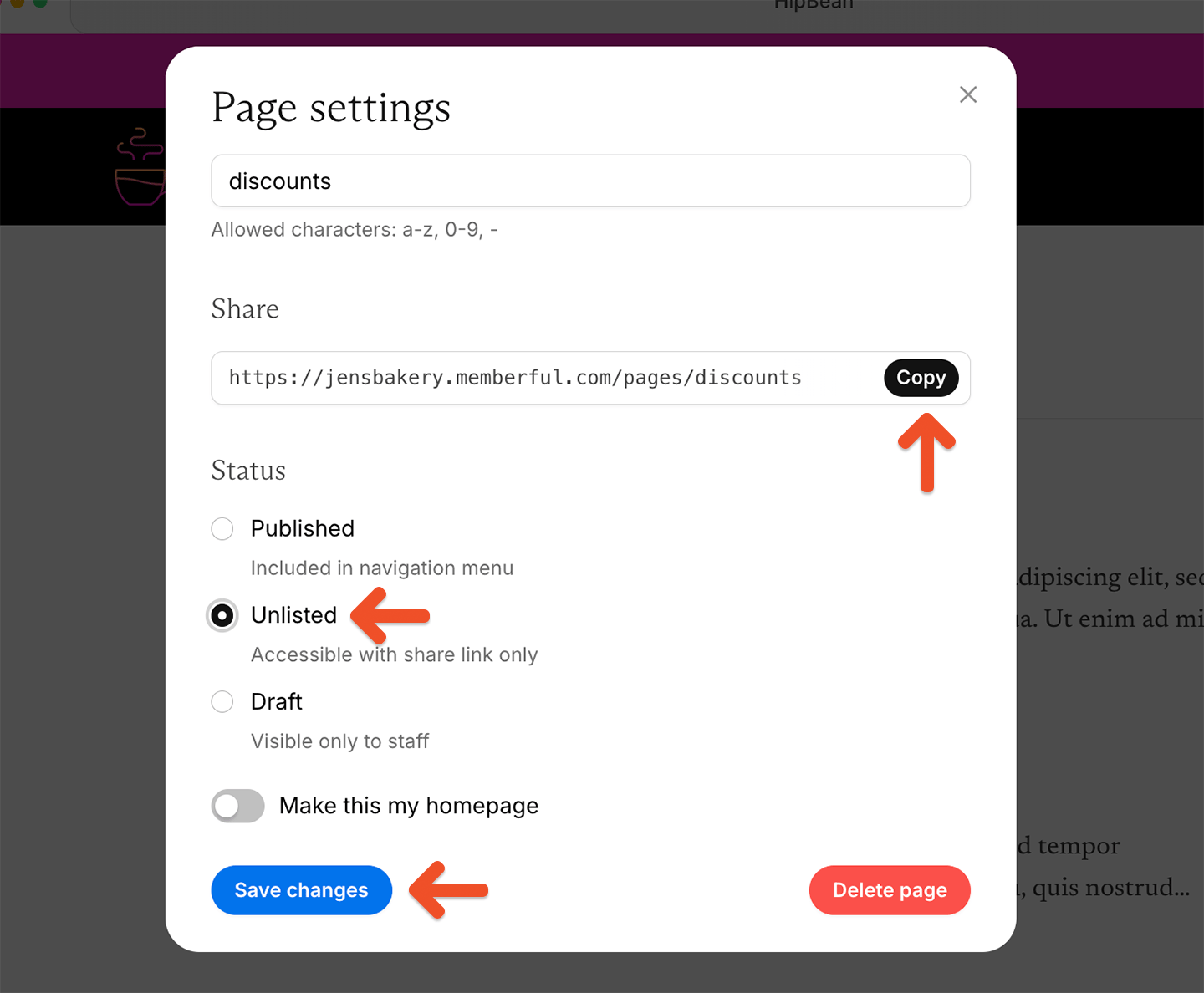
5
Share the page
Add the copied link to an email, external website, or direct message.
Edit a page or navigation item
To edit a page, click it in the list of pages, then click Edit page.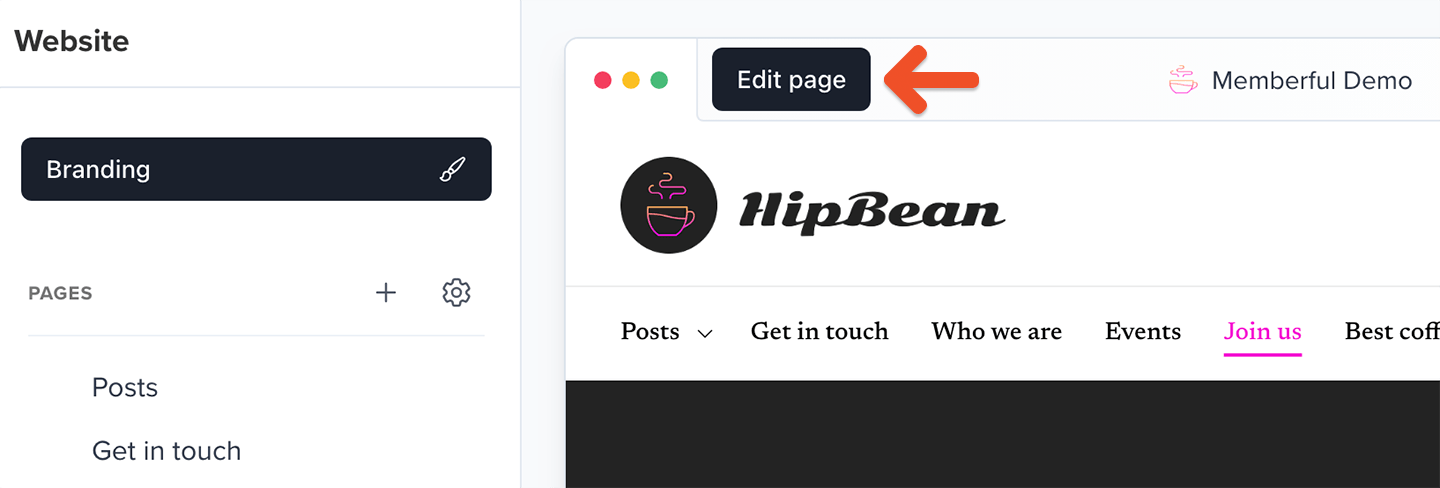
Delete a page
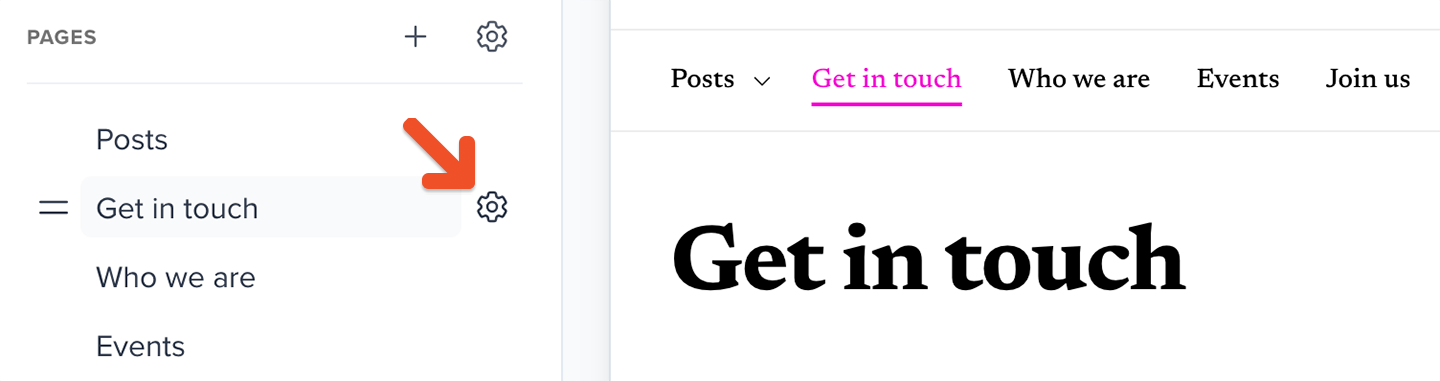
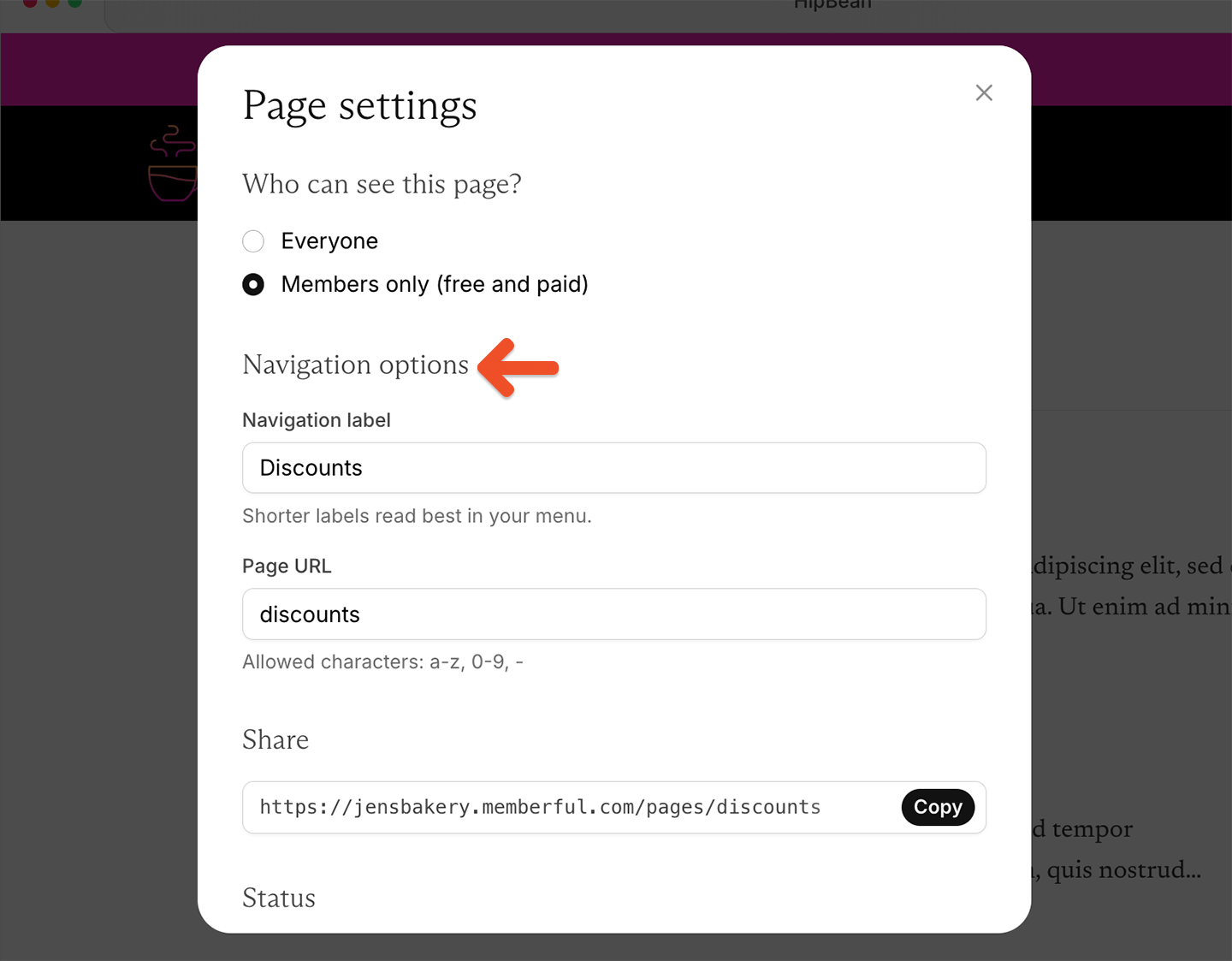
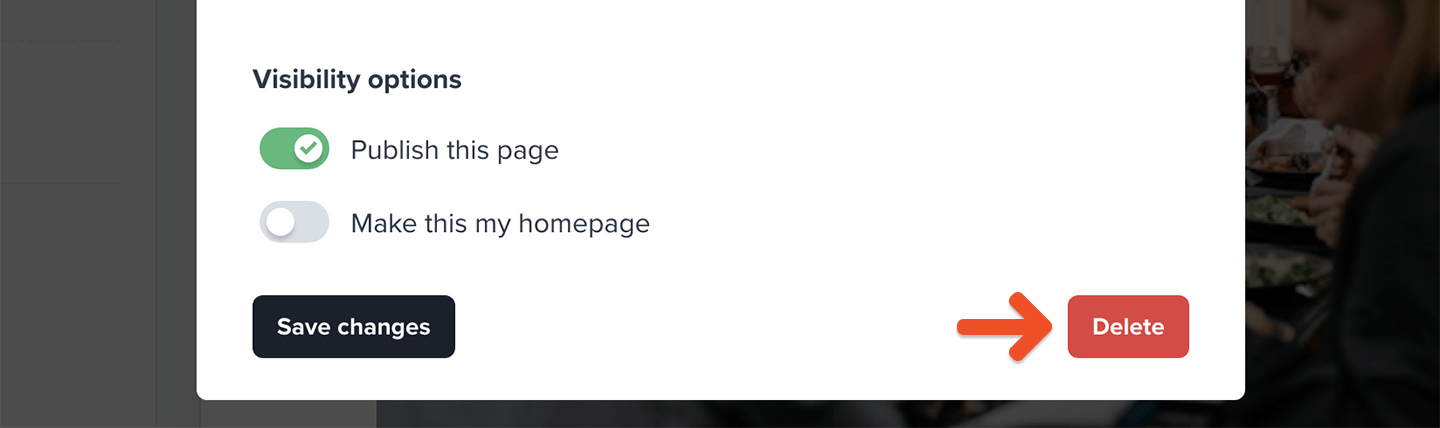
To delete a page, hover your cursor over it in the list of pages, click the gear icon, then click Delete. Alternatively, while editing the page you can click the gear icon in the top-right corner of the editor and click Delete.This action is not recoverable.
View your site
To view your site, go to the Website tab or the page editor, then click the arrow icon in the top-right corner of the page preview area or page editor.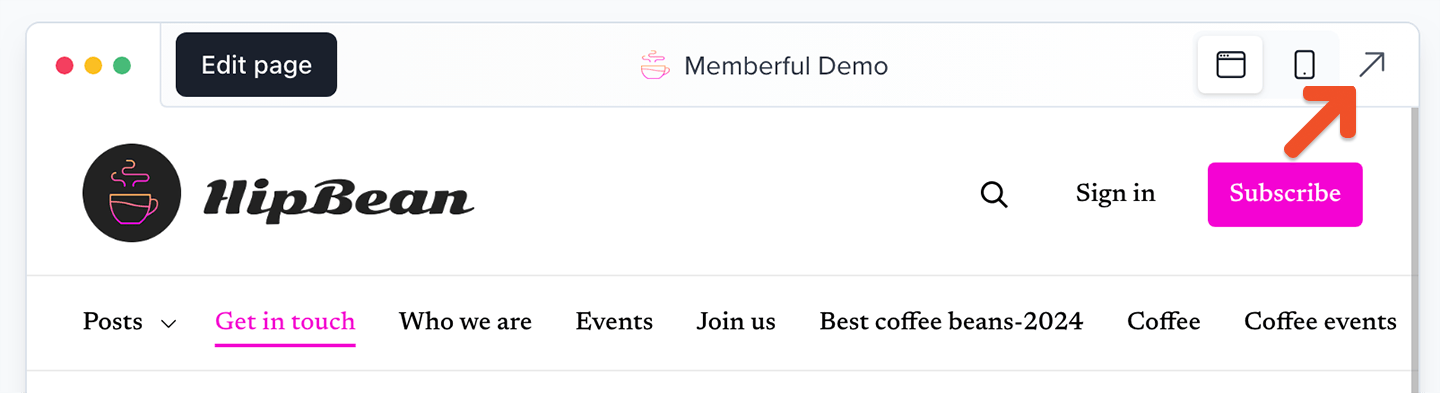
Rearrange your page order
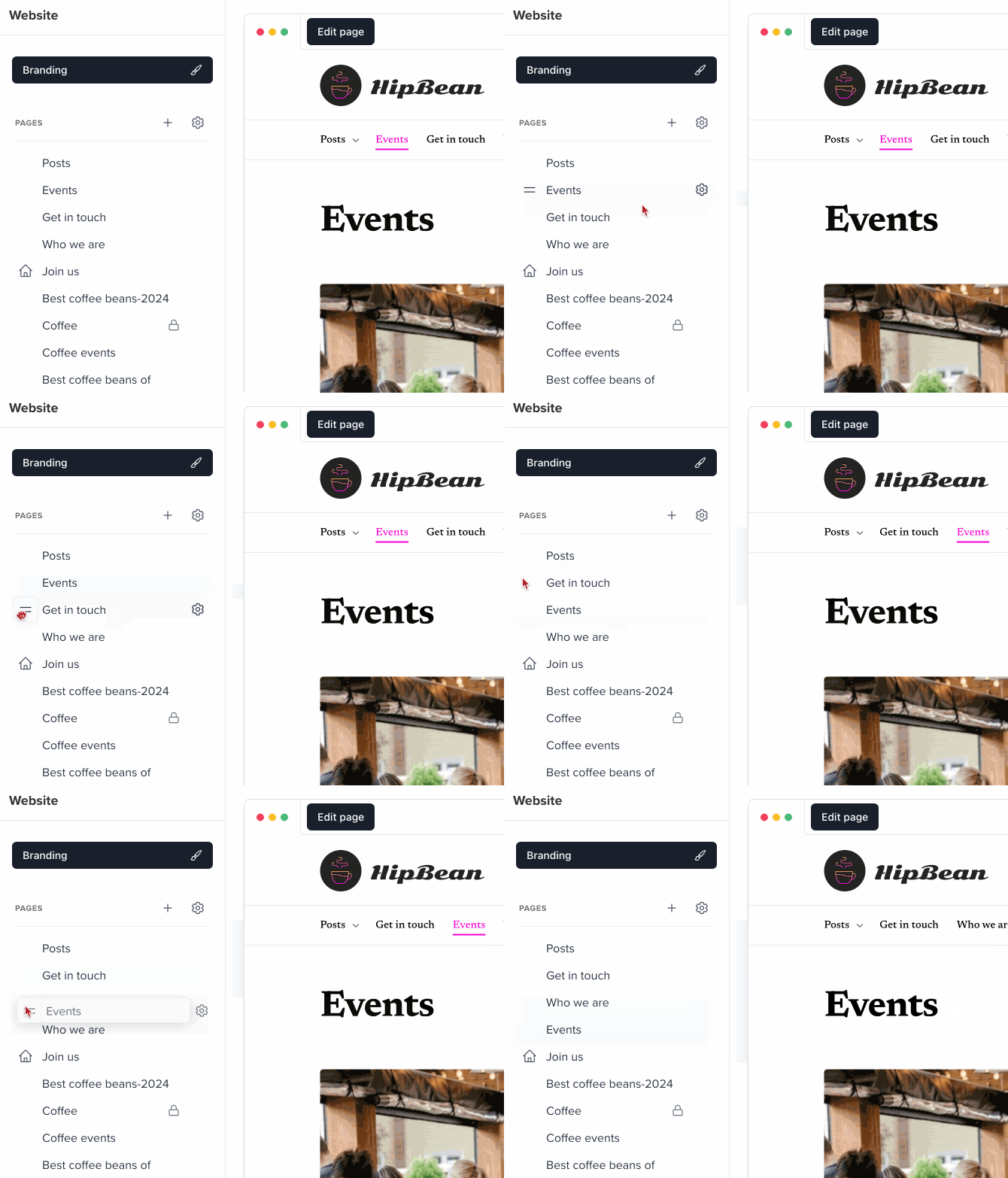
To rearrange the order of pages in your site’s navigation, go to the Website tab and hover over a page in the list. Click and drag the two-line icon to move the page to the desired location.