

Connect to your Discord server
Go to Content → Community from your Memberful dashboard, and activate the Discord integration.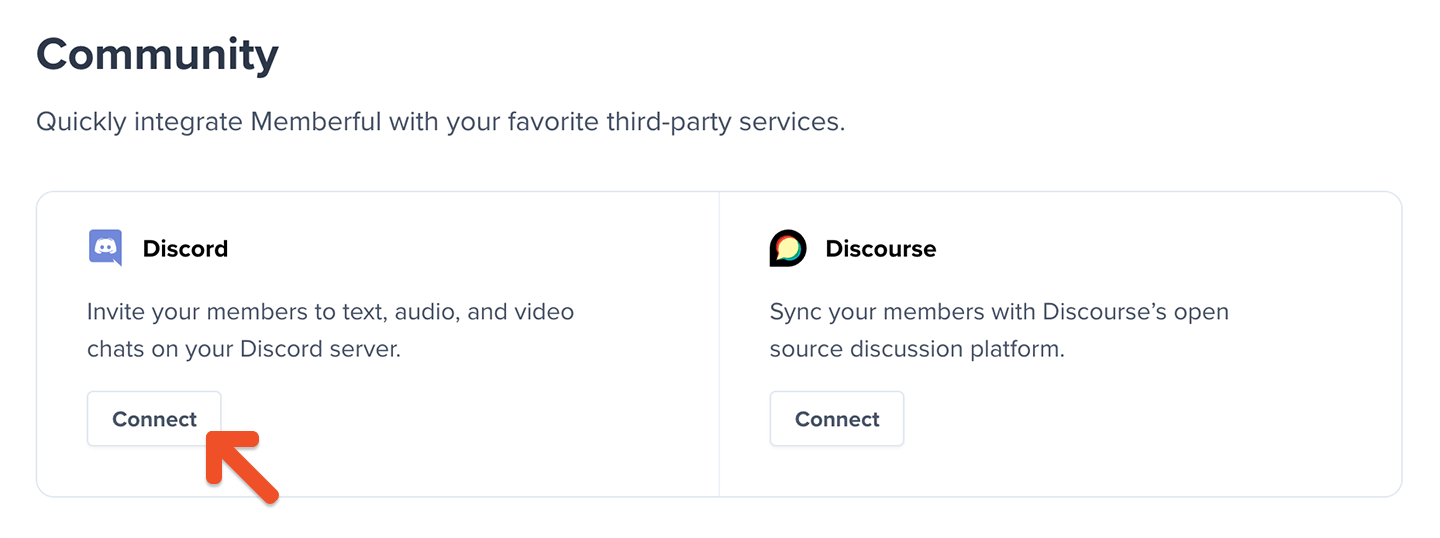
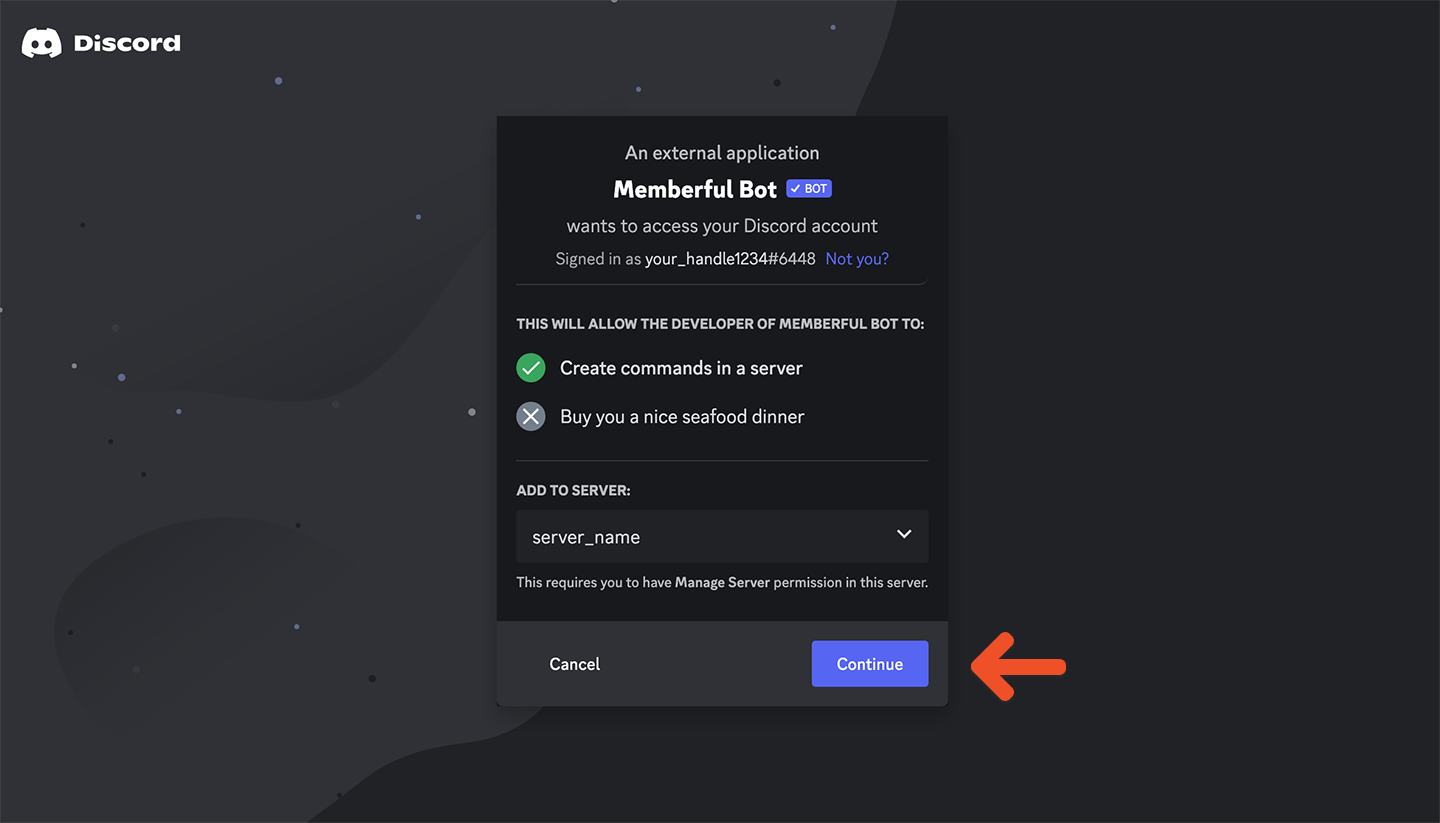
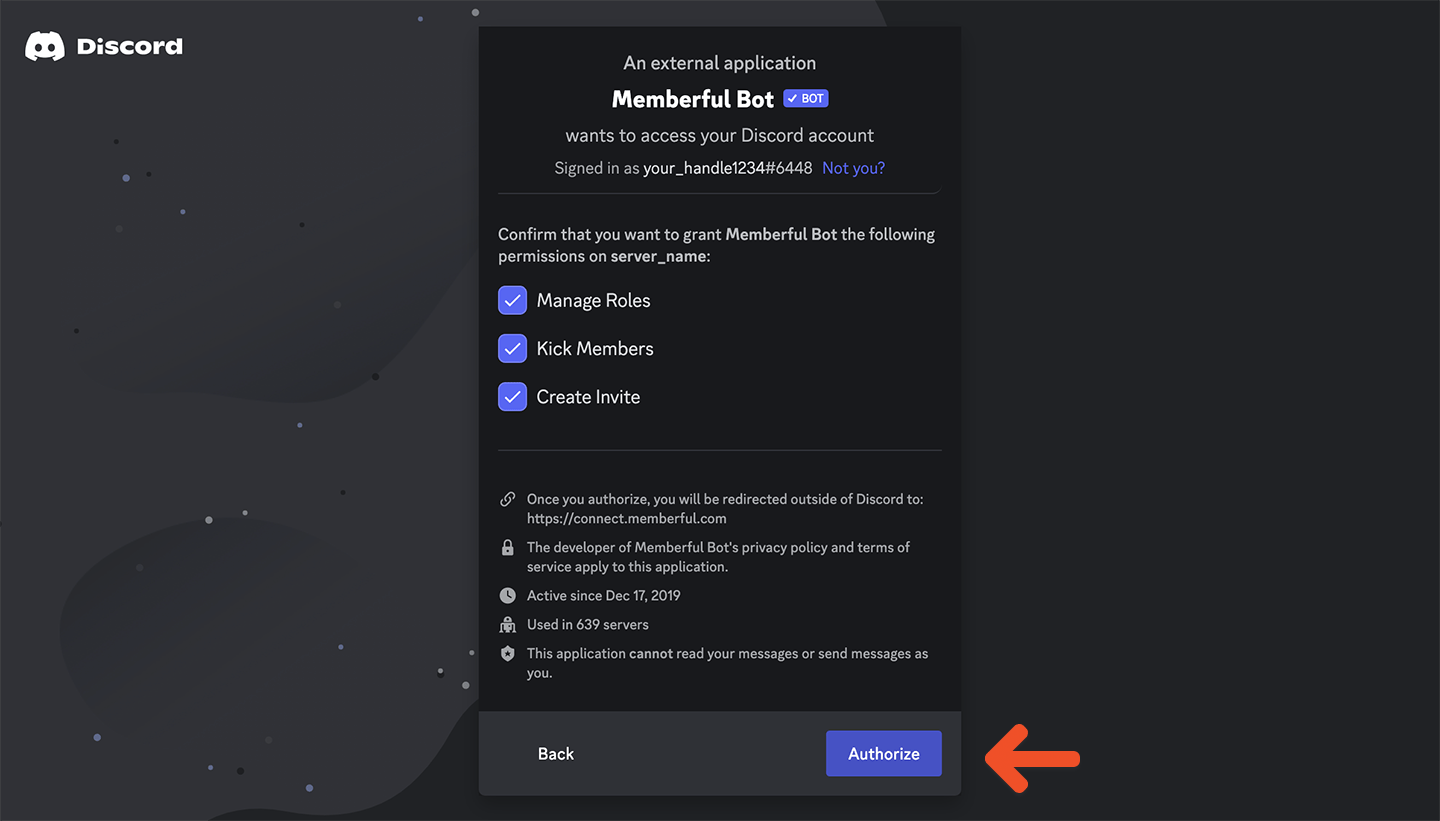
- Manage Roles
- Kick Members
- Create Invite
Refusing to grant any of these permissions will cause your integration to malfunction.
Configure Memberful’s Discord settings
If you’re not already there, go to Content → Community → Discord, and click the Edit settings button. Configure the integration to determine who should be able to access your Discord server. (See options below.) Once you’re done, click Update settings.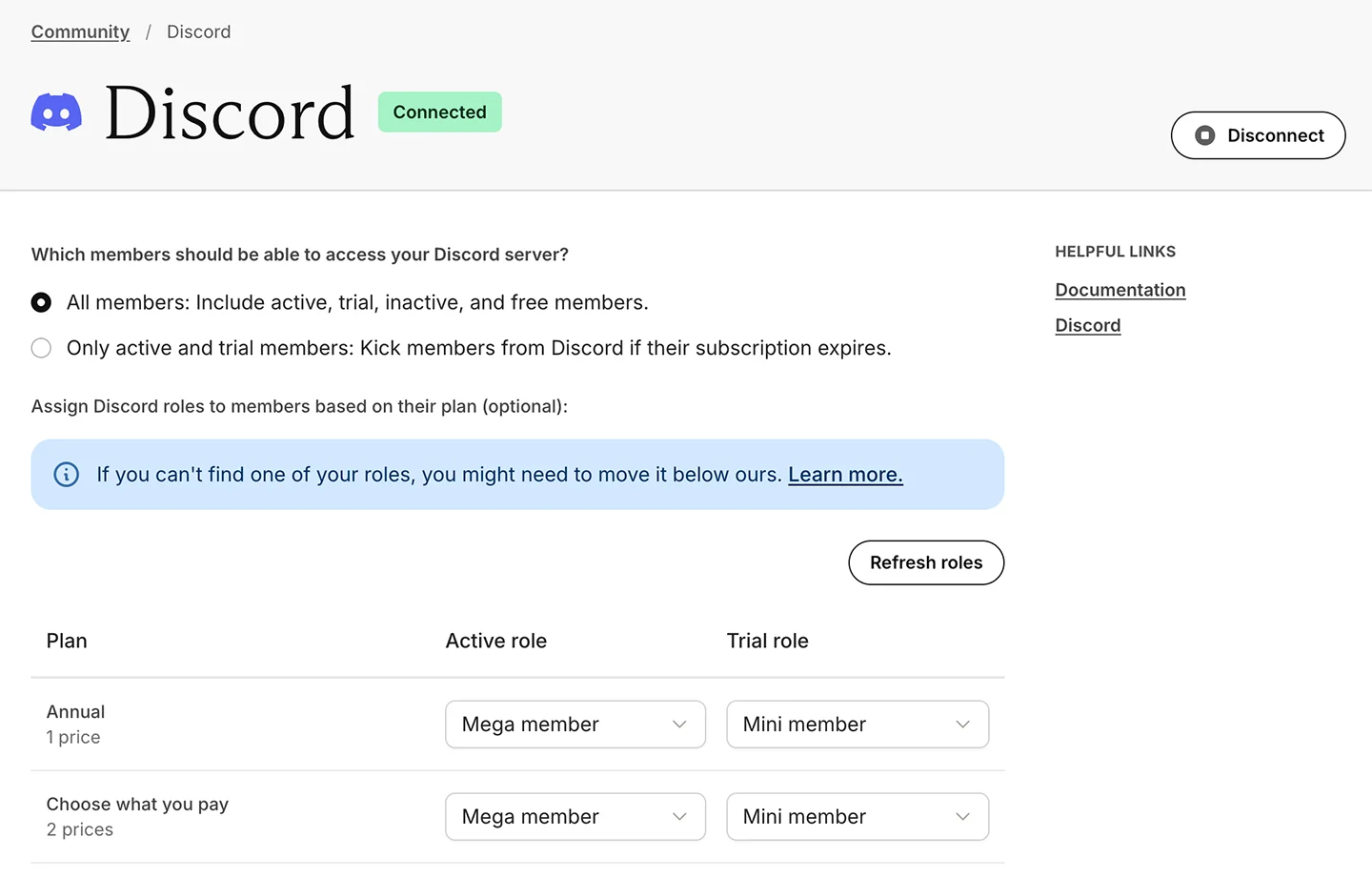
Associate Discord roles with Memberful plans
When a member subscribes to a plan, Memberful can assign them a Discord role based on their membership status. You can leverage Discord roles to set up role-exclusive channels in your Discord server. Each plan can have:- An Active role for members with an active paid subscription.
- A Trial role for members currently in a trial period.
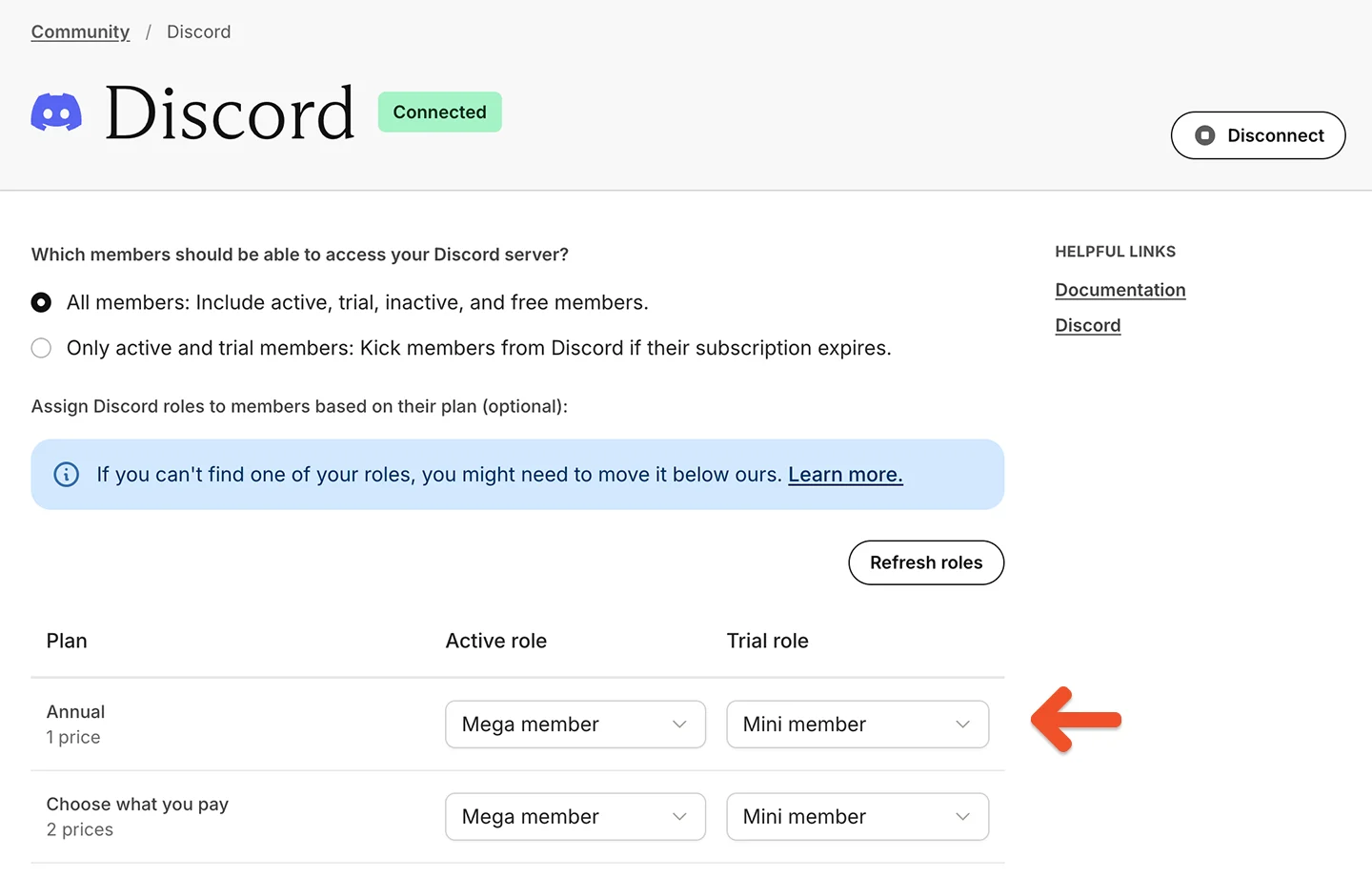
Any Discord roles mapped to a plan may be removed from existing Discord users who previously had that role, unless their current membership status qualifies them for that role.
All members
This setting will allow all members to join your server (active, inactive, or free). We can assign paying members exclusive roles (see above) and remove those roles if their subscription lapses. They will not be removed from the server even if their subscription lapses.Members with an active subscription
This setting will only allow active members in your server. They will be removed from the server if their subscription lapses. Once you’re done, click Update settings.Once you enable our Discord integration, you may notice that the Memberful bot appears offline. This is normal and expected.
Invite members to join your server
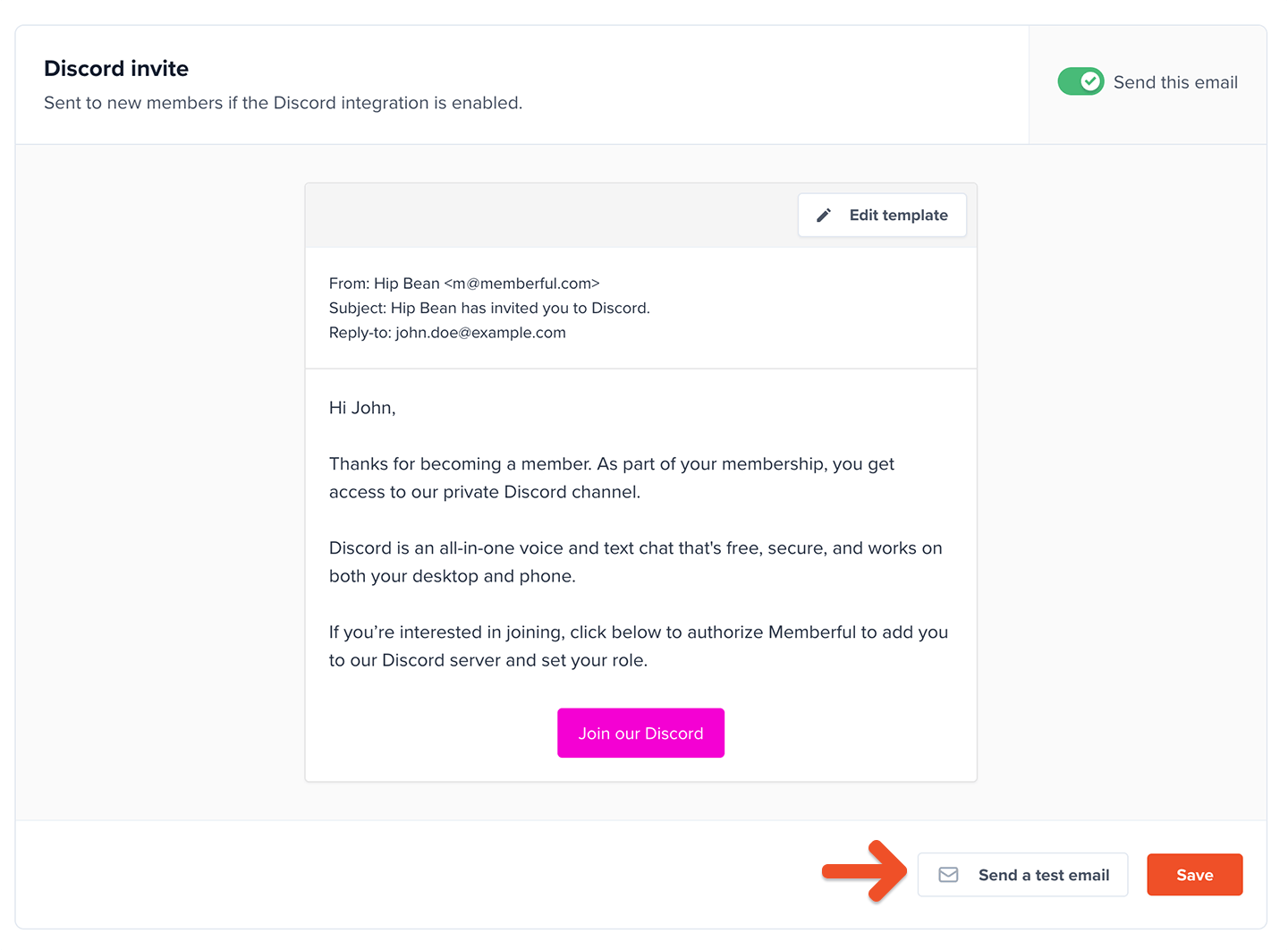
By default, we will show your new members a page after purchase with an invite to join your server. When they click the button, they’ll be prompted to authorize the Memberful Discord bot. Learn more about the member experience.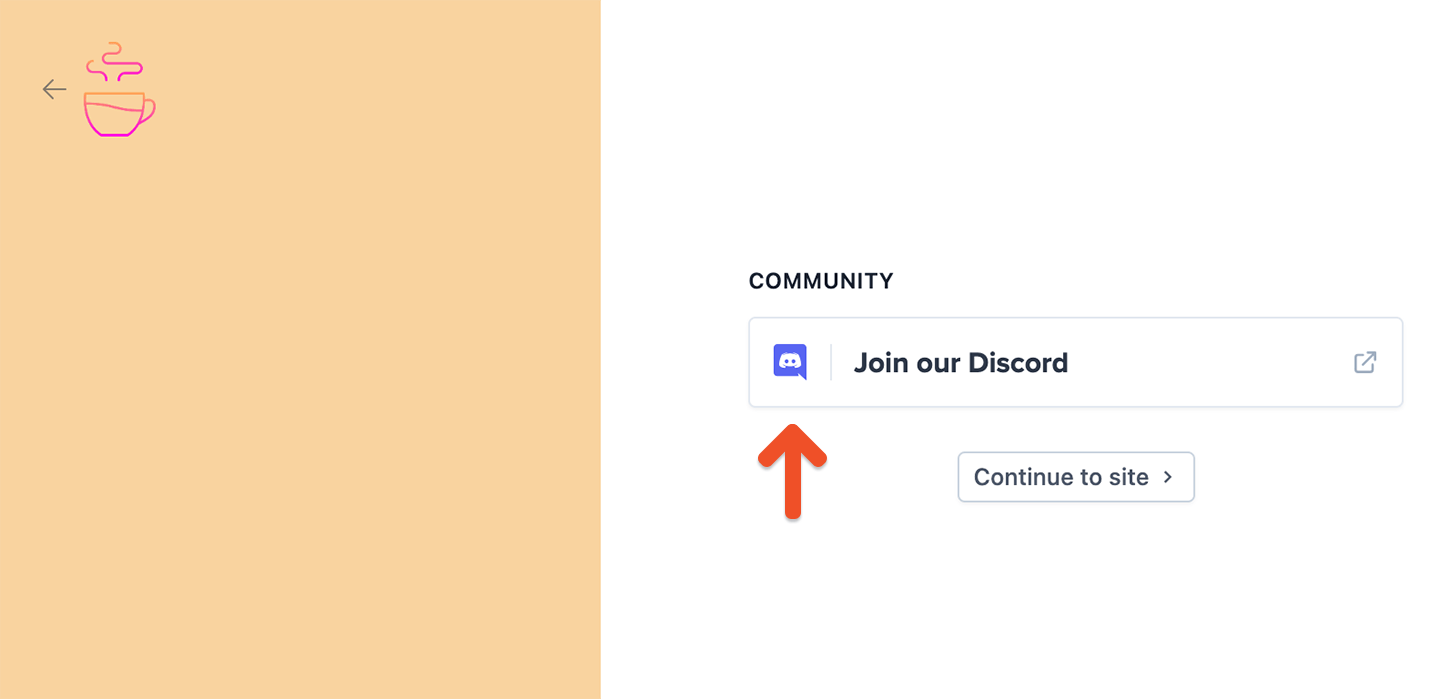
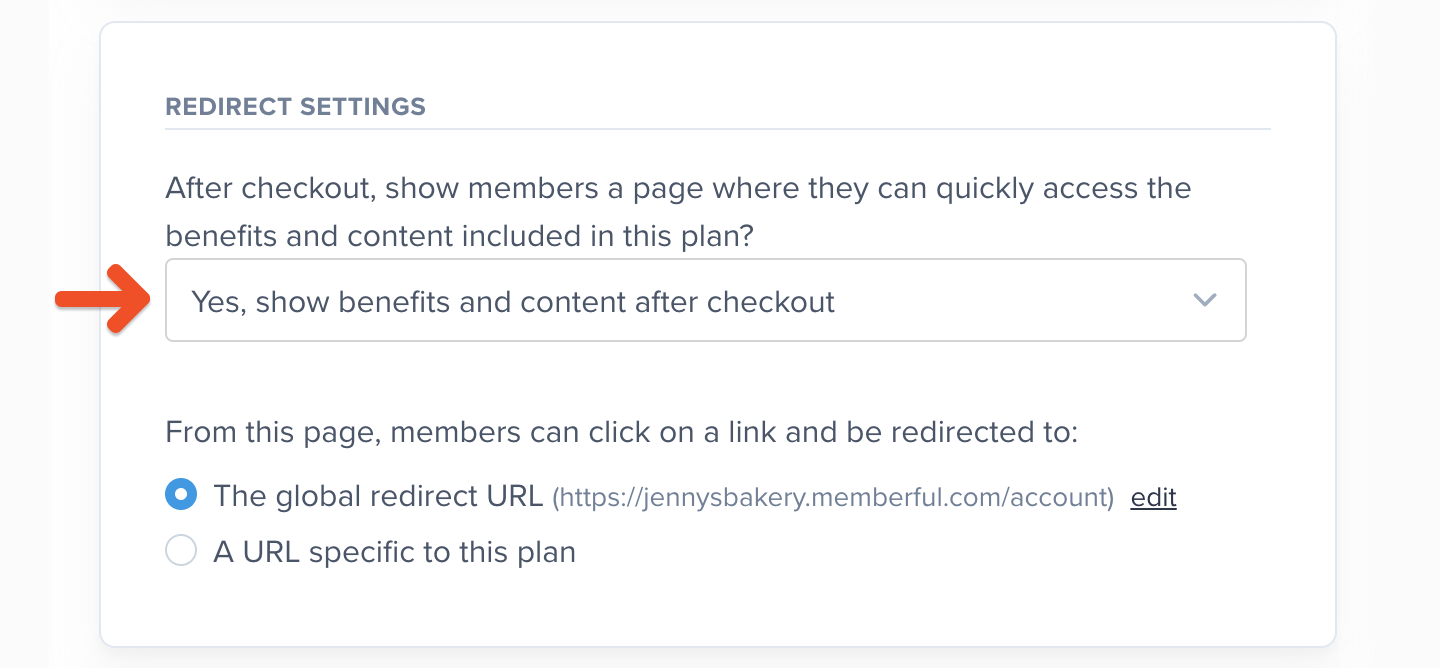
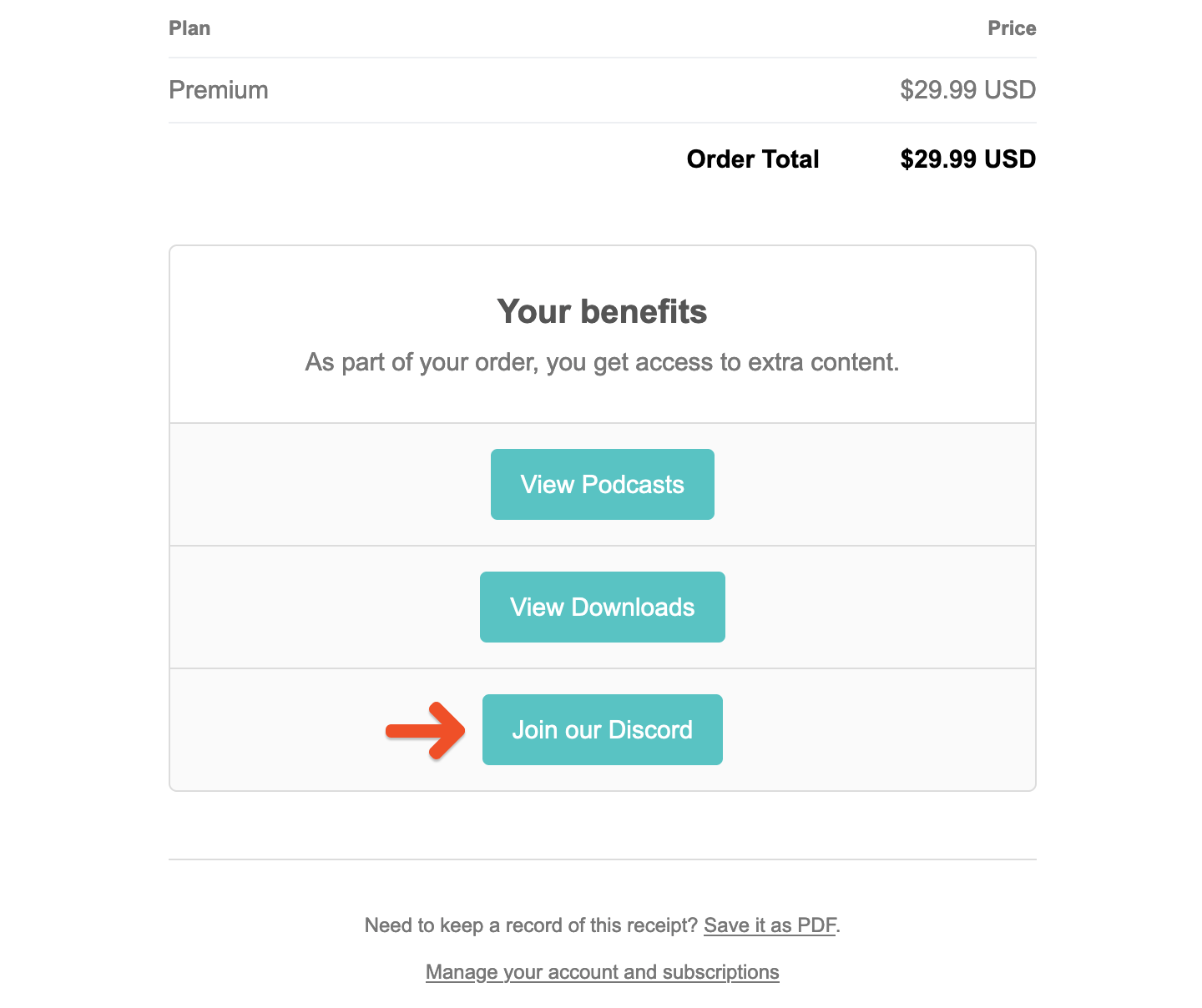
Authorizing the Memberful bot is a required step. Without this step, the member will not get the correct access and / or role on your server.