> ## Documentation Index
> Fetch the complete documentation index at: https://memberful.com/docs/llms.txt
> Use this file to discover all available pages before exploring further.
# Restrict access by category or tag
> The simplest way to restrict access to posts with the Memberful WordPress plugin is with the restrict access by category or tag setting.
export const RelatedDocs = ({link1, link2, link3, link4, link5, link6, link7, link8, link9, link10, className = ""}) => {
const links = [link1, link2, link3, link4, link5, link6, link7, link8, link9, link10].filter(Boolean);
if (!links.length) return null;
return ;
};
Once you integrate the Memberful WordPress plugin, you can restrict access to posts by category or tag (this also works for custom taxonomies). This lets you define who can access all posts in a category or tag — eliminating the need to specify the restrictions on a post-by-post basis.
In this help article, we'll show you how to restrict by category or tag, add marketing content, and how our feature interacts with other settings.
Restricting by category/tag is different from the Bulk Restrict Access tool. Bulk restrict applies restrictions once to all current posts in a category, while category/tag restriction applies automatically to both current and future posts.
## Restrict content by category or tag
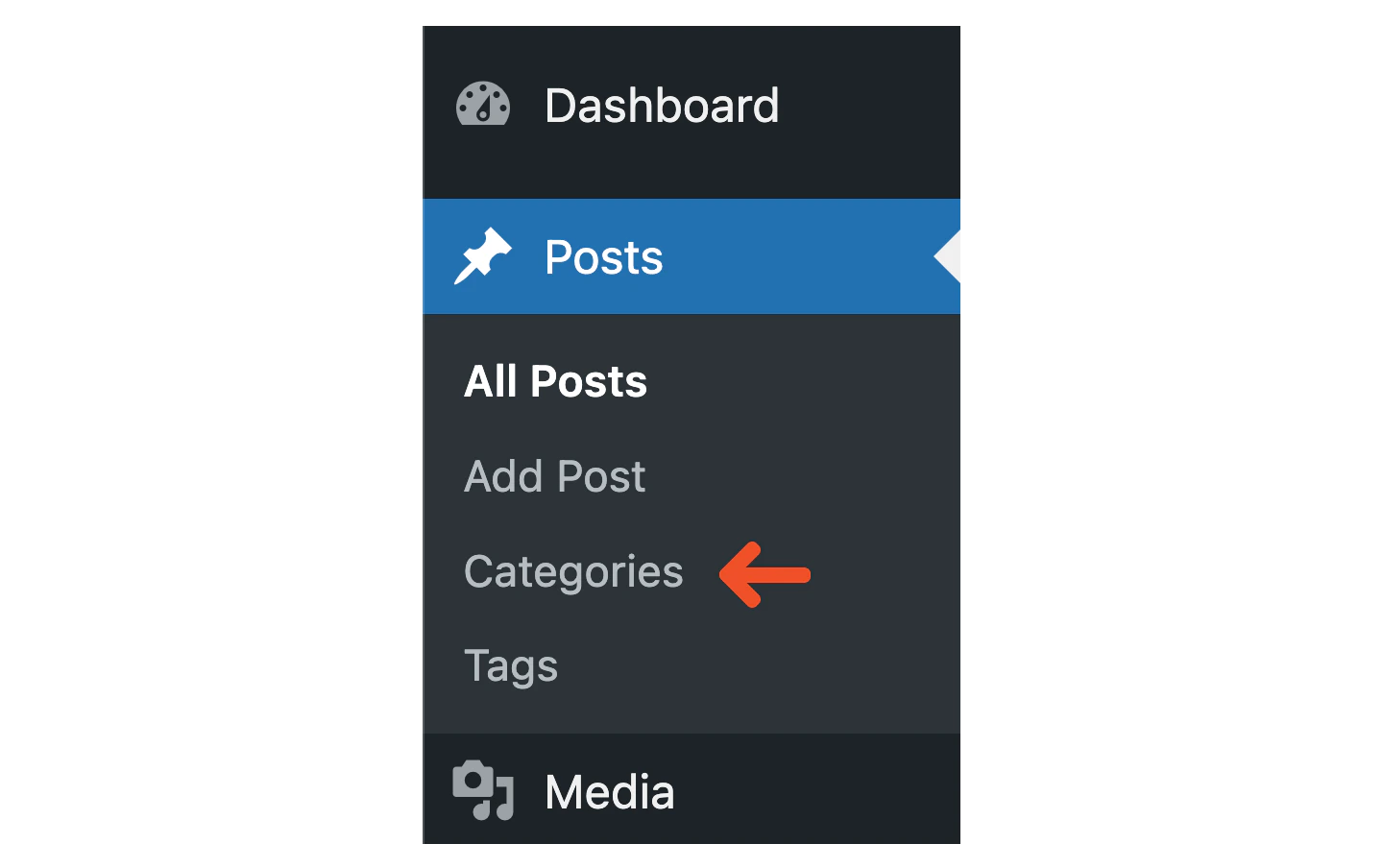
1. In your WordPress dashboard, go to *Posts → Categories* or *Tags* (custom taxonomies are also supported).
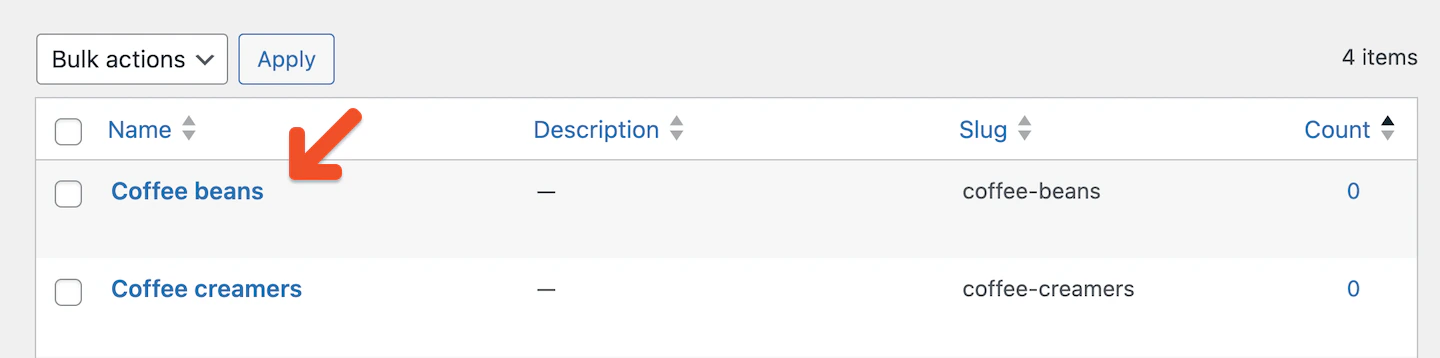
 2. Select the category or tag you want to restrict. Do not restrict multiple categories or tags in one post.
 3. Scroll down to the **Memberful: Restrict Access** box.
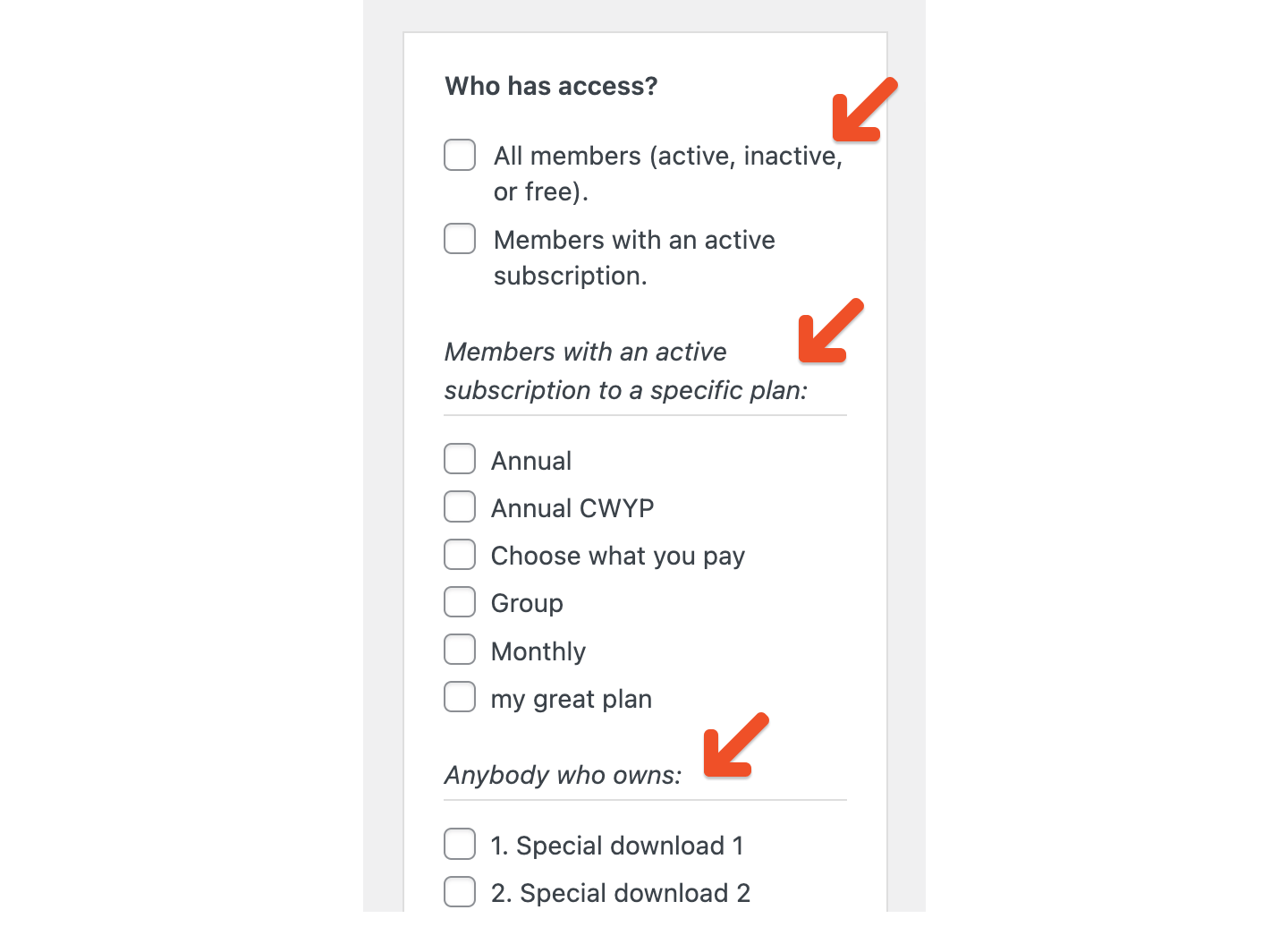
 4. Choose who can access posts in this category/tag by checking the appropriate option:
* All members—active, inactive, or free (useful for a ["freemium" tier](/docs/member-management/payments-and-access/give-free-access/#enable-free-registration))
* Members with an active subscription to [any plan](/docs/plans/individual-plans/create-a-plan/)
* Members with an active subscription to a specific plan
* Anybody who owns a specific [download](/docs/plans/plan-options/include-or-sell-downloads/)
4. Choose who can access posts in this category/tag by checking the appropriate option:
* All members—active, inactive, or free (useful for a ["freemium" tier](/docs/member-management/payments-and-access/give-free-access/#enable-free-registration))
* Members with an active subscription to [any plan](/docs/plans/individual-plans/create-a-plan/)
* Members with an active subscription to a specific plan
* Anybody who owns a specific [download](/docs/plans/plan-options/include-or-sell-downloads/)
 ## Review your options for adding marketing content
When content is restricted, you can display marketing content or teaser text to non-members (or logged-out members). This helps convert visitors by previewing content and linking to sign-up or sign-in pages.
Examples for inspiration:
* [Mythical Society - members-only videos](https://www.mythicalsociety.com/series/rhett-link-stevie-go-to-halloween-horror-nights/welcome-episode-1)
* [Food Fix - members-only articles behind a paywall](https://foodfix.co/states-forge-ahead-with-universal-free-school-meals/)
You can add marketing content in several ways:
### Option A: Add to a category or tag
1. Edit the category or tag.
2. Enter your marketing content in the **Memberful: Restrict Access** box.
3. Save changes. This content will display across all posts in that category/tag, including future posts.
### Option B: Add to a single page or post
1. Open the post or page.
2. Enter your marketing content in the **Memberful: Restrict Access** box.
3. Update the post.
### Option C: Create global marketing content
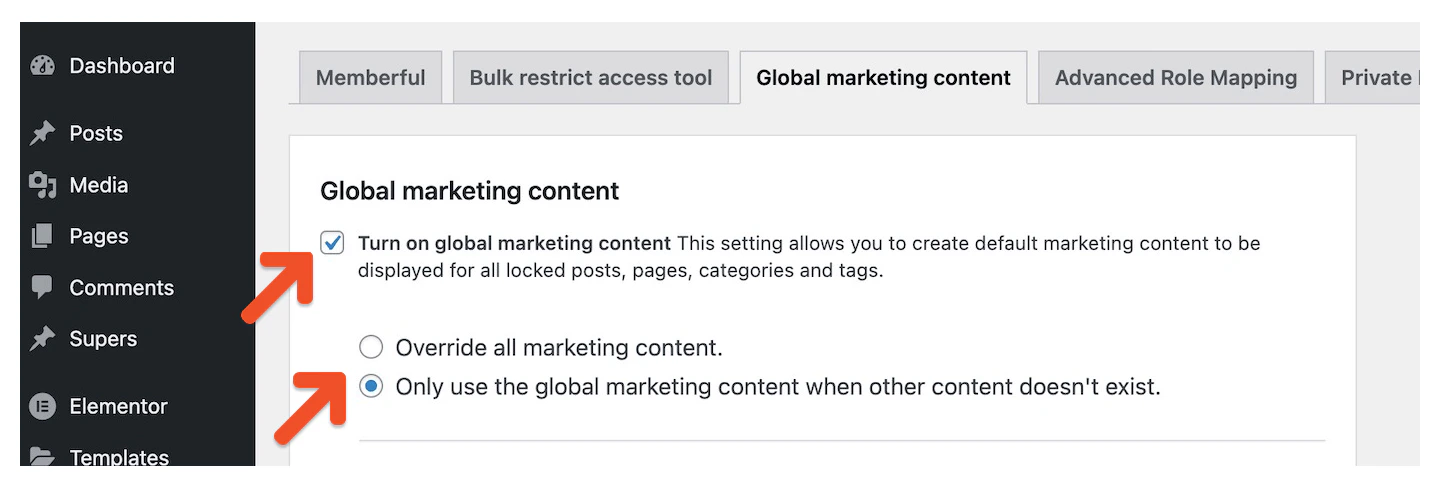
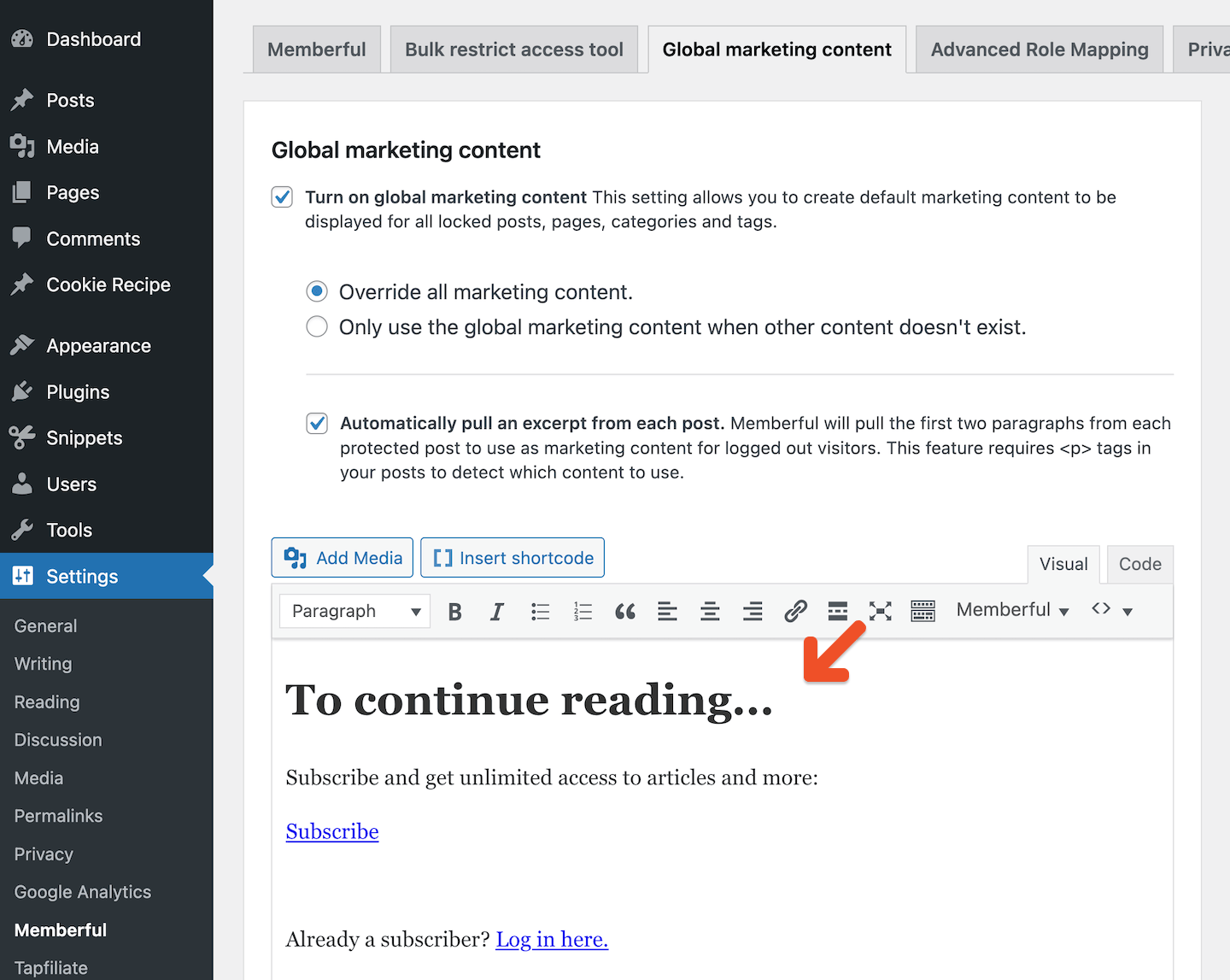
1. Go to *Settings → Memberful → Global marketing content.*
2. Check **Turn on global marketing content.**
3. Choose one of two behaviors:
* Override all marketing content – replace all existing content in restricted posts/pages.
* Use only when other content doesn't exist – fill empty marketing content fields.
## Review your options for adding marketing content
When content is restricted, you can display marketing content or teaser text to non-members (or logged-out members). This helps convert visitors by previewing content and linking to sign-up or sign-in pages.
Examples for inspiration:
* [Mythical Society - members-only videos](https://www.mythicalsociety.com/series/rhett-link-stevie-go-to-halloween-horror-nights/welcome-episode-1)
* [Food Fix - members-only articles behind a paywall](https://foodfix.co/states-forge-ahead-with-universal-free-school-meals/)
You can add marketing content in several ways:
### Option A: Add to a category or tag
1. Edit the category or tag.
2. Enter your marketing content in the **Memberful: Restrict Access** box.
3. Save changes. This content will display across all posts in that category/tag, including future posts.
### Option B: Add to a single page or post
1. Open the post or page.
2. Enter your marketing content in the **Memberful: Restrict Access** box.
3. Update the post.
### Option C: Create global marketing content
1. Go to *Settings → Memberful → Global marketing content.*
2. Check **Turn on global marketing content.**
3. Choose one of two behaviors:
* Override all marketing content – replace all existing content in restricted posts/pages.
* Use only when other content doesn't exist – fill empty marketing content fields.
 4. Add your global content and click **Save changes.**
 ### Option D: Add teaser text (excerpt fade)
1. In *Settings → Memberful → Global marketing content*, enable both:
* Turn on global marketing content
* Automatically pull an excerpt from each post
2. Choose either "Override all" or "Use when none exists."
3. Save changes. Memberful will pull the first two paragraphs (based on `
### Option D: Add teaser text (excerpt fade)
1. In *Settings → Memberful → Global marketing content*, enable both:
* Turn on global marketing content
* Automatically pull an excerpt from each post
2. Choose either "Override all" or "Use when none exists."
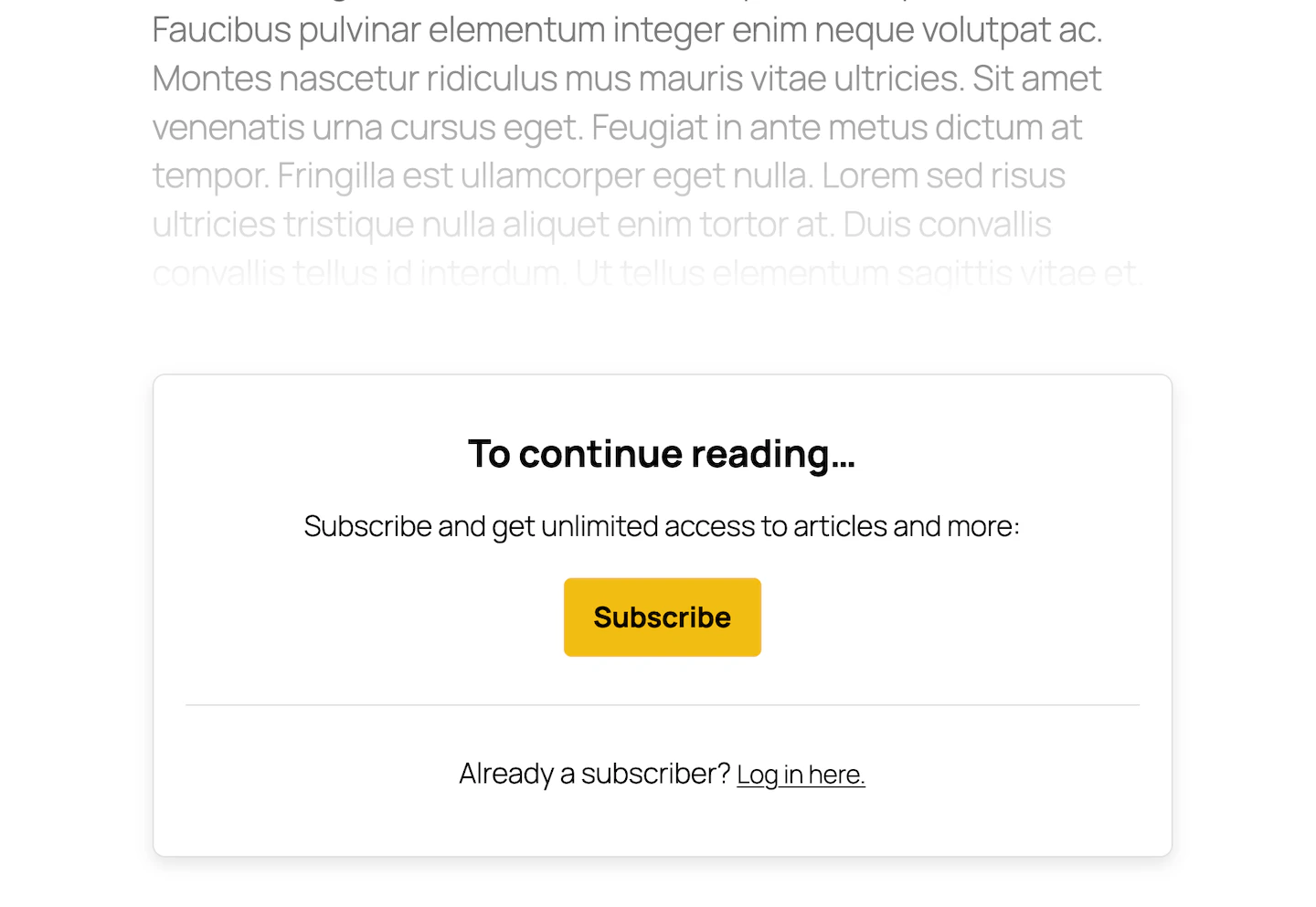
3. Save changes. Memberful will pull the first two paragraphs (based on `` tags) as teaser text before showing marketing content. Make sure your content is formatted in proper paragraphs.
 ## Categorize or tag a new post
Moving forward, whenever you categorize or tag a post, the associated Memberful restrict access and marketing settings will be applied automatically.
* If a member has the correct access → they'll see the protected content.
* If not → they'll see the marketing content.
## Categorize or tag a new post
Moving forward, whenever you categorize or tag a post, the associated Memberful restrict access and marketing settings will be applied automatically.
* If a member has the correct access → they'll see the protected content.
* If not → they'll see the marketing content.
 ## How this feature interacts with other settings
It's important to understand how category/tag restrictions interact with other Memberful features:
* **Category/tag marketing content** → applies to all relevant posts (current + future).
* **Individual post-level content** → overrides category/tag marketing content.
* **Bulk Restrict Access tool** → overrides existing restrictions + content for posts.
* **Global marketing content (override option)** → replaces all other marketing content.
**If a post was previously restricted individually:**
* The post-level restrictions and marketing content take priority over category/tag settings.
**If multiple restricted categories/tags are applied to one post:**
* The marketing content shown to non-eligible members will be randomly chosen from one of the categories/tags.
* Members gain access if they meet the requirements of any restricted category/tag.
* For consistency, we advise against using multiple restricted categories/tags on a single post.
## How this feature interacts with other settings
It's important to understand how category/tag restrictions interact with other Memberful features:
* **Category/tag marketing content** → applies to all relevant posts (current + future).
* **Individual post-level content** → overrides category/tag marketing content.
* **Bulk Restrict Access tool** → overrides existing restrictions + content for posts.
* **Global marketing content (override option)** → replaces all other marketing content.
**If a post was previously restricted individually:**
* The post-level restrictions and marketing content take priority over category/tag settings.
**If multiple restricted categories/tags are applied to one post:**
* The marketing content shown to non-eligible members will be randomly chosen from one of the categories/tags.
* Members gain access if they meet the requirements of any restricted category/tag.
* For consistency, we advise against using multiple restricted categories/tags on a single post.