> ## Documentation Index
> Fetch the complete documentation index at: https://memberful.com/docs/llms.txt
> Use this file to discover all available pages before exploring further.
# Custom subscription page
> Create a Memberful-hosted subscribe page to sell your plans when you don't have your own website or can't add a sales page to your existing site.
export const RelatedDocs = ({link1, link2, link3, link4, link5, link6, link7, link8, link9, link10, className = ""}) => {
const links = [link1, link2, link3, link4, link5, link6, link7, link8, link9, link10].filter(Boolean);
if (!links.length) return null;
return ;
};
Memberful’s hosted subscription page gives you a ready-made sales page for your plans. You can use it when you do not have your own website or cannot add a sales page to your existing site.
In this help article, we'll create and customize a subscription page, add plans and other signup options, and manage its display settings.
View example subscription page
View example subscription page
View example subscription page
## Before you begin
Create at least one membership plan before setting up your subscription page. In the Memberful dashboard, go to **Revenue → All plans** and click **New plan**.
For full setup guidance, see [Create a plan](/docs/plans/individual-plans/create-a-plan).
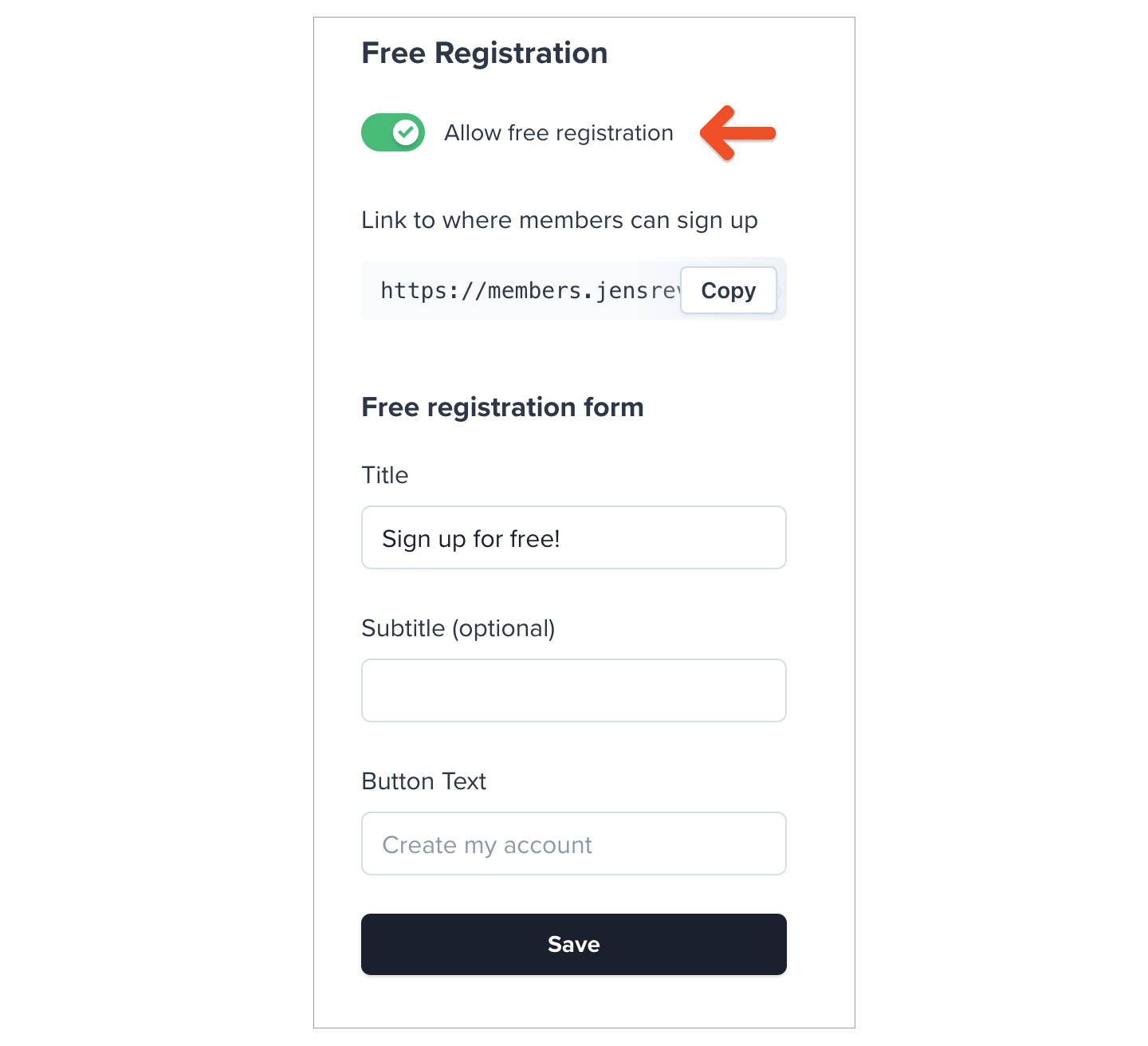
 You can also let visitors register without purchasing a paid subscription. Go to **Website → Free registration** and toggle on *Allow free registration*.
To learn more, see [Allow free registration](/docs/plans/individual-plans/free-registration/).
You can also let visitors register without purchasing a paid subscription. Go to **Website → Free registration** and toggle on *Allow free registration*.
To learn more, see [Allow free registration](/docs/plans/individual-plans/free-registration/).
 Your page background color, button color, and logo are inherited from your Memberful branding settings. To update them, see [Customize your branding](/docs/configuration/branding/branding/).
## Enable and edit your subscription page
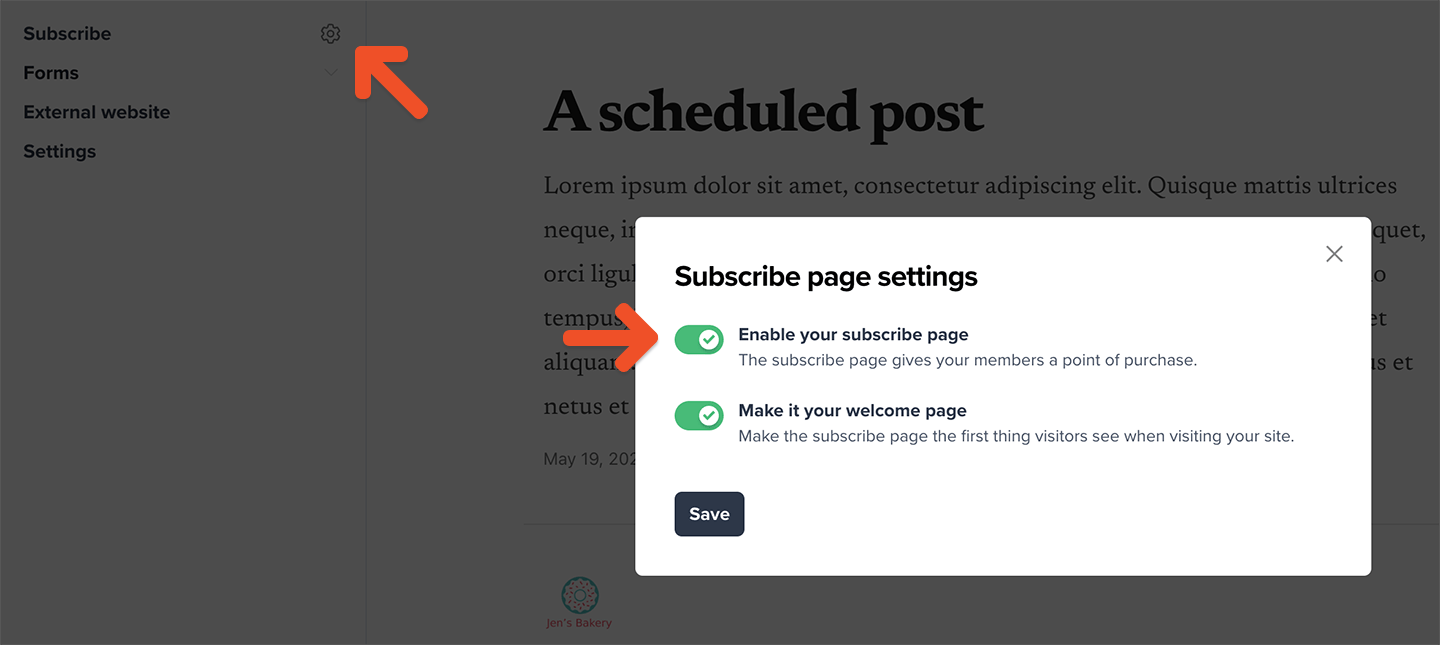
Go to **Website**, hover over **Subscribe**, and click the **gear** icon.
Toggle on *Enable your subscribe page*, then click **Save**.
Your page background color, button color, and logo are inherited from your Memberful branding settings. To update them, see [Customize your branding](/docs/configuration/branding/branding/).
## Enable and edit your subscription page
Go to **Website**, hover over **Subscribe**, and click the **gear** icon.
Toggle on *Enable your subscribe page*, then click **Save**.
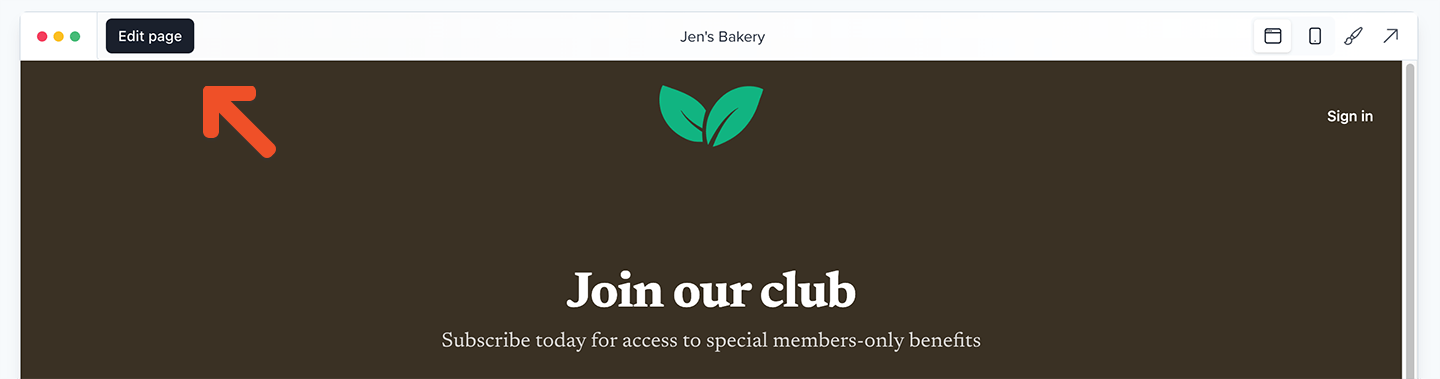
 Go to **Website → Subscribe** and click **Edit page**.
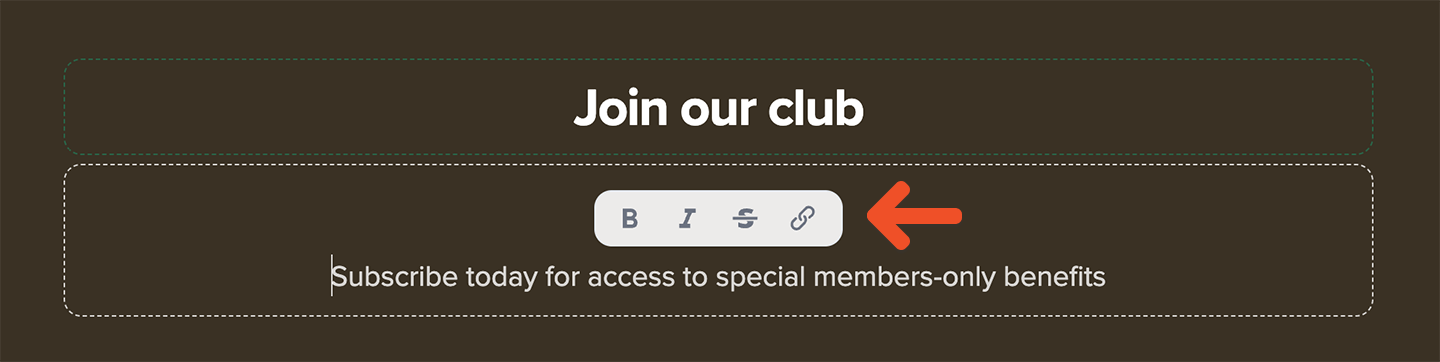
 Enter a title and optional description. Use the rich-text controls to add bold text, italics, strikethroughs, and links.
 ## Add subscription page items
You can add membership plans, standalone downloads, and free registration as selectable items.
While you can add as many items as needed, we recommend showing no more than four so visitors can scan and compare their options more easily.
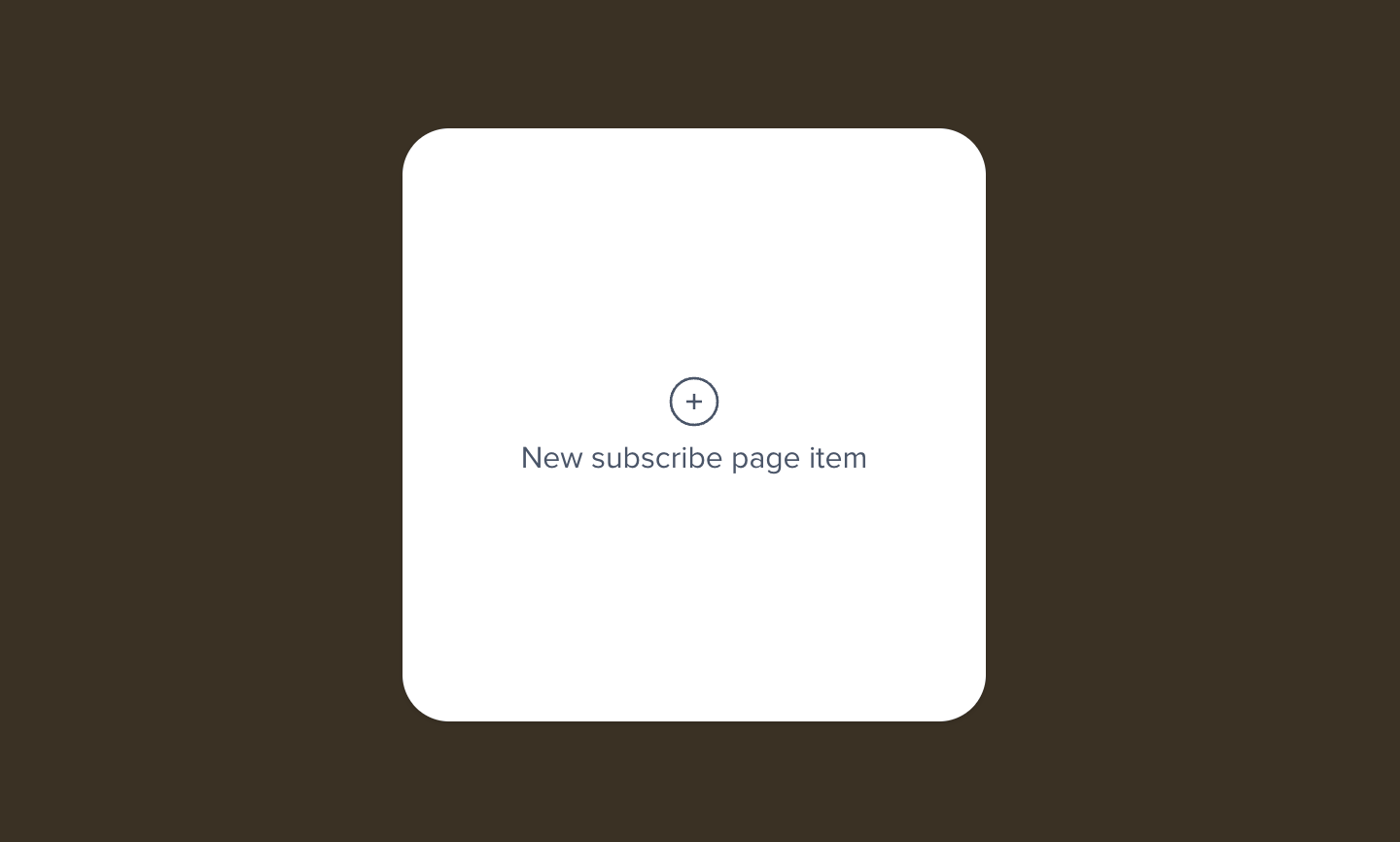
Click **New subscribe page item**.
## Add subscription page items
You can add membership plans, standalone downloads, and free registration as selectable items.
While you can add as many items as needed, we recommend showing no more than four so visitors can scan and compare their options more easily.
Click **New subscribe page item**.
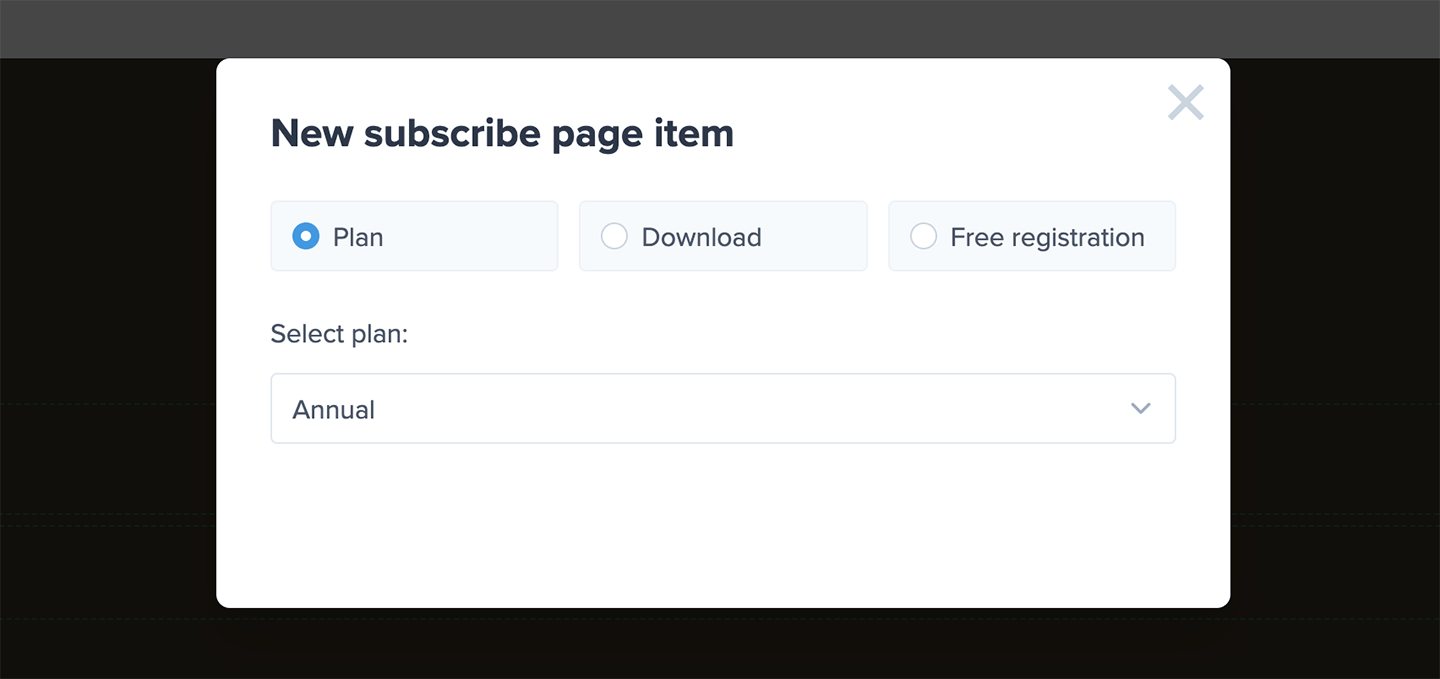
 Select a plan, standalone download, or free registration option, then click **Add to page**.
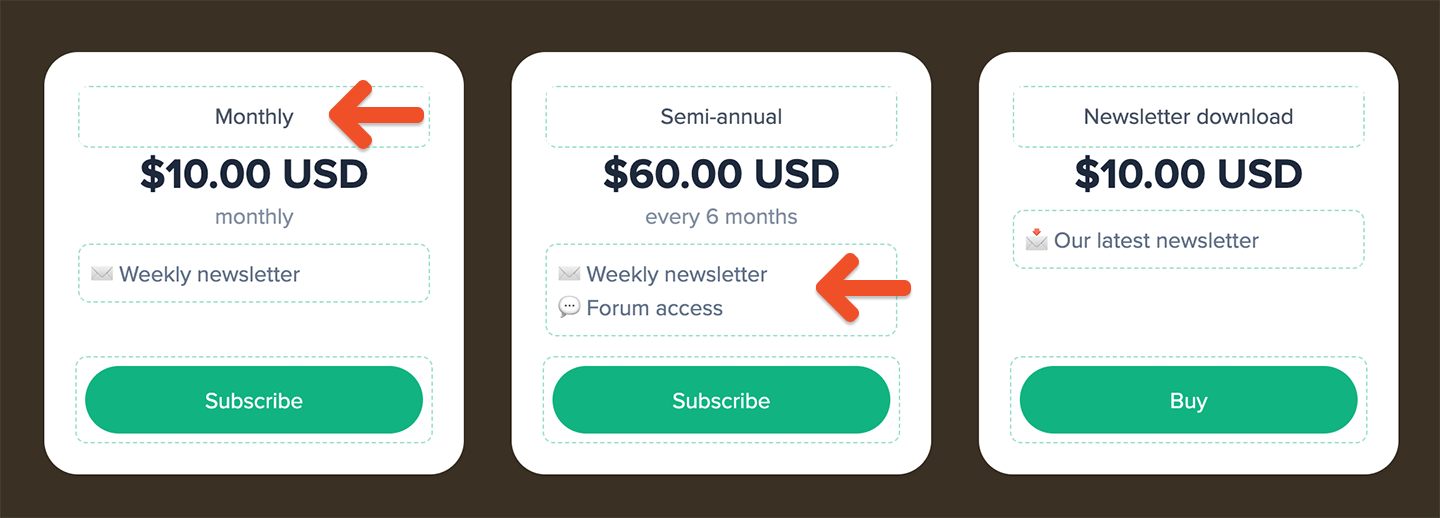
 Click the item’s display name, description, or button label to edit it.
Use the description to explain the benefits members receive or help visitors compare your available options. You can add bold text, italics, strikethroughs, links, and bulleted or numbered lists.
Click the item’s display name, description, or button label to edit it.
Use the description to explain the benefits members receive or help visitors compare your available options. You can add bold text, italics, strikethroughs, links, and bulleted or numbered lists.
 ## Show gift buttons
You can add a gift button below the subscribe button for each plan that supports gifts.
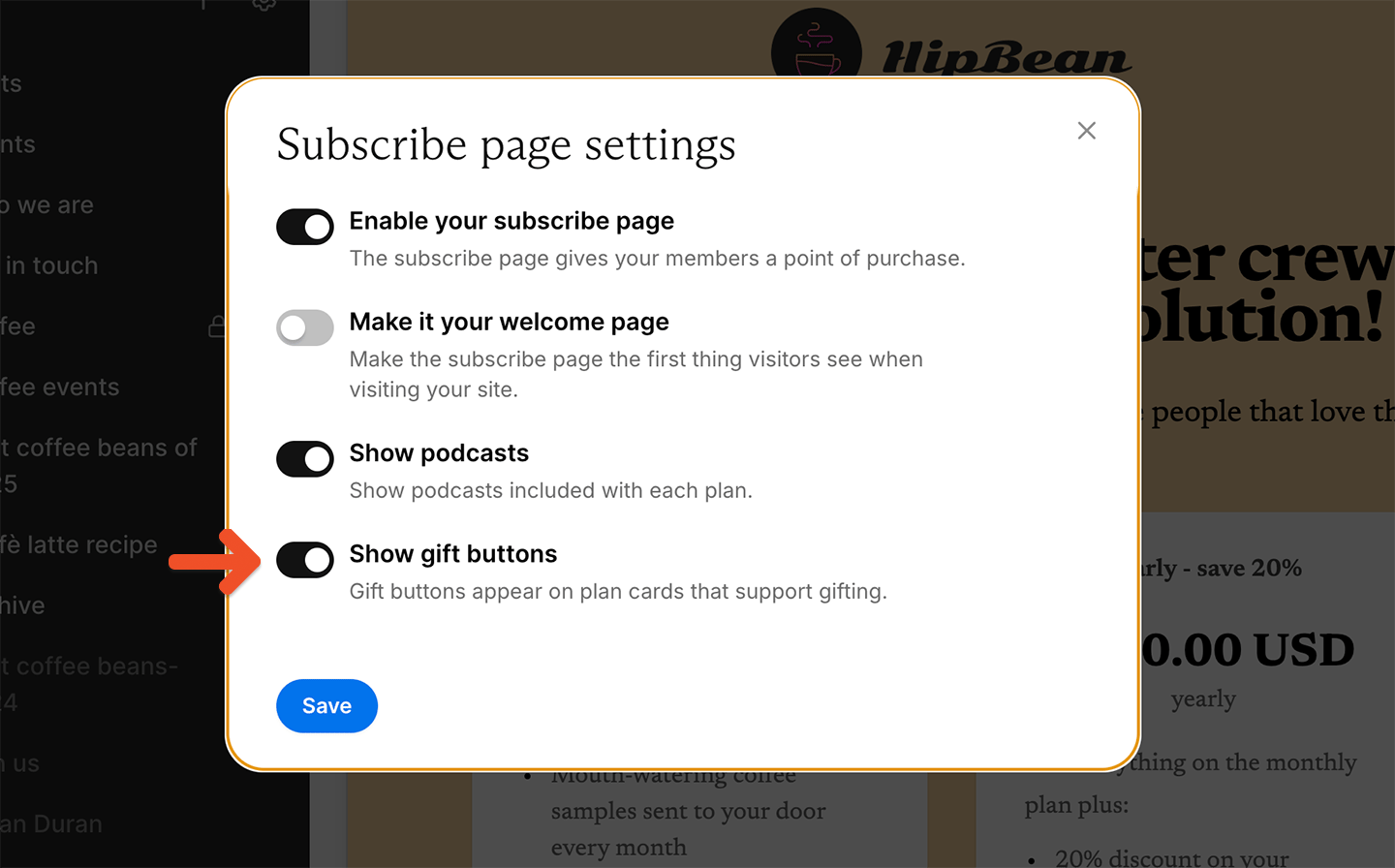
Go to **Website**, hover over **Subscribe**, and click the **gear** icon.
Toggle on *Show gift buttons*, then click **Save**.
## Show gift buttons
You can add a gift button below the subscribe button for each plan that supports gifts.
Go to **Website**, hover over **Subscribe**, and click the **gear** icon.
Toggle on *Show gift buttons*, then click **Save**.
 Go to **Website → Subscribe** and click **Edit page**. Click the gift button below an eligible plan, enter the button label you want to display, then save your changes.
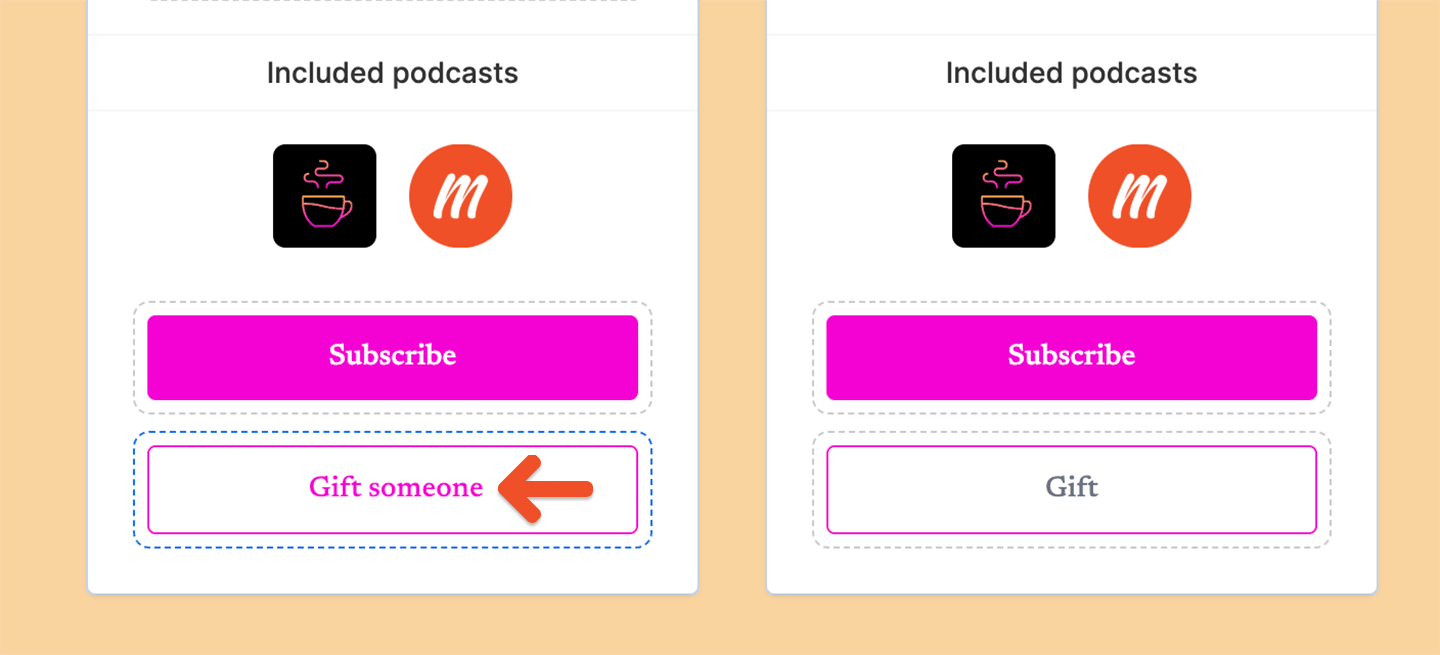 Only plans that support gifts display a gift button. Plans that are not eligible for gifting will continue to show only their purchase button.
## Reorder subscription page items
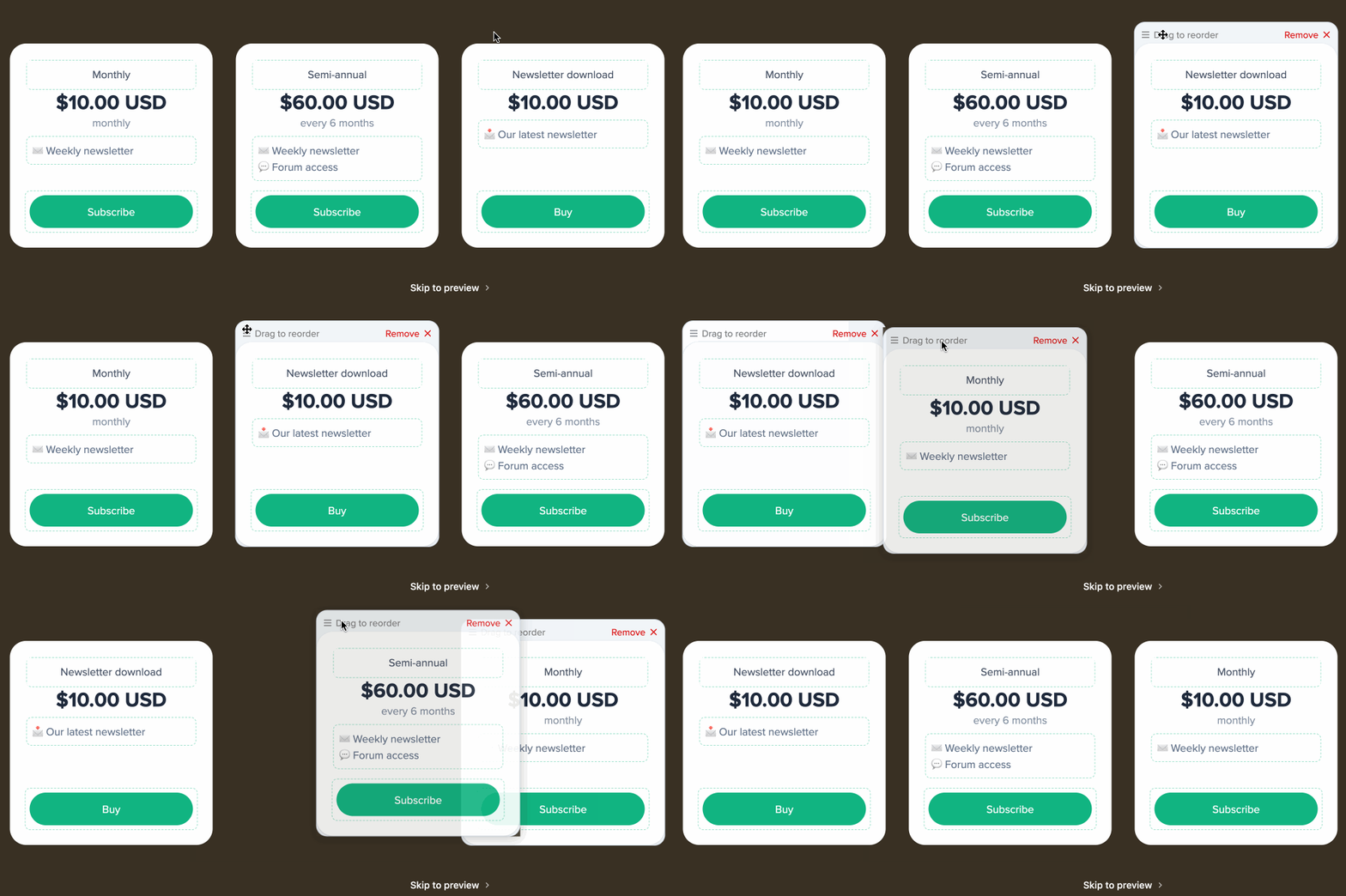
On a desktop device, hover over an item and drag the bar that appears above it.
Only plans that support gifts display a gift button. Plans that are not eligible for gifting will continue to show only their purchase button.
## Reorder subscription page items
On a desktop device, hover over an item and drag the bar that appears above it.
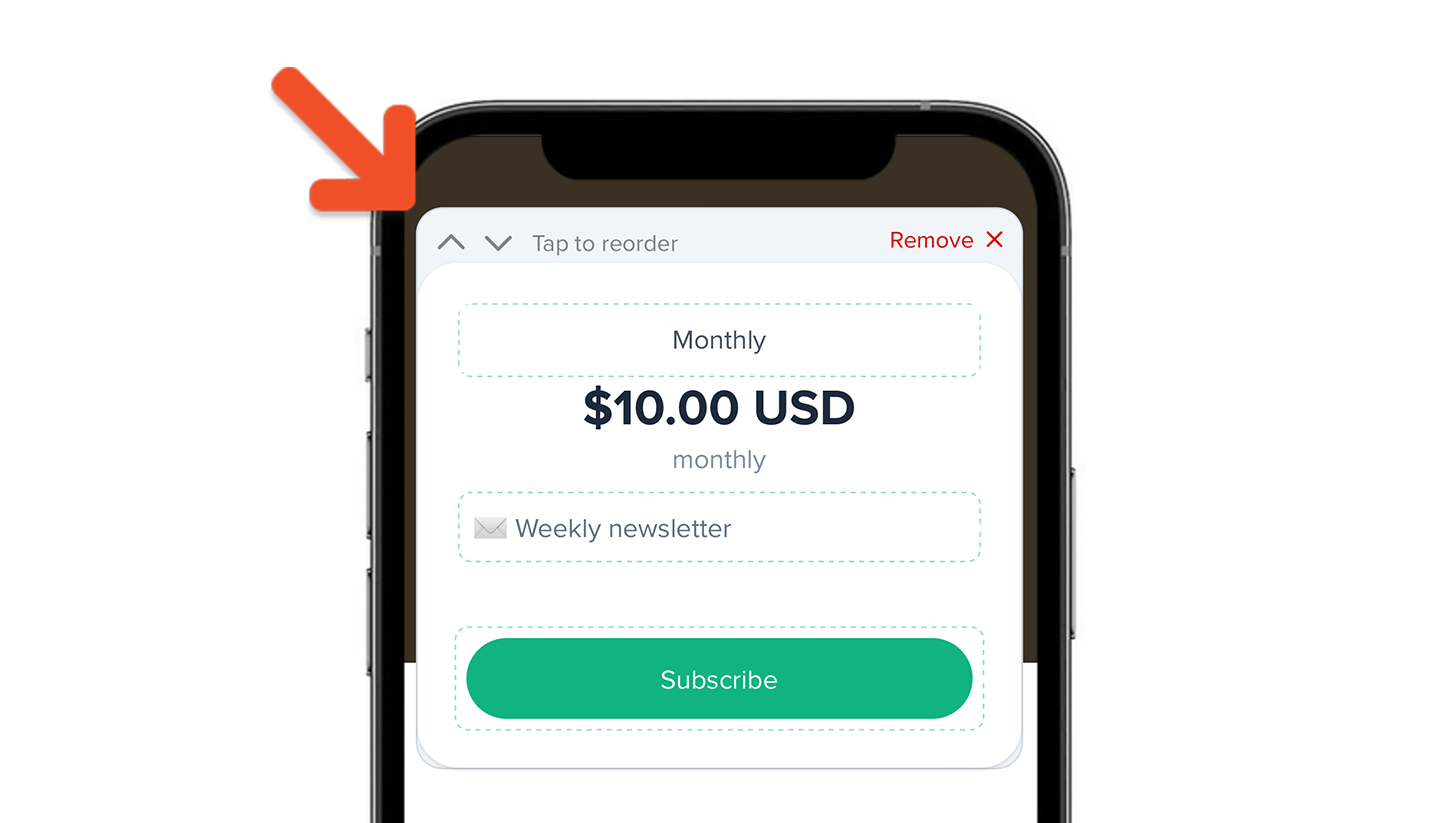
 On a mobile or touch-based device, use the up and down arrows to change an item’s position.
 ## Add supporting content
Below your subscription options, you can add content such as:
* frequently asked questions
* member testimonials
* contact information
* additional details about your membership
## Add supporting content
Below your subscription options, you can add content such as:
* frequently asked questions
* member testimonials
* contact information
* additional details about your membership
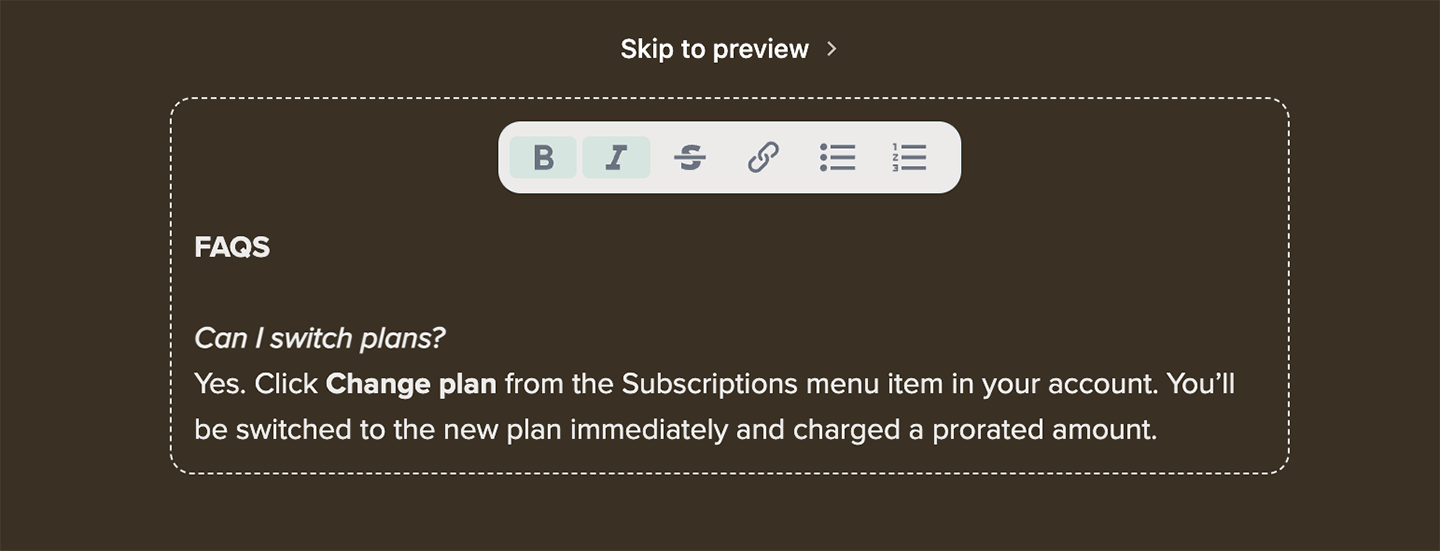 Every subscription page includes a link members can use to log in to their account.
Social media links configured for your member website also appear in the page footer. To learn more, see [Add social media links](/docs/website-builder/settings/member-website-settings/#add-social-media-links).
## Enable or disable your subscription page
Go to **Website**, hover over **Subscribe**, and click the **gear** icon. Toggle *Enable your subscribe page* on or off, then click **Save**.
When enabled, the page is available at:
```text theme={null}
https://ACCOUNT-URL.memberful.com/join
```
Replace `ACCOUNT-URL` with your Memberful account URL.
When disabled, visitors cannot access the page. You can use this setting to temporarily hide it while making changes.
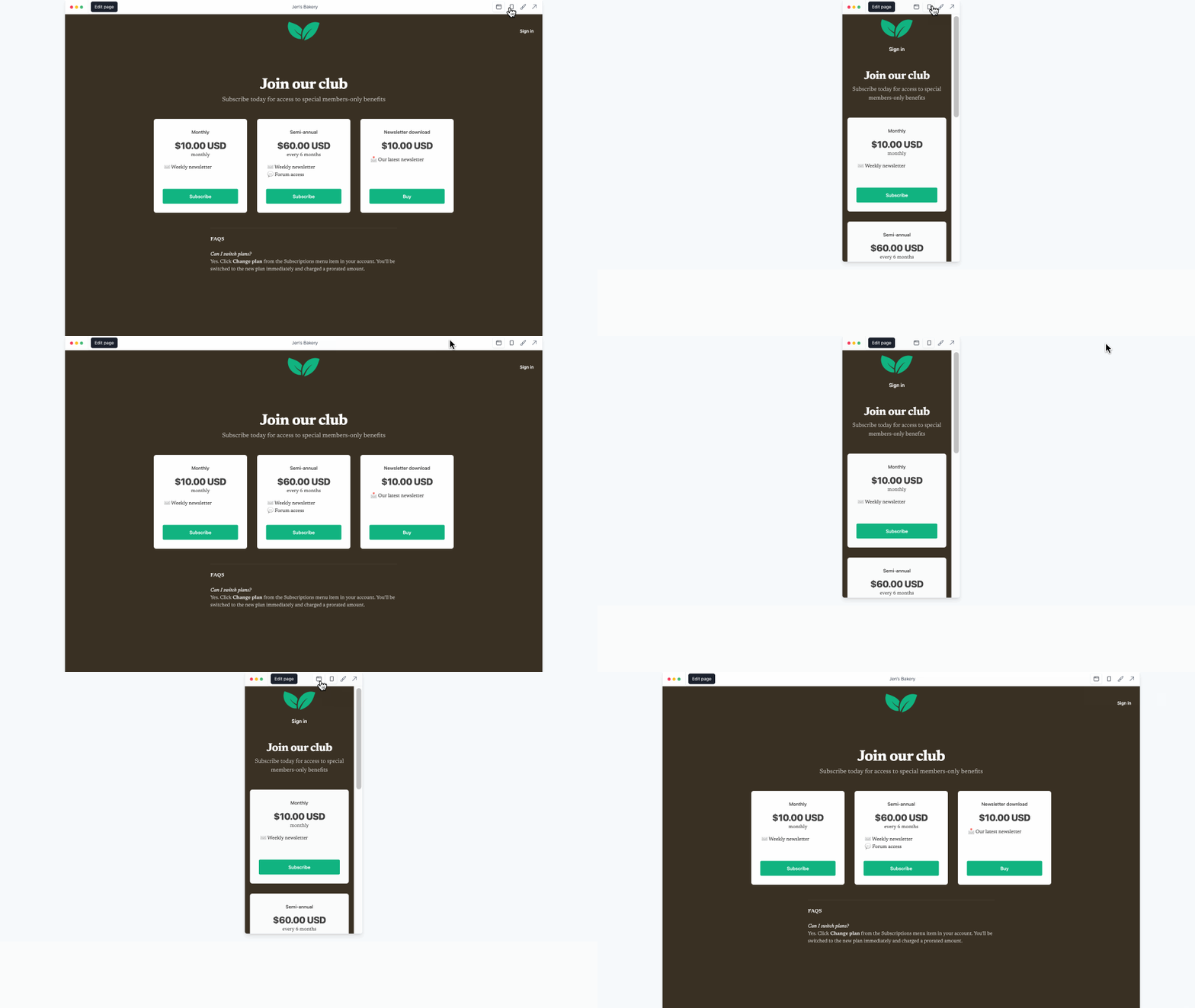
Go to **Website → Subscribe** at any time to preview the page on different screen sizes.
Every subscription page includes a link members can use to log in to their account.
Social media links configured for your member website also appear in the page footer. To learn more, see [Add social media links](/docs/website-builder/settings/member-website-settings/#add-social-media-links).
## Enable or disable your subscription page
Go to **Website**, hover over **Subscribe**, and click the **gear** icon. Toggle *Enable your subscribe page* on or off, then click **Save**.
When enabled, the page is available at:
```text theme={null}
https://ACCOUNT-URL.memberful.com/join
```
Replace `ACCOUNT-URL` with your Memberful account URL.
When disabled, visitors cannot access the page. You can use this setting to temporarily hide it while making changes.
Go to **Website → Subscribe** at any time to preview the page on different screen sizes.
 ## Set the subscription page as your welcome page
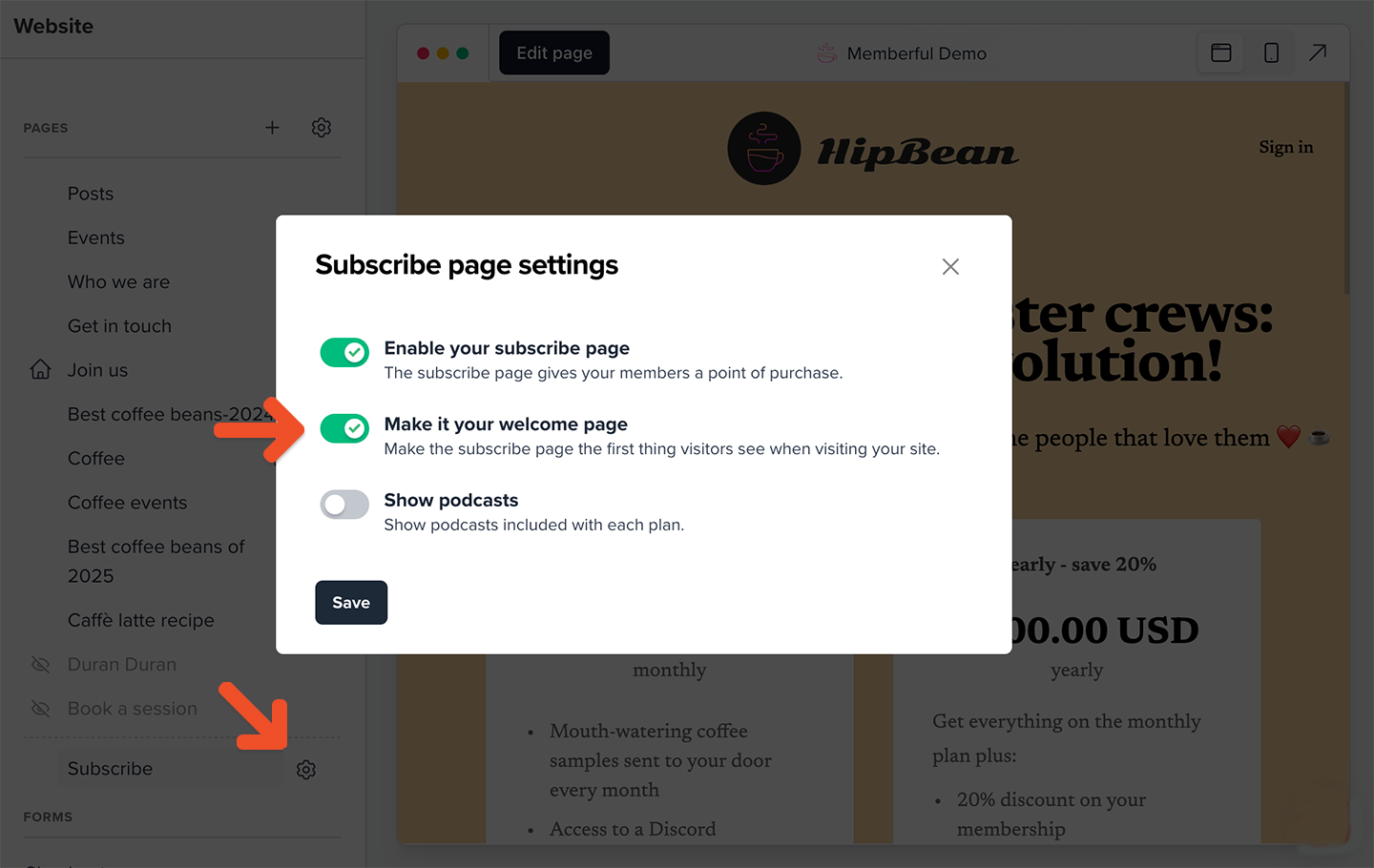
You can show the subscription page before visitors enter the rest of your member website.
Go to **Website**, hover over **Subscribe**, and click the **gear** icon. Toggle on *Make it your welcome page*, then click **Save**.
## Set the subscription page as your welcome page
You can show the subscription page before visitors enter the rest of your member website.
Go to **Website**, hover over **Subscribe**, and click the **gear** icon. Toggle on *Make it your welcome page*, then click **Save**.
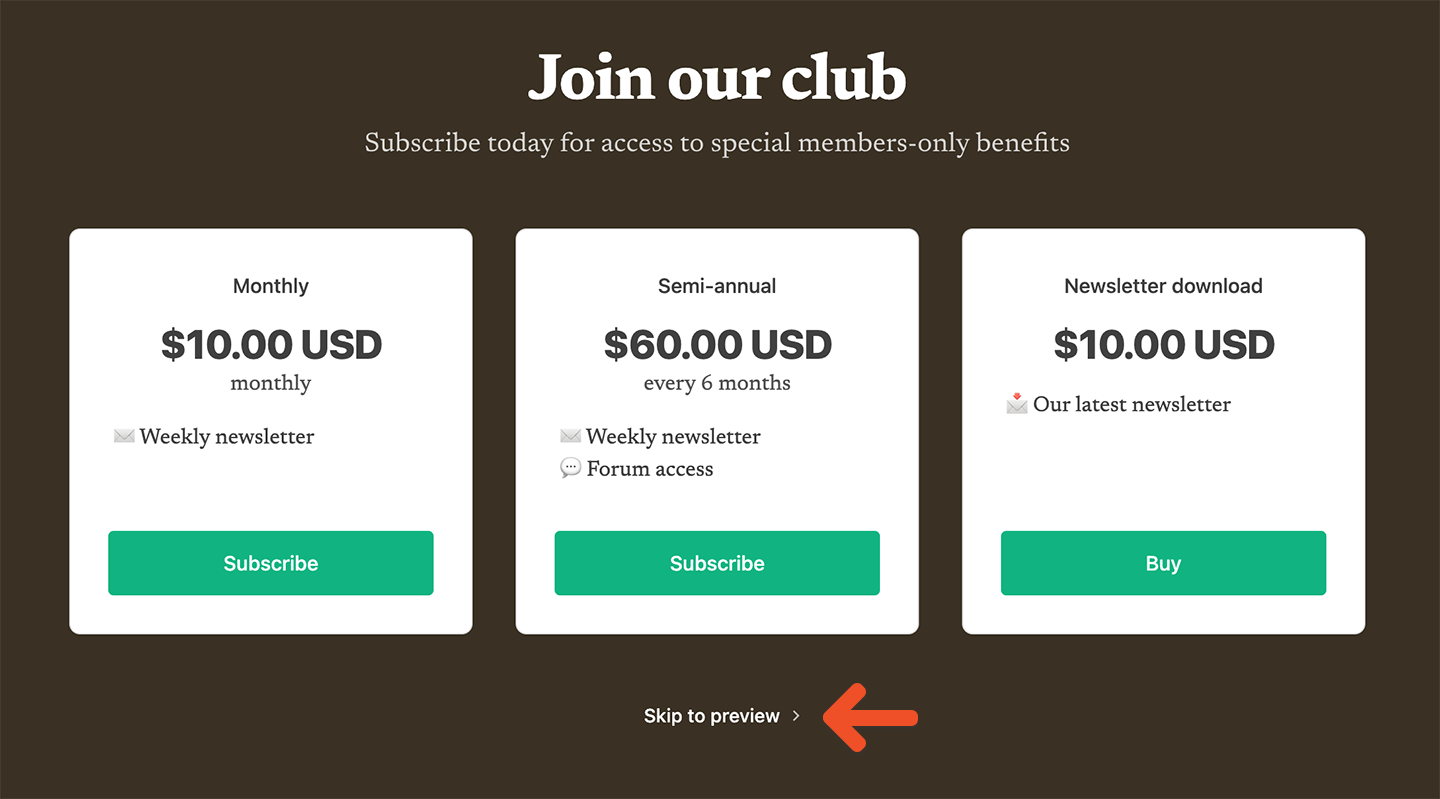
 When this setting is enabled, the page includes a **Skip to preview** link that visitors can use to continue to your website.
 Memberful remembers that a visitor skipped the page for 30 days. During that period, returning visitors are automatically sent to the rest of your website.
## Show or hide included podcasts
Your subscription page can display thumbnails for podcasts included with each plan. Memberful loads the thumbnails automatically from each podcast’s RSS feed.
Memberful remembers that a visitor skipped the page for 30 days. During that period, returning visitors are automatically sent to the rest of your website.
## Show or hide included podcasts
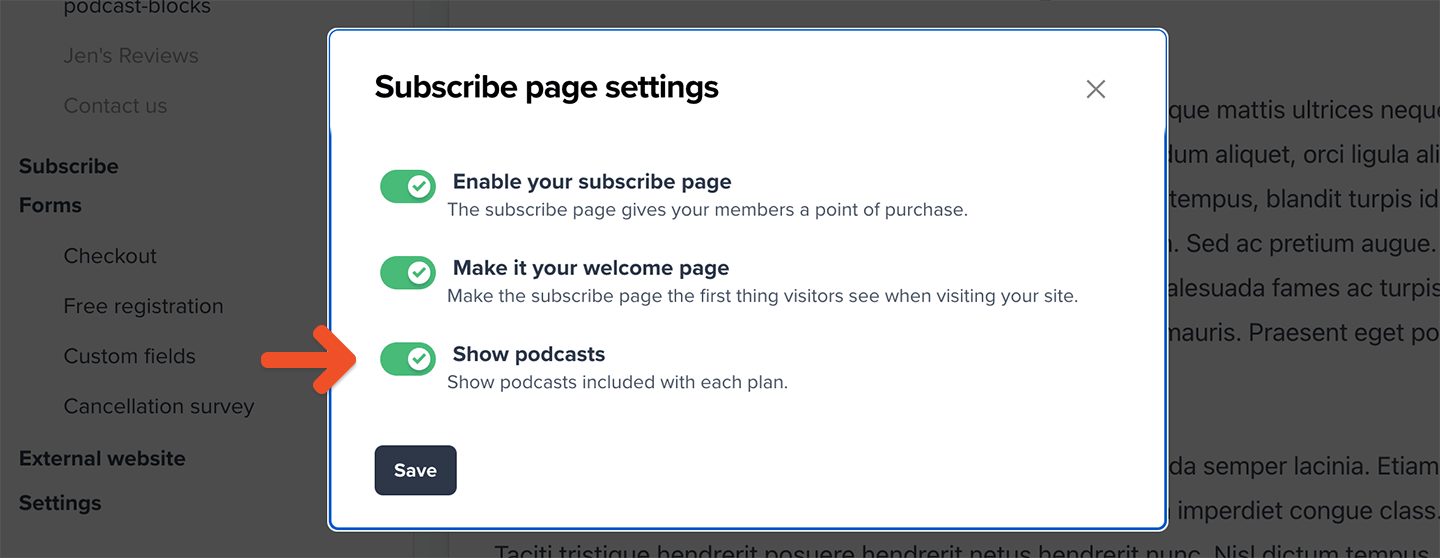
Your subscription page can display thumbnails for podcasts included with each plan. Memberful loads the thumbnails automatically from each podcast’s RSS feed.
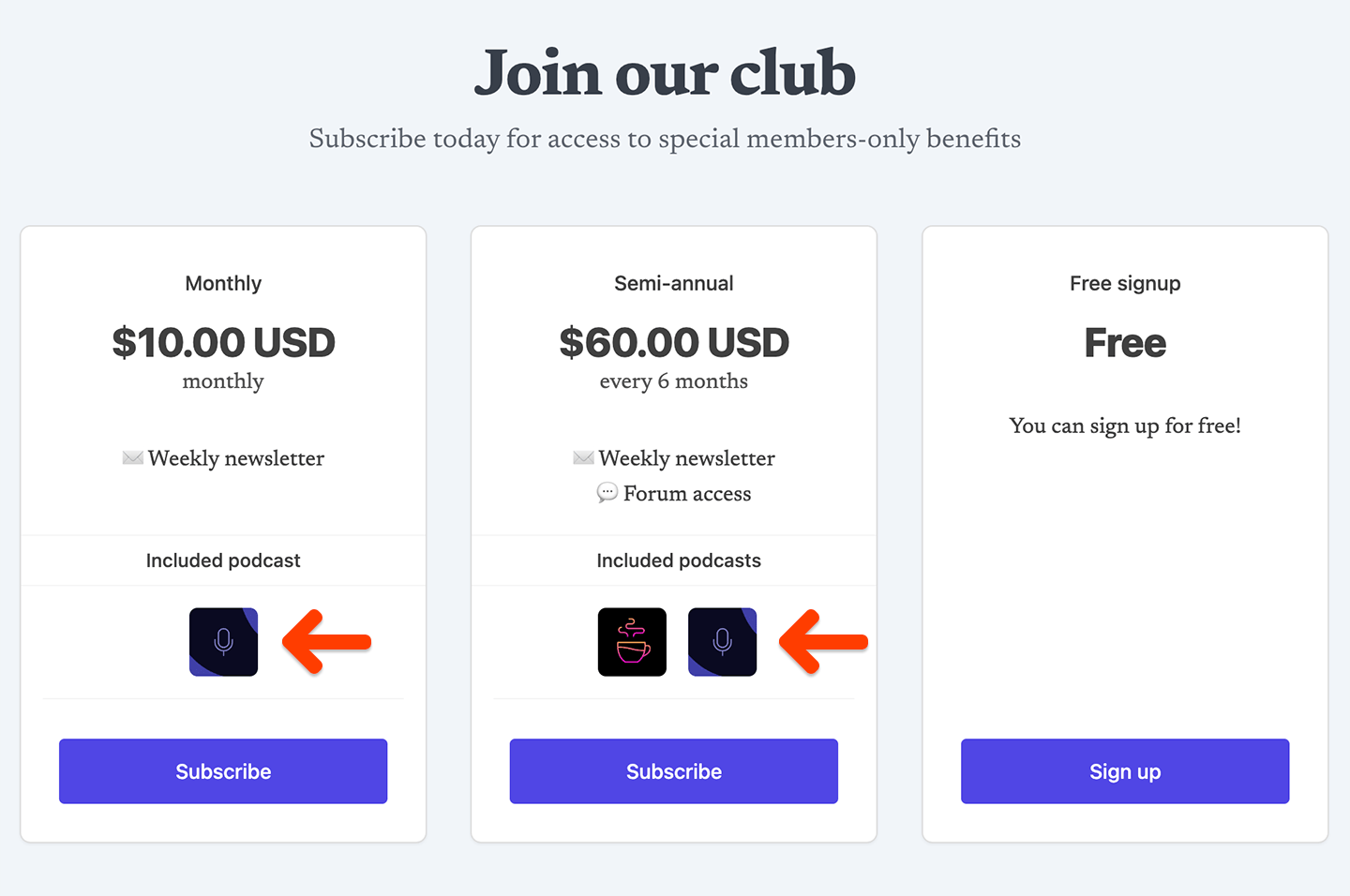 Go to **Website**, hover over **Subscribe**, and click the **gear** icon. Toggle on *Show podcasts*, then click **Save**.