Related help docs:
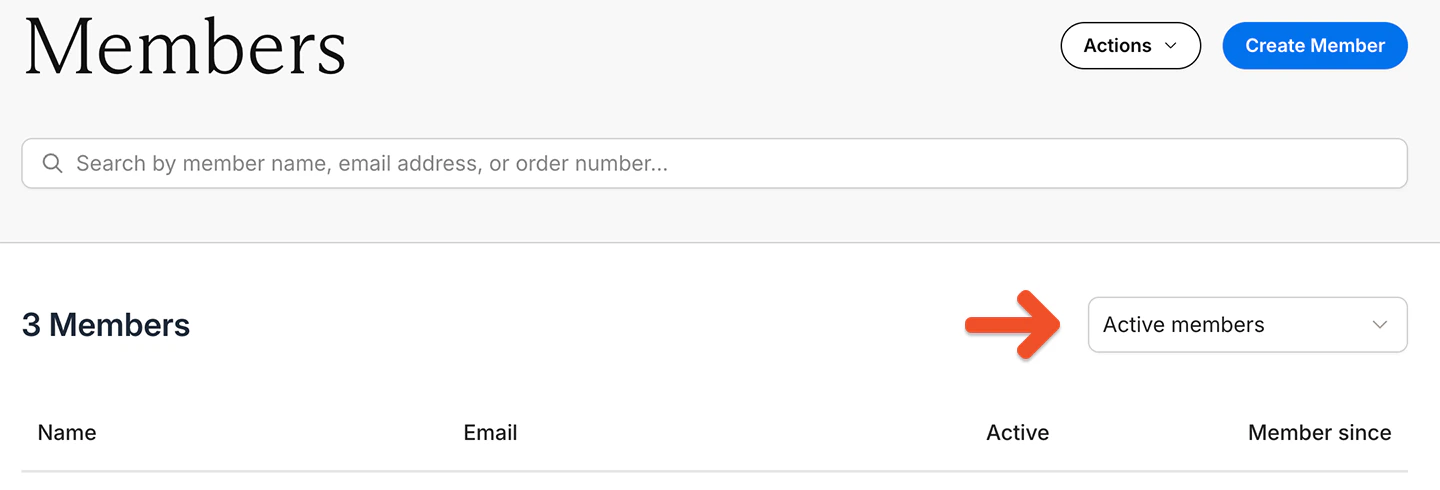 * **Active members:** Includes members with 100% coupons and members who made one-time payments
* **Inactive members:** No active subscriptions
* **Free signup:** [Signed up via free registration](/docs/member-management/payments-and-access/give-free-access/#enable-free-registration) and never subscribed to a plan
* **All-Access Pass members:** [Comped access](/docs/member-management/payments-and-access/give-free-access/#comp-access-to-all-plans-and-downloads) to all plans and downloads
* **All members:** Active, inactive, or free
Go to *Actions → Export CSV.*
* **Active members:** Includes members with 100% coupons and members who made one-time payments
* **Inactive members:** No active subscriptions
* **Free signup:** [Signed up via free registration](/docs/member-management/payments-and-access/give-free-access/#enable-free-registration) and never subscribed to a plan
* **All-Access Pass members:** [Comped access](/docs/member-management/payments-and-access/give-free-access/#comp-access-to-all-plans-and-downloads) to all plans and downloads
* **All members:** Active, inactive, or free
Go to *Actions → Export CSV.*
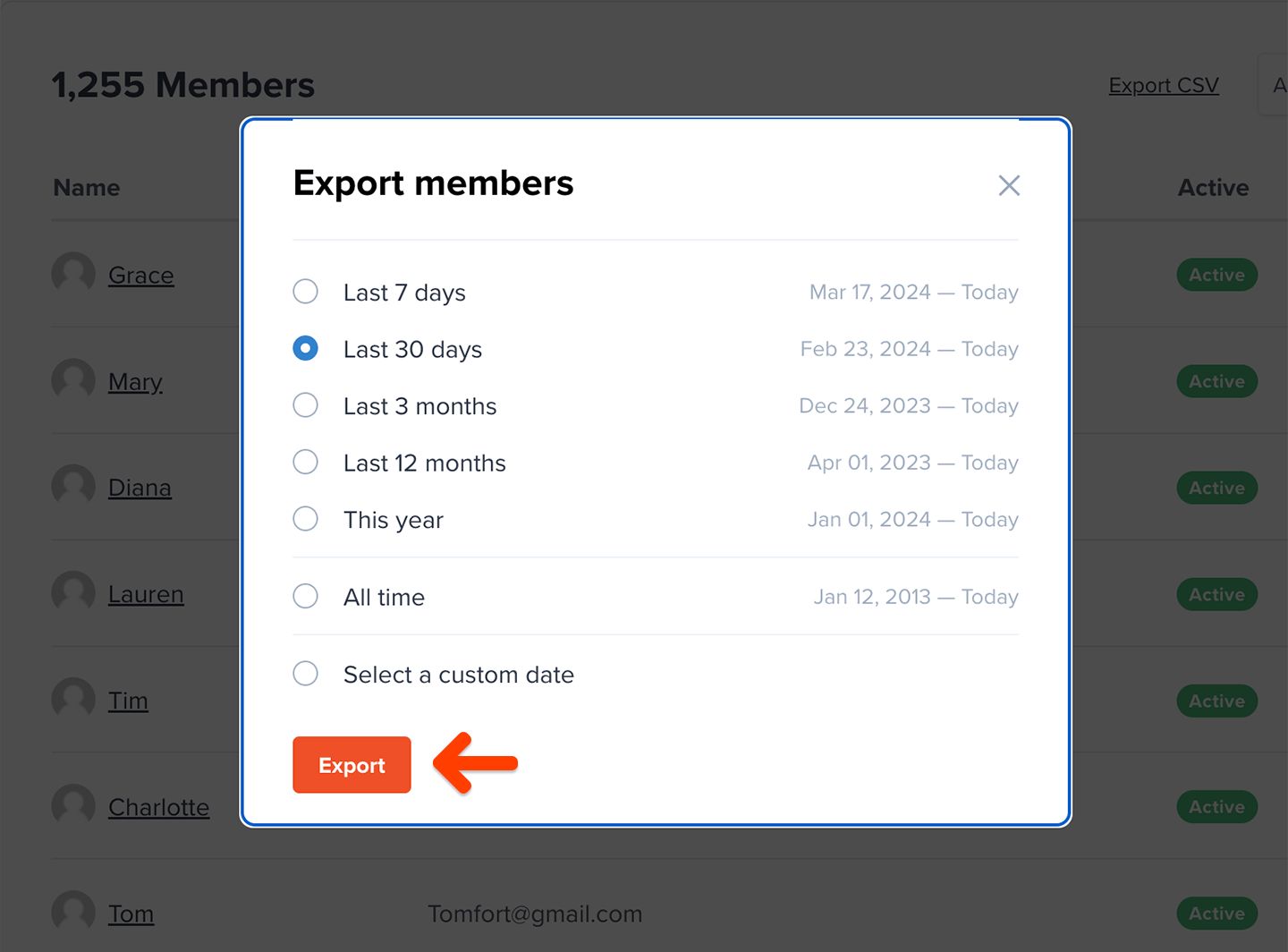
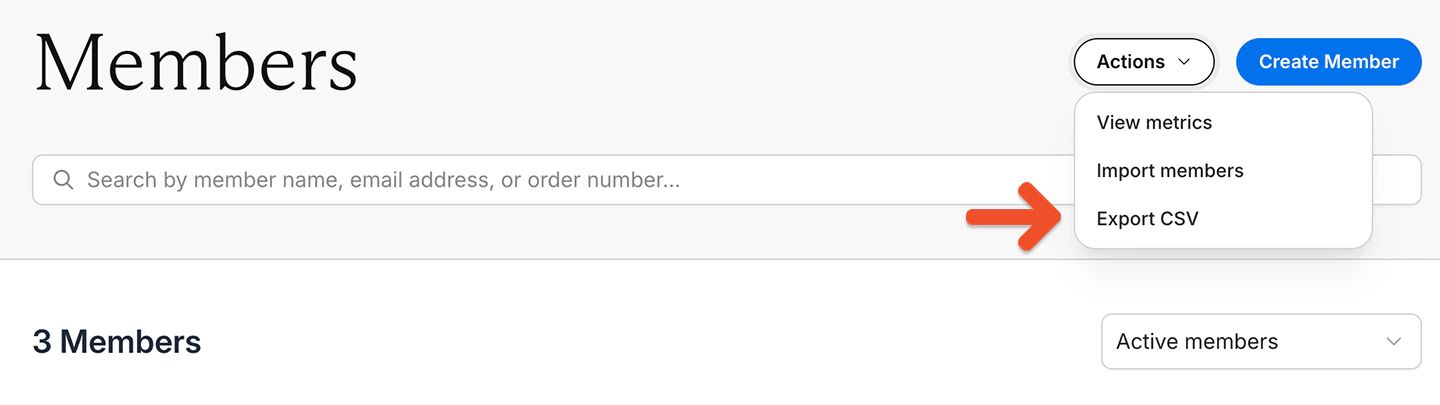 Select a date range for the export, and click **Export.**
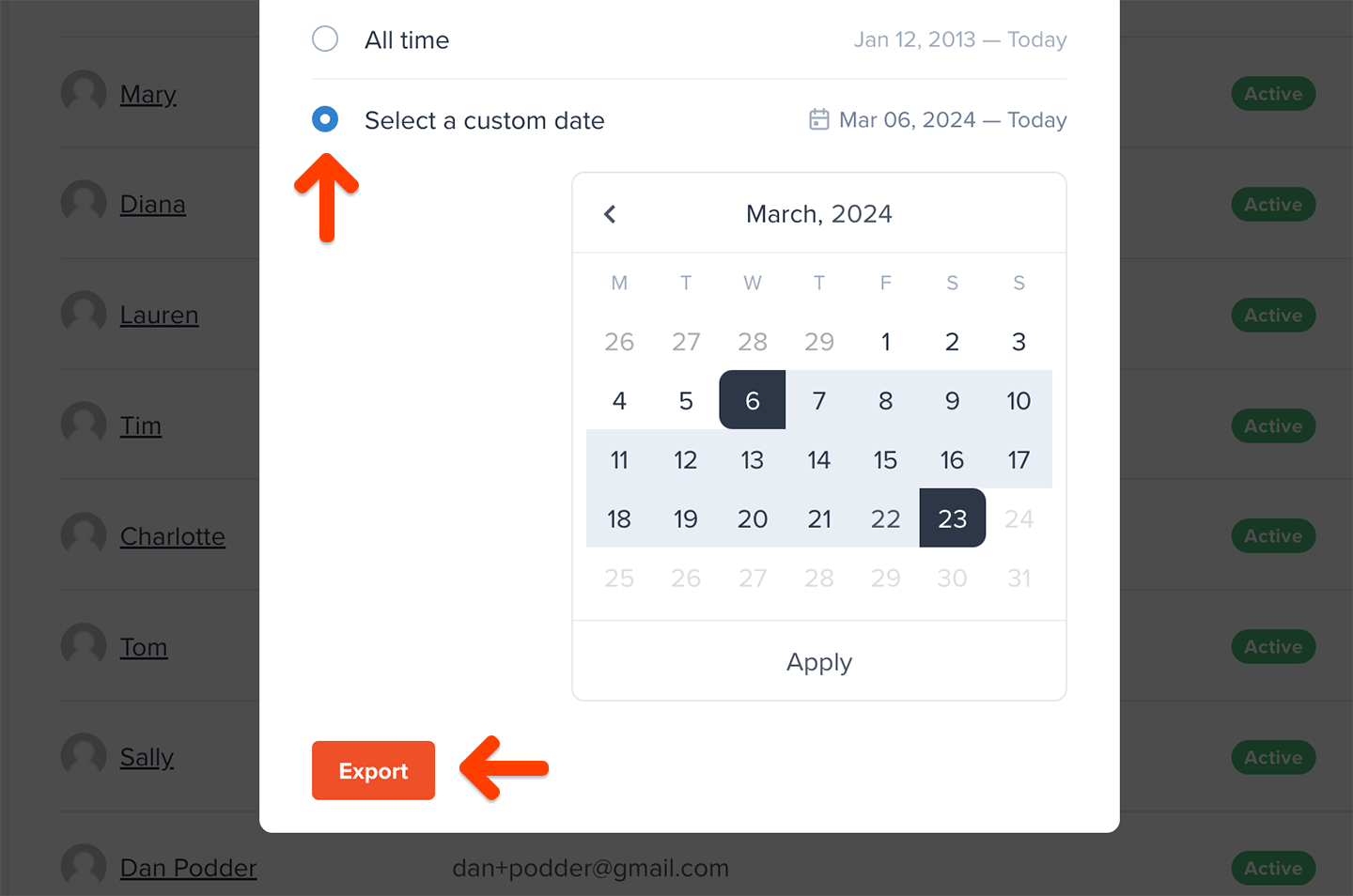
 If you'd like to get more granular, click **Select a custom date range** and define your own start and end date for the export.
 These are the fields we include in the export file:
| | |
| -------------------- | ------------------ |
| Full Name | Email |
| Memberful ID | Created at |
| All access pass | Stripe Customer ID |
| Discord User ID | Address |
| City | State |
| Zip / Postal | Country |
| Phone number | Custom field |
| Total spend | Plan |
| Active | Auto-renew |
| Expiration date | Coupon |
| External payments | Download |
| Subscribed to Posts | Private note |
| Referrer | utm\_campaign |
| utm\_content | utm\_medium |
| utm\_source | utm\_term |
| Custom field answers | |
The export will include one row for each subscription associated with each member, so you might see multiple rows for each member.
If you selected *Active members*, we will include in the report every member that has at least one active subscription, but the export will include all of the subscriptions associated with those members, including their inactive/expired subscriptions.
All fields are self-explanatory, with these few exceptions:
* **Memberful ID:** Not member-facing
* **All access pass:** Refers to members who have [free access to all plans and downloads](/docs/member-management/payments-and-access/give-free-access/#comp-access-to-all-plans-and-downloads)
* **Coupon:** Only includes coupons currently in use; one-time coupons are not shown
## Export order data
Go to *Revenue → Orders* and choose a metric:
* All orders
* New orders
* Renewals
* Refunds
Click **Export CSV.**
These are the fields we include in the export file:
| | |
| -------------------- | ------------------ |
| Full Name | Email |
| Memberful ID | Created at |
| All access pass | Stripe Customer ID |
| Discord User ID | Address |
| City | State |
| Zip / Postal | Country |
| Phone number | Custom field |
| Total spend | Plan |
| Active | Auto-renew |
| Expiration date | Coupon |
| External payments | Download |
| Subscribed to Posts | Private note |
| Referrer | utm\_campaign |
| utm\_content | utm\_medium |
| utm\_source | utm\_term |
| Custom field answers | |
The export will include one row for each subscription associated with each member, so you might see multiple rows for each member.
If you selected *Active members*, we will include in the report every member that has at least one active subscription, but the export will include all of the subscriptions associated with those members, including their inactive/expired subscriptions.
All fields are self-explanatory, with these few exceptions:
* **Memberful ID:** Not member-facing
* **All access pass:** Refers to members who have [free access to all plans and downloads](/docs/member-management/payments-and-access/give-free-access/#comp-access-to-all-plans-and-downloads)
* **Coupon:** Only includes coupons currently in use; one-time coupons are not shown
## Export order data
Go to *Revenue → Orders* and choose a metric:
* All orders
* New orders
* Renewals
* Refunds
Click **Export CSV.**
 These are the fields we include in the export file:
| | |
| --------- | ------ |
| Full Name | Email |
| Plan | Amount |
| Date | |
Underneath the graph, we display the same data on a table, showing individual data segments that can be filtered by calendar day, week, or month.
### Active members versus paying members
Active Members and [Paying Members](/docs/metrics-and-analytics/growth-metrics/paying-members) are calculated differently and therefore may not match.
These are the fields we include in the export file:
| | |
| --------- | ------ |
| Full Name | Email |
| Plan | Amount |
| Date | |
Underneath the graph, we display the same data on a table, showing individual data segments that can be filtered by calendar day, week, or month.
### Active members versus paying members
Active Members and [Paying Members](/docs/metrics-and-analytics/growth-metrics/paying-members) are calculated differently and therefore may not match.
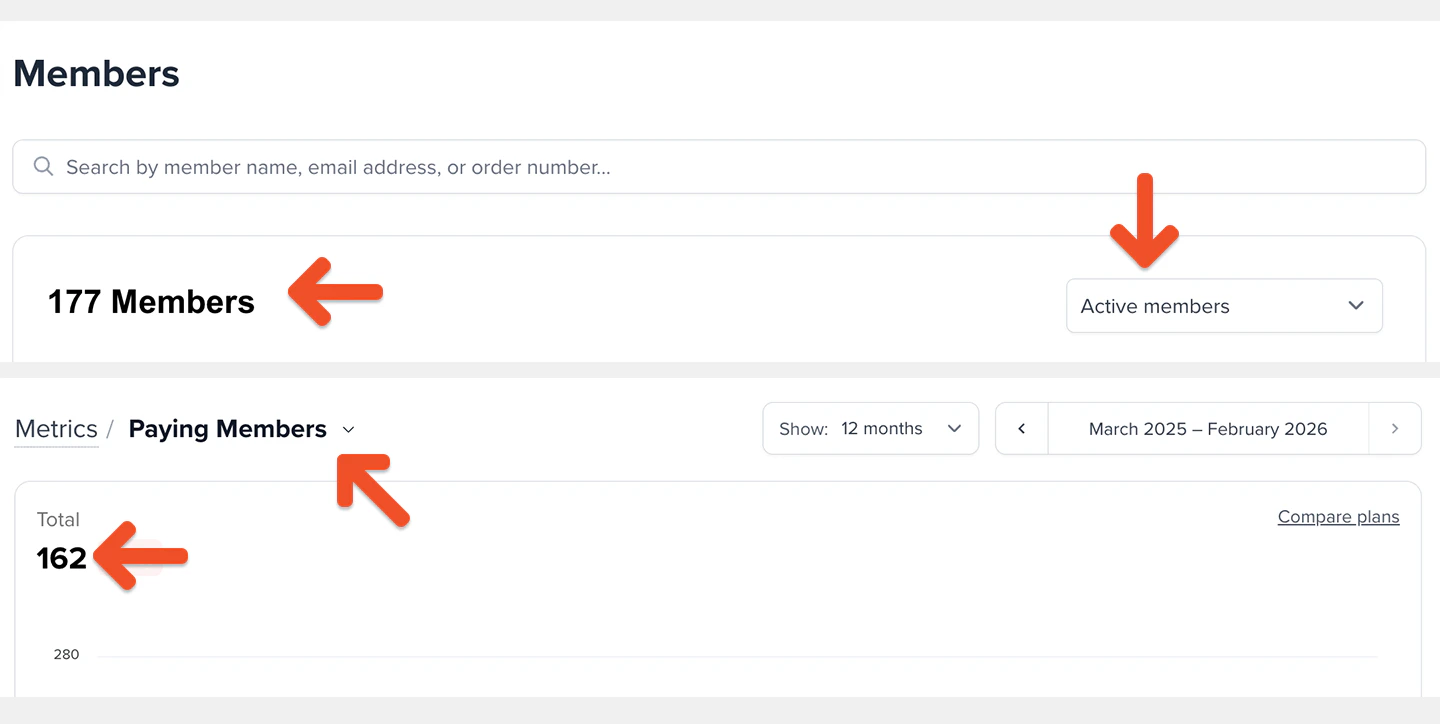 These members **do** **count** toward **Active Members**, but **do not count** toward **Paying Members** until their subscription renews and payment is collected:
* Members with an all-access pass
* Members with a 100% coupon
* Members on a free trial
* Admin-created subscriptions with no initial charge
* Gifted subscriptions
In addition, members whose subscription expired due to a failed payment may still count toward Paying Members for up to 30 days after the failed payment.
## Export metrics data
Go to *Revenue → Metrics,* and choose a metric.
Underneath the graph, we display the same data on a table, showing individual data segments by calendar month.
These members **do** **count** toward **Active Members**, but **do not count** toward **Paying Members** until their subscription renews and payment is collected:
* Members with an all-access pass
* Members with a 100% coupon
* Members on a free trial
* Admin-created subscriptions with no initial charge
* Gifted subscriptions
In addition, members whose subscription expired due to a failed payment may still count toward Paying Members for up to 30 days after the failed payment.
## Export metrics data
Go to *Revenue → Metrics,* and choose a metric.
Underneath the graph, we display the same data on a table, showing individual data segments by calendar month.
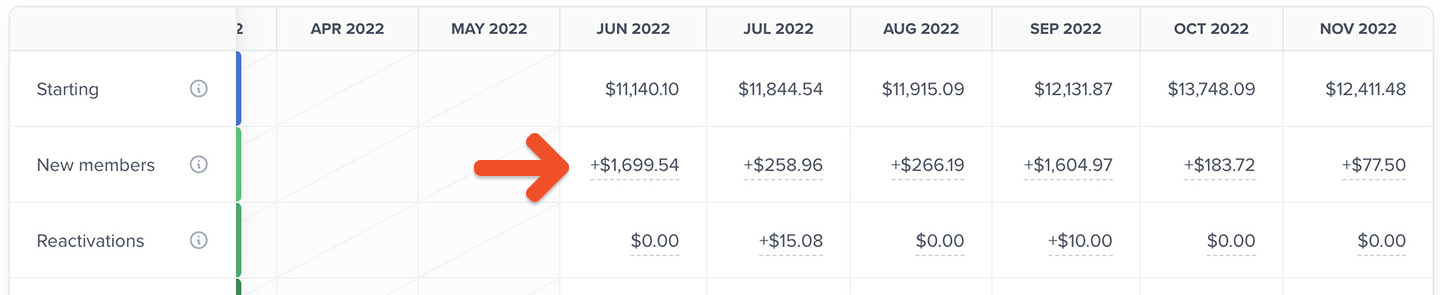 Click the value in any cell to view a list of the individual data points making up the total for that month and to export the list.
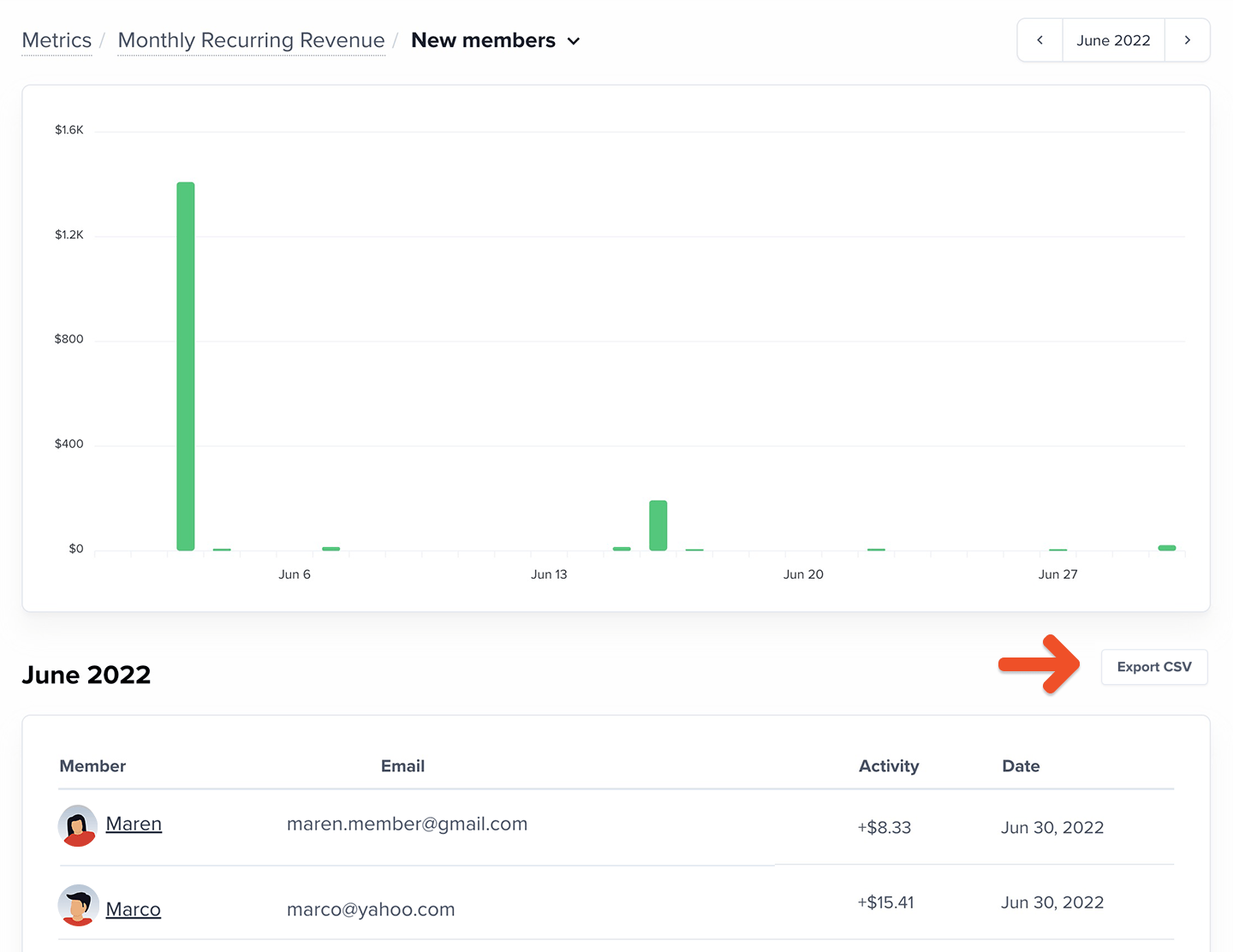 ## Export subscription data by plan
Go to *Members → Subscriptions.* Then choose a plan and a filter:
## Export subscription data by plan
Go to *Members → Subscriptions.* Then choose a plan and a filter:
 * Active subscriptions
* Inactive subscriptions
* Active but not renewing
* Past due
* On a trial
* All subscriptions
Click **Export CSV.**
* Active subscriptions
* Inactive subscriptions
* Active but not renewing
* Past due
* On a trial
* All subscriptions
Click **Export CSV.**
 These are the fields we include in the export file:
| | |
| ---------------- | ---------------- |
| Full Name | Email |
| Group manager | Active |
| Auto-renew | First subscribed |
| Active since | Expiration date |
| External payment | Coupon |
| Address | City |
| State | Zip / Postal |
| Country | Phone number |
| Custom field | |
All fields are self-explanatory, with these few exceptions:
* **Active since:** This data can be used to reward member longevity
* **Coupon:** Only includes coupons currently in use; one-time coupons are not shown
* **Custom field:** Refers to the [deprecated custom field feature](/docs/configuration/feedback-and-policies/create-custom-fields/#can-i-import-custom-field-data-via-csv)
* **Group manager:** The [group subscription owner](/docs/plans/group-plans/create-a-group-plan/)
## Export data by activity
Go to *Members → Activity,* and choose a filter:
These are the fields we include in the export file:
| | |
| ---------------- | ---------------- |
| Full Name | Email |
| Group manager | Active |
| Auto-renew | First subscribed |
| Active since | Expiration date |
| External payment | Coupon |
| Address | City |
| State | Zip / Postal |
| Country | Phone number |
| Custom field | |
All fields are self-explanatory, with these few exceptions:
* **Active since:** This data can be used to reward member longevity
* **Coupon:** Only includes coupons currently in use; one-time coupons are not shown
* **Custom field:** Refers to the [deprecated custom field feature](/docs/configuration/feedback-and-policies/create-custom-fields/#can-i-import-custom-field-data-via-csv)
* **Group manager:** The [group subscription owner](/docs/plans/group-plans/create-a-group-plan/)
## Export data by activity
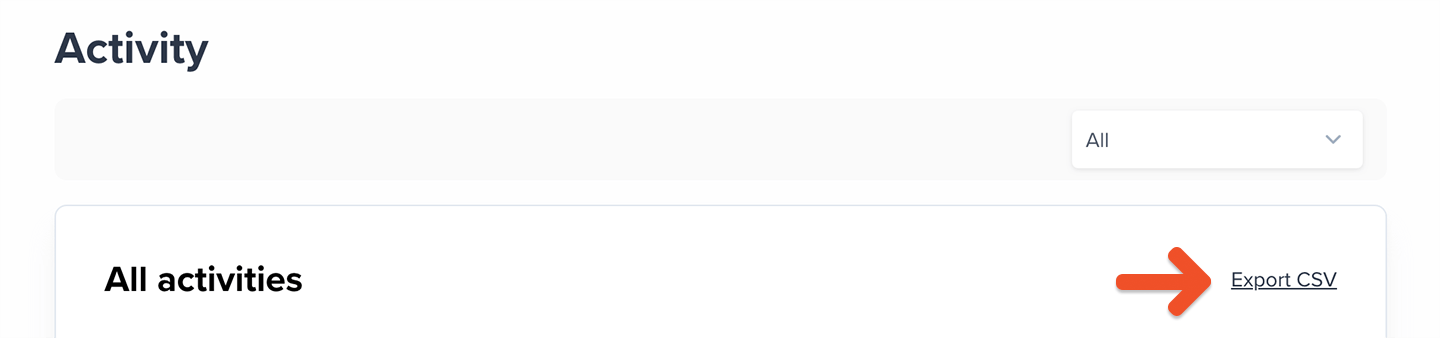
Go to *Members → Activity,* and choose a filter:
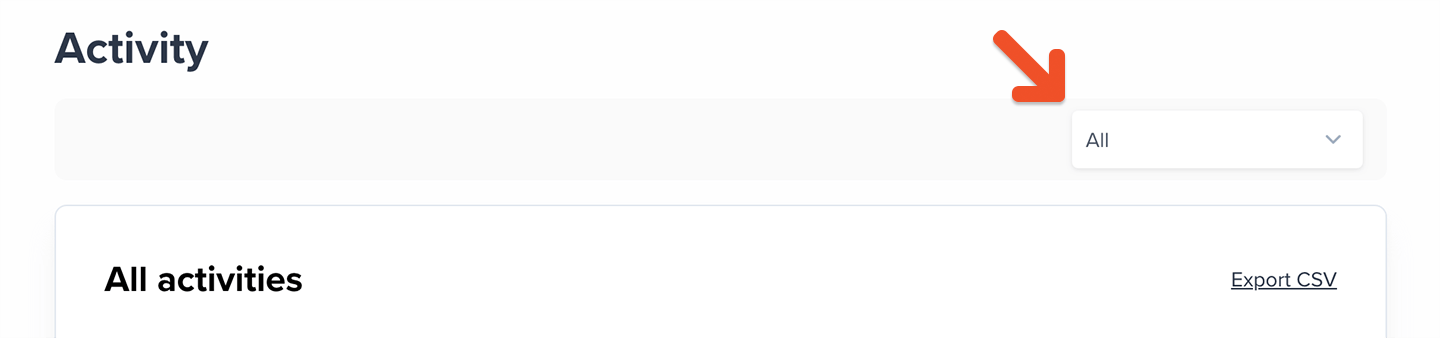 * Canceled subscription
* Enabled auto-renew
* Subscription moved
* External payment
* Externally paid renewal
* Free sign up
* Gift activated
* Member deleted
* New gift
* New order
* New group member
* Order completed
* Order refunded
* Order suspended
* Renewal
* Subscription deactivated
* Subscription deleted
* Group member delete
* Upgrade
Click **Export CSV.**
* Canceled subscription
* Enabled auto-renew
* Subscription moved
* External payment
* Externally paid renewal
* Free sign up
* Gift activated
* Member deleted
* New gift
* New order
* New group member
* Order completed
* Order refunded
* Order suspended
* Renewal
* Subscription deactivated
* Subscription deleted
* Group member delete
* Upgrade
Click **Export CSV.**
 These are the fields we include in the export file:
| | |
| ------------- | -------------- |
| Activity type | Member's email |
| Description | Date |
## Export cancellation data
Go to *Revenue → Cancellations*, select the *Active* or *Expired* tab, and choose a filter:
These are the fields we include in the export file:
| | |
| ------------- | -------------- |
| Activity type | Member's email |
| Description | Date |
## Export cancellation data
Go to *Revenue → Cancellations*, select the *Active* or *Expired* tab, and choose a filter:
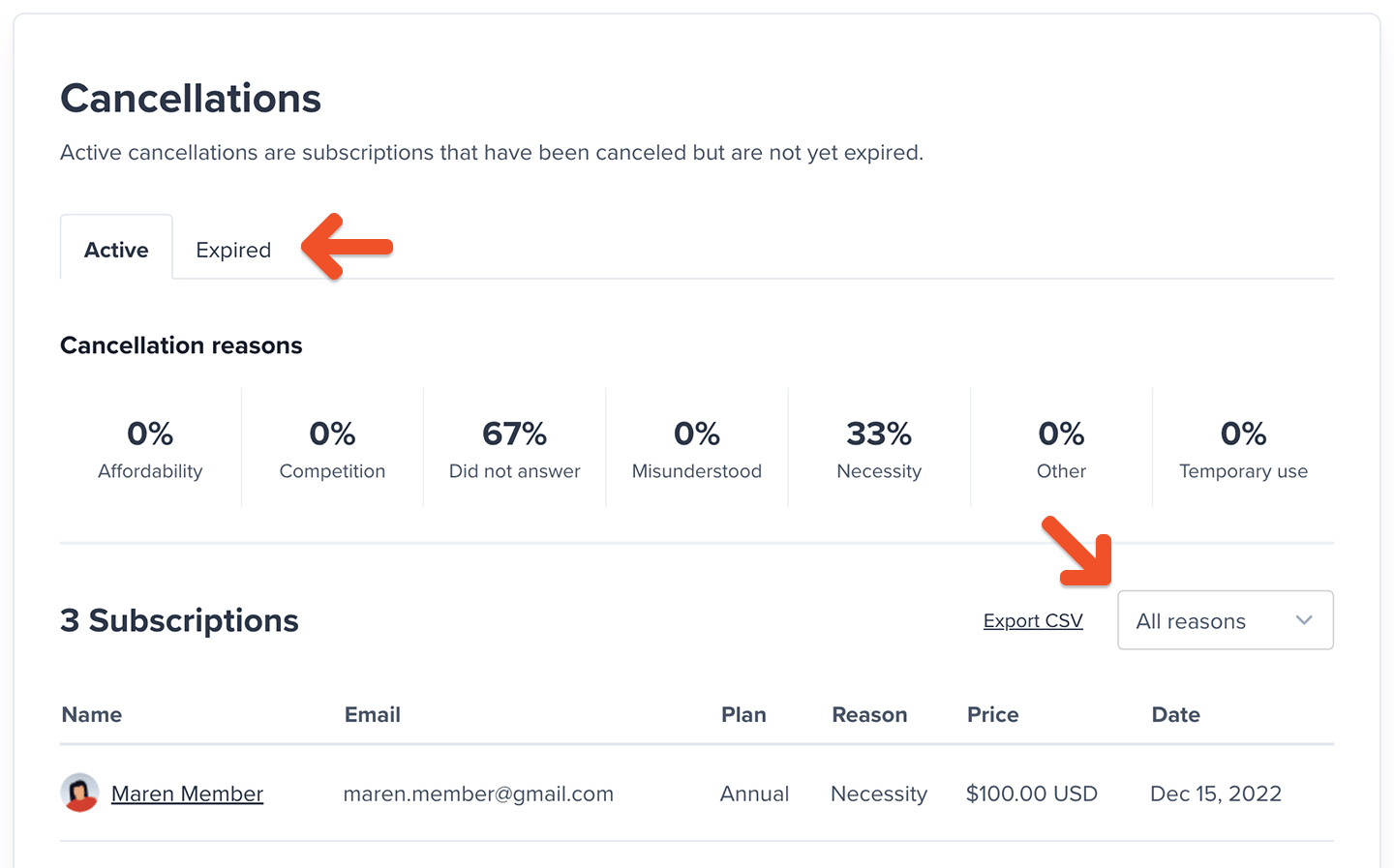 * All reasons
* Necessity
* Affordability
* Misunderstood
* Temporary use
* Competition
* Other
* Skipped
Click **Export CSV.**
* All reasons
* Necessity
* Affordability
* Misunderstood
* Temporary use
* Competition
* Other
* Skipped
Click **Export CSV.**
 These are the fields we include in the export file:
| | |
| --------- | ------ |
| Full Name | Email |
| Plan | Price |
| Date | Reason |
| Feedback | |
These are the fields we include in the export file:
| | |
| --------- | ------ |
| Full Name | Email |
| Plan | Price |
| Date | Reason |
| Feedback | |