Related help docs:
 ## Manage group members
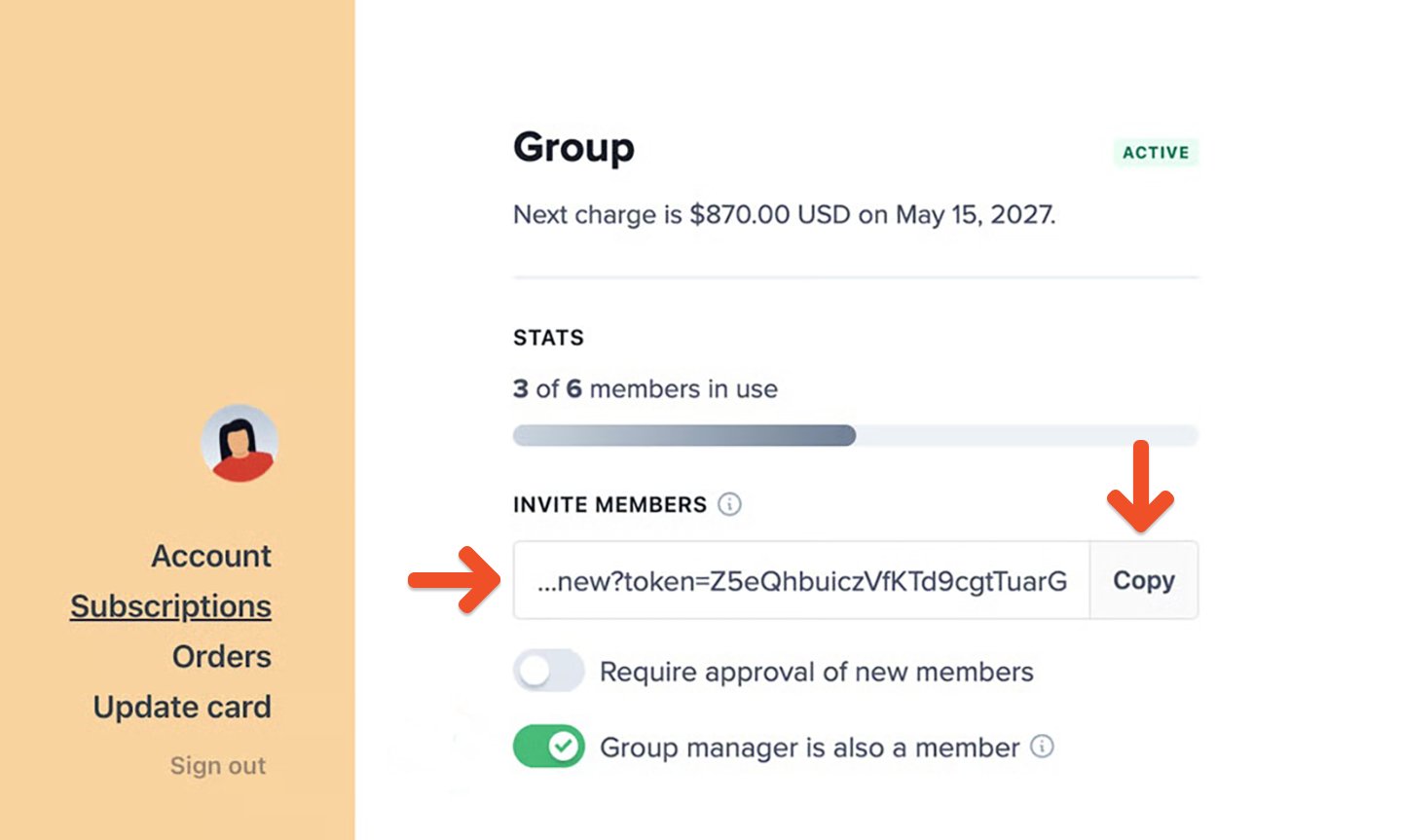
Group managers can review current group members from the group management page. They can:
* promote another member to group manager
* remove members from the group
* review available seats
* search the member list when the group has more than 10 members
Group members can leave the subscription at any time from the **Subscriptions** tab in their account. When a member leaves or is removed, their seat becomes available for another person to join.
## Manage group members
Group managers can review current group members from the group management page. They can:
* promote another member to group manager
* remove members from the group
* review available seats
* search the member list when the group has more than 10 members
Group members can leave the subscription at any time from the **Subscriptions** tab in their account. When a member leaves or is removed, their seat becomes available for another person to join.
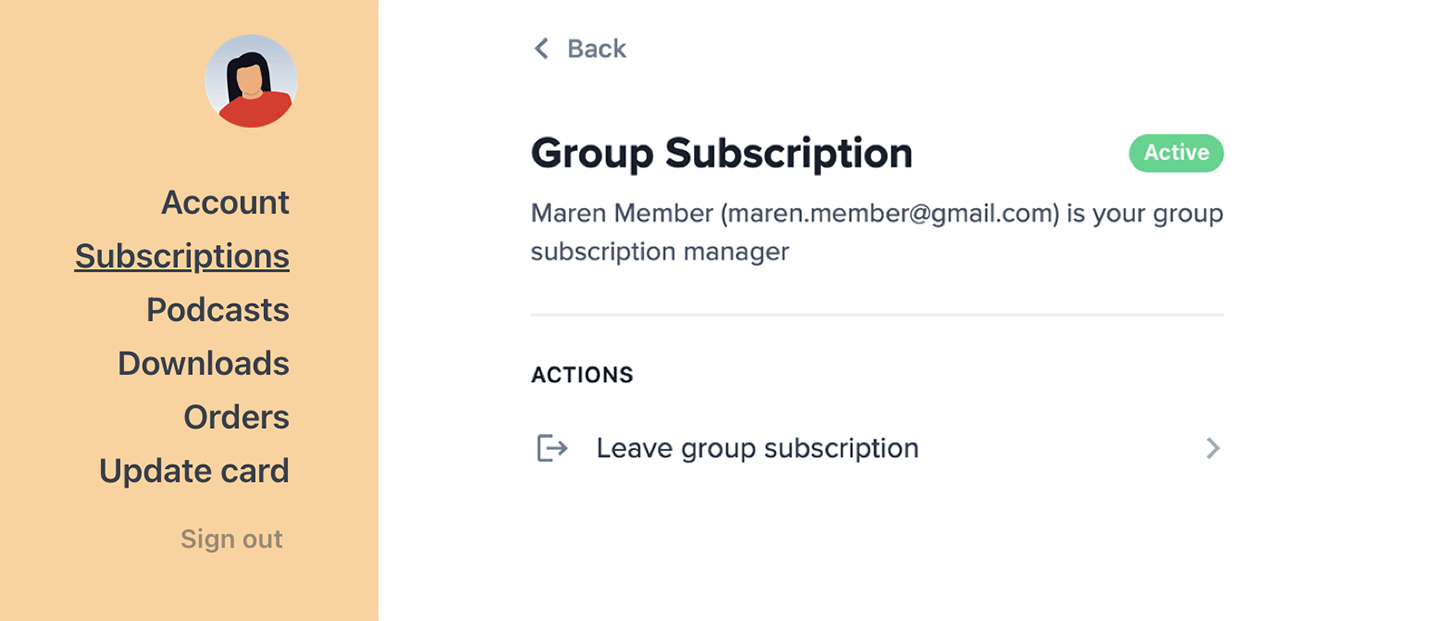 ## Require approval before members join
Group managers can choose whether new members need approval before they are added to the group subscription.
When approval is required, people who use the invite link are not added automatically. The group manager must approve them first.
## Require approval before members join
Group managers can choose whether new members need approval before they are added to the group subscription.
When approval is required, people who use the invite link are not added automatically. The group manager must approve them first.
 ## Choose whether the group manager counts as a member
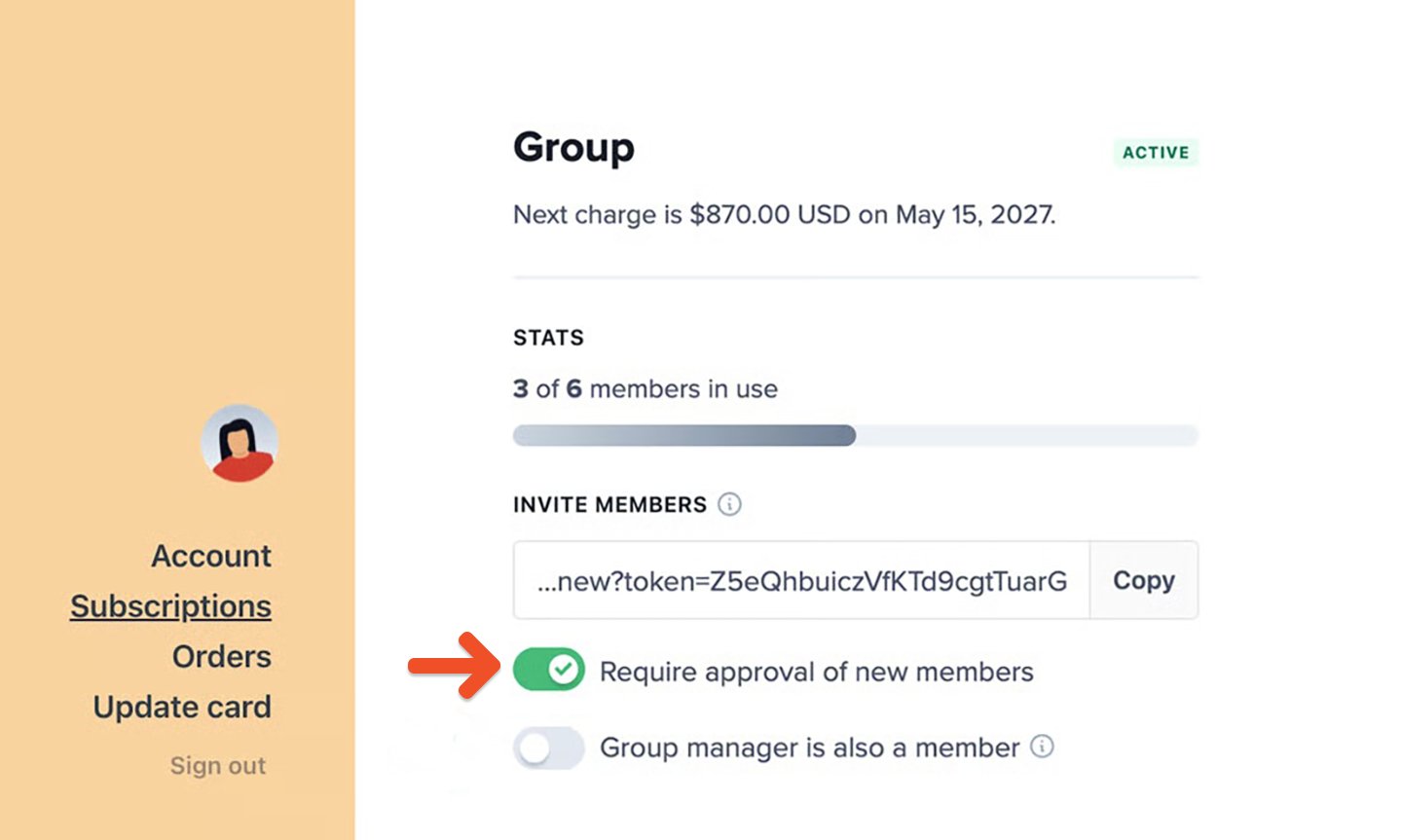
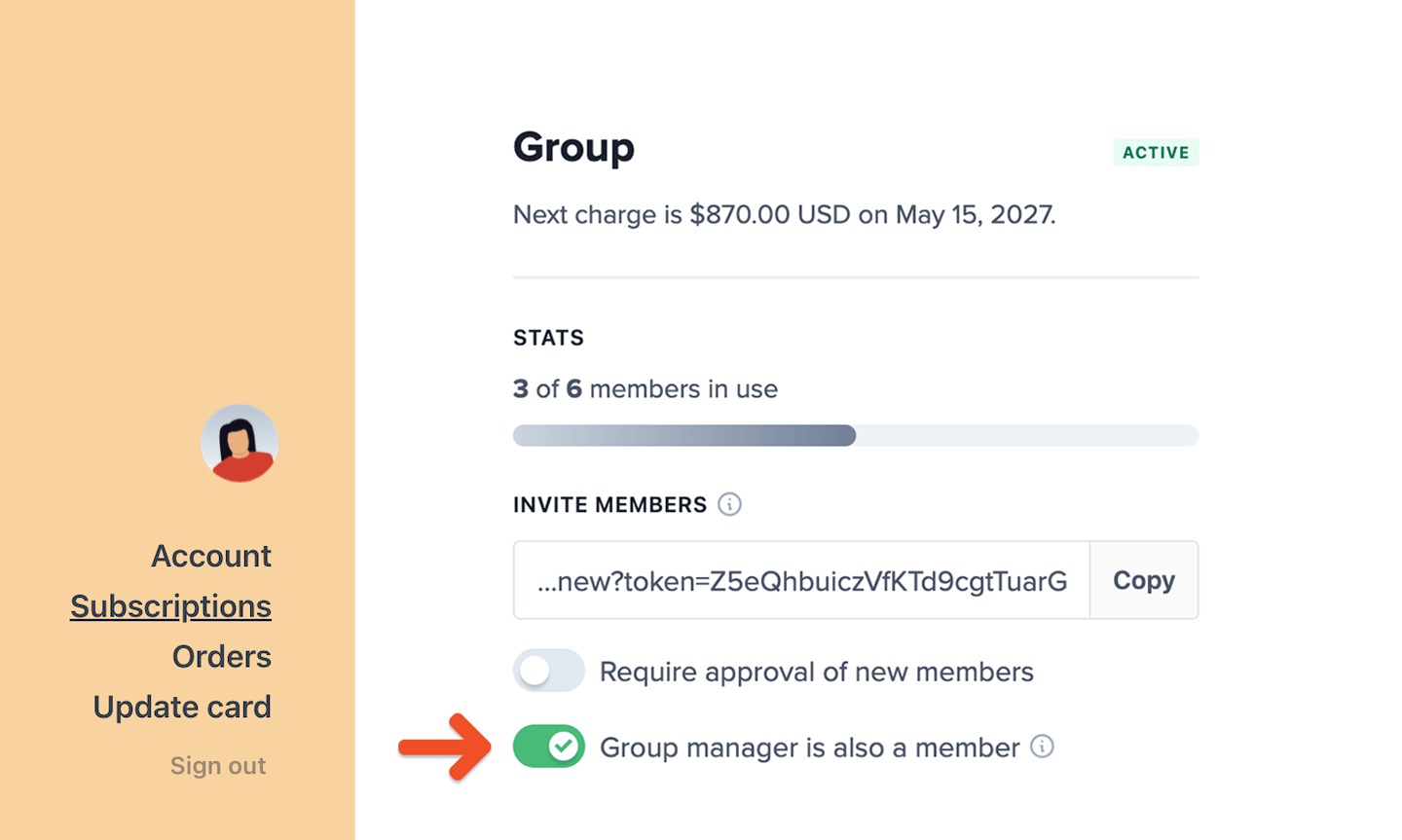
By default, group managers occupy a seat and receive member benefits. If a group manager only wants to handle billing and member management, they can opt out of the seat count.
You, as the site admin, [can access this setting from the Memberful dashboard](/docs/member-management/group-management/add-or-remove-group-members/#how-the-group-manager-can-exclude-themselves-from-the-seat-count). The group manager can also manage this setting from their account.
To stop counting as a member, the group manager can:
1. Go to the **Subscriptions** tab in their account.
2. Toggle off *Group manager is also a member*.
## Choose whether the group manager counts as a member
By default, group managers occupy a seat and receive member benefits. If a group manager only wants to handle billing and member management, they can opt out of the seat count.
You, as the site admin, [can access this setting from the Memberful dashboard](/docs/member-management/group-management/add-or-remove-group-members/#how-the-group-manager-can-exclude-themselves-from-the-seat-count). The group manager can also manage this setting from their account.
To stop counting as a member, the group manager can:
1. Go to the **Subscriptions** tab in their account.
2. Toggle off *Group manager is also a member*.
 When this setting is toggled off:
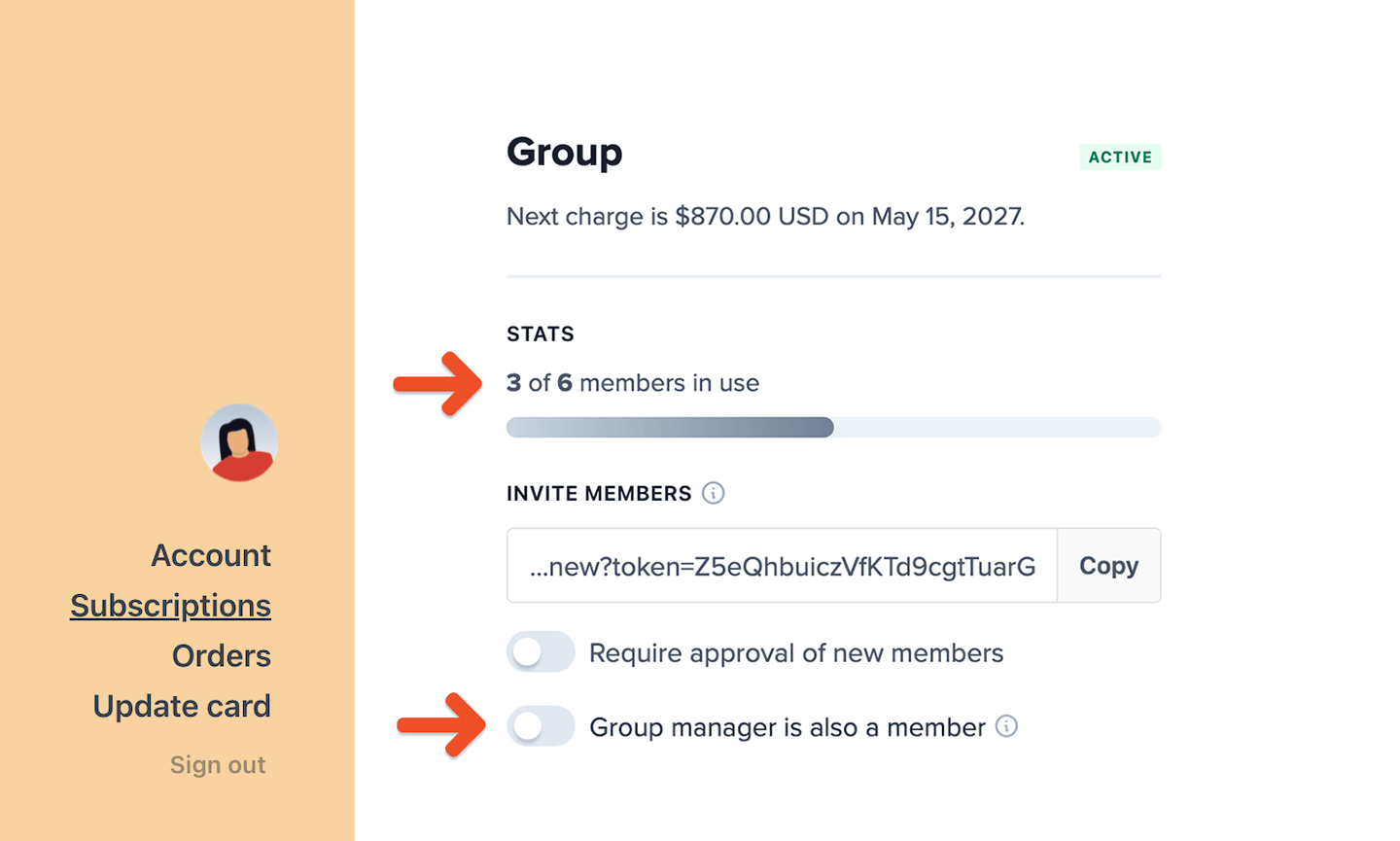
* The group manager no longer occupies a seat.
* One seat becomes available for another group member.
* The group manager loses access to member benefits, such as newsletters, Discord access, or gated content.
When this setting is toggled off:
* The group manager no longer occupies a seat.
* One seat becomes available for another group member.
* The group manager loses access to member benefits, such as newsletters, Discord access, or gated content.
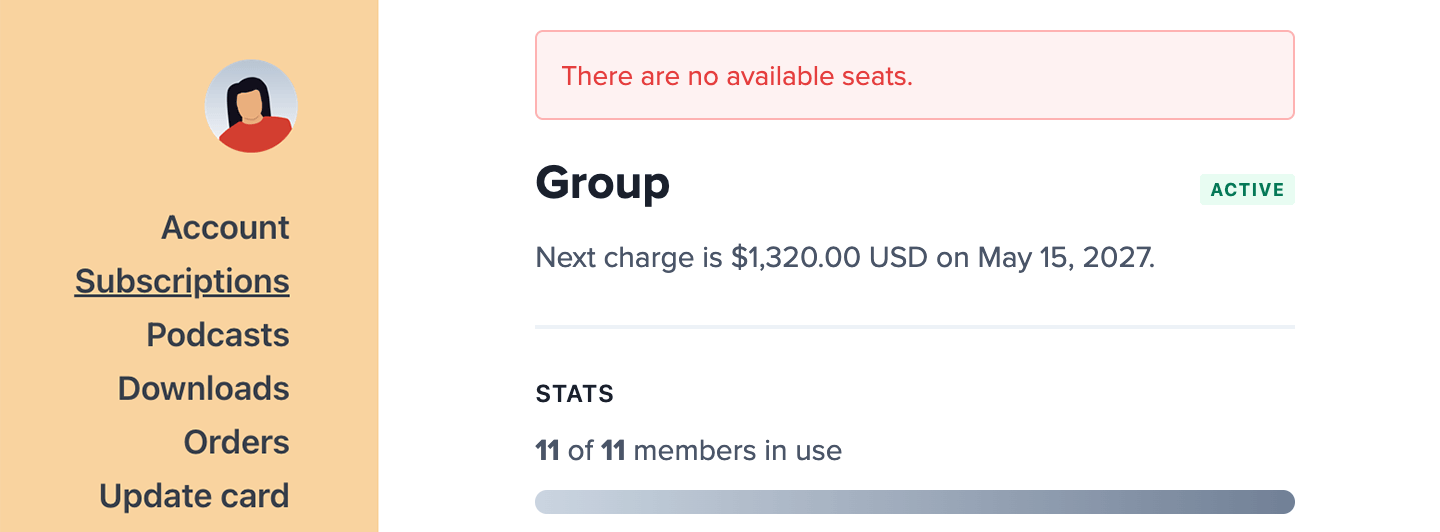
 If no seats are available and the group manager has opted out, they won't be able to toggle *Group manager is also a member* back on until a seat is available.
 To make a seat available, the group manager can:
* purchase an additional seat
* remove an existing group member
## Purchase additional seats
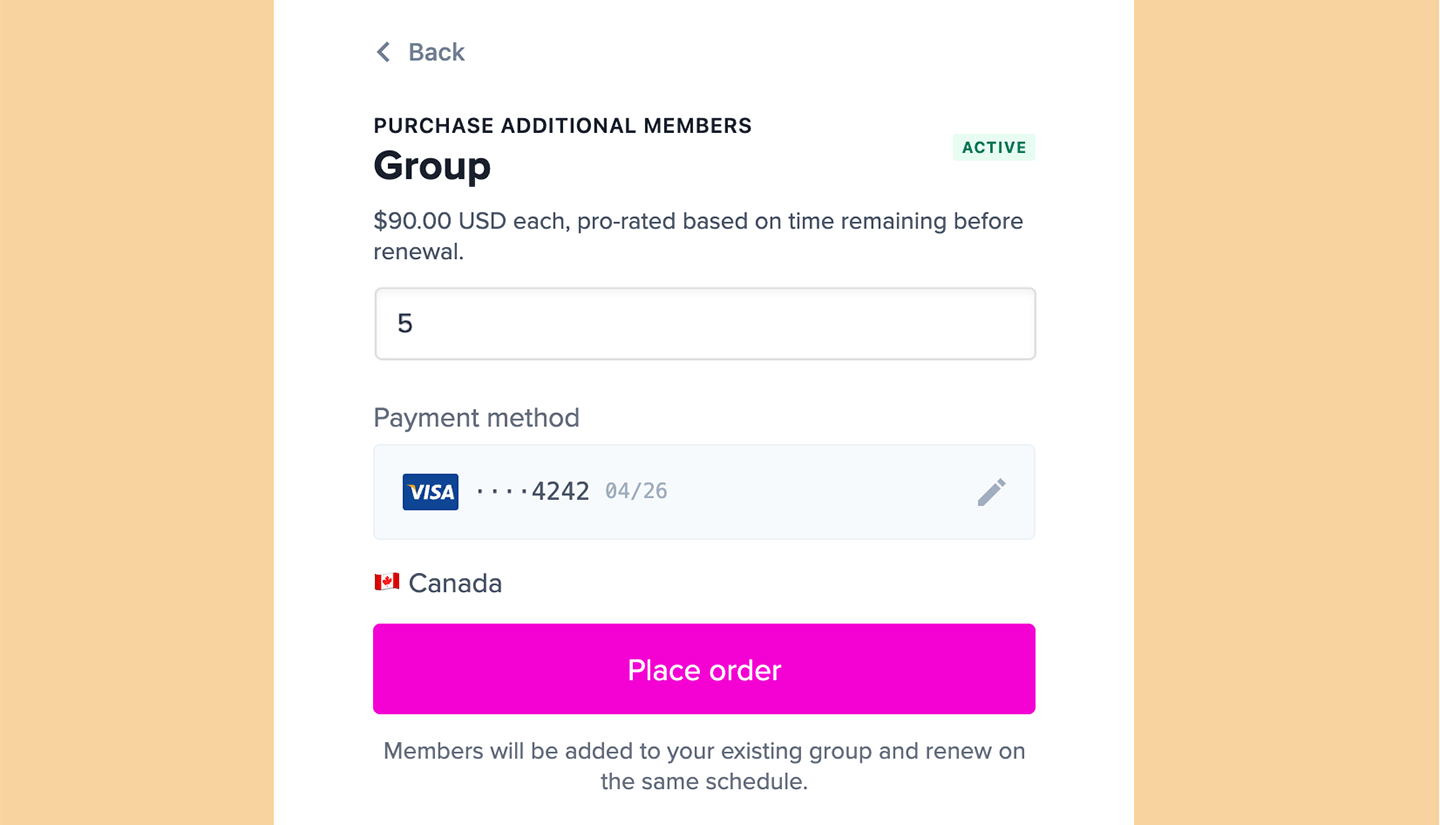
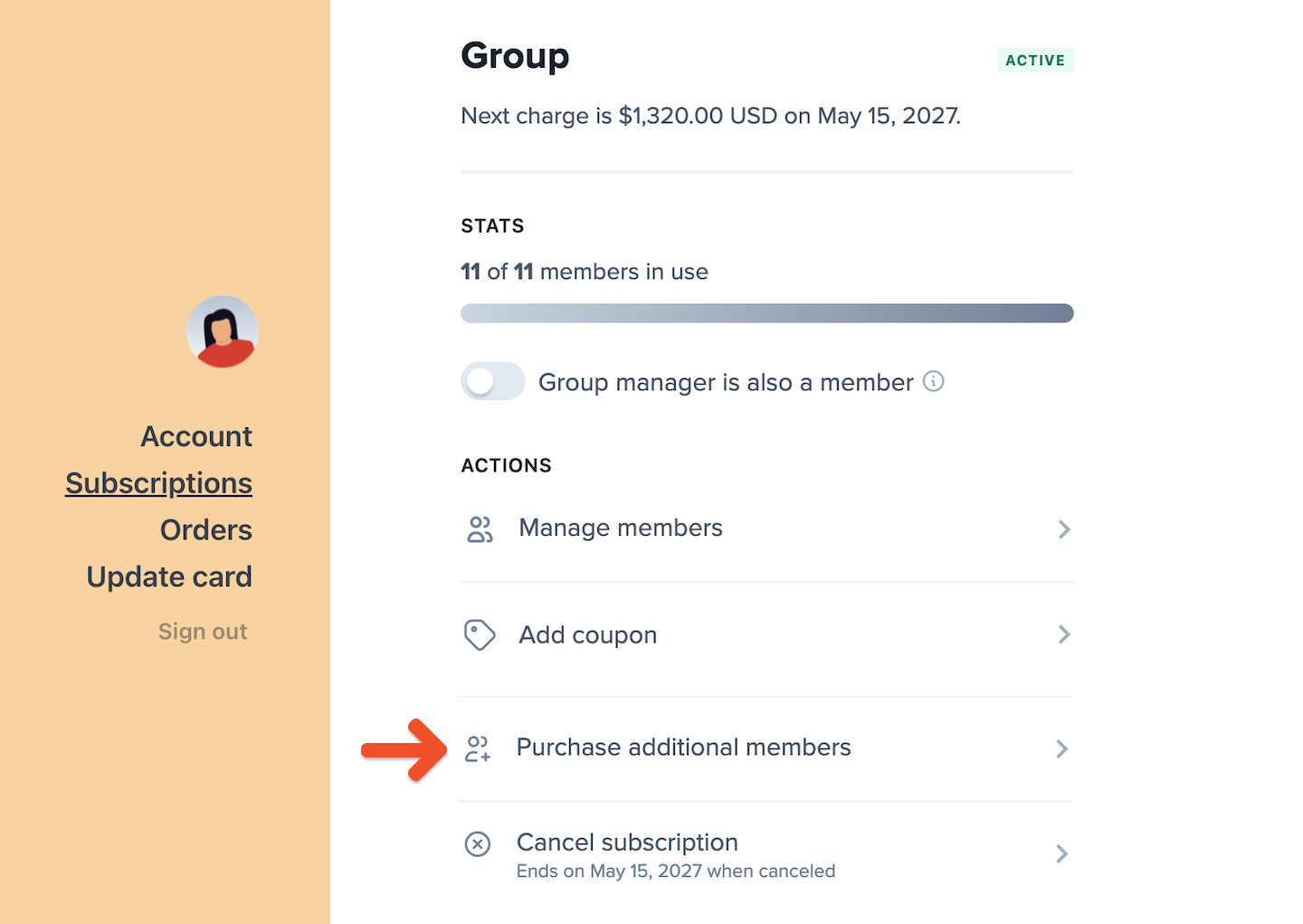
Group managers can purchase additional member seats from the **Subscriptions** tab in their account when the plan allows additional seat purchases and no plan changes are scheduled.
To make a seat available, the group manager can:
* purchase an additional seat
* remove an existing group member
## Purchase additional seats
Group managers can purchase additional member seats from the **Subscriptions** tab in their account when the plan allows additional seat purchases and no plan changes are scheduled.
 Additional seats can only be purchased when a per-member price is set for the subscription plan.
When a group manager purchases additional seats:
* New seats are prorated based on the time remaining in the current billing period.
* The group manager can use the additional seats after they are added.
* On the next renewal, the full per-seat cost is included in the subscription total.
Additional seats can only be purchased when a per-member price is set for the subscription plan.
When a group manager purchases additional seats:
* New seats are prorated based on the time remaining in the current billing period.
* The group manager can use the additional seats after they are added.
* On the next renewal, the full per-seat cost is included in the subscription total.